44 1670 001-GB-I
HDA eco
59
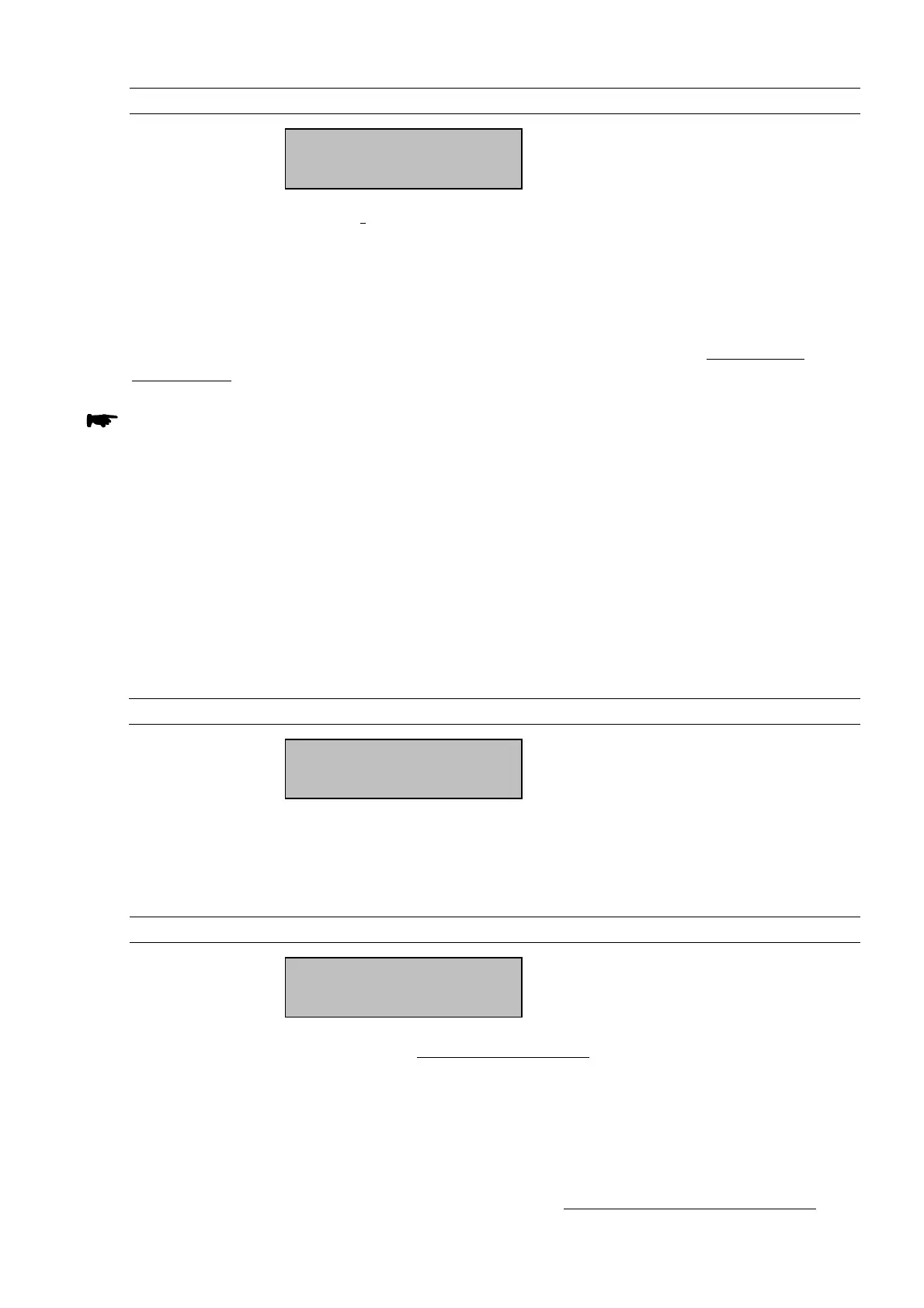
5.3.4.3.11 Menu Interface for WiFi socket modem option
Display (e.g.):
This menu is only available if a WiFi socket modem has been selected as the inter-
face. This is where users can enter the necessary parameters for operating the WiFi
socket modem. The type and number of menu items vary depending on the nature of
the connection type. A corresponding note points this out (where applicable) in the
description of the individual menu items.
We recommend not configuring the settings manually, but instead generating them
using the HD Manager program (only full version) or on the website www.myte-
calemit.com and importing them into the fuel terminal using a USB flash drive.
For operation with mytecalemit Cloud, the WiFi/LAN must fulfill the following
prerequisites:
Connecting the HDA eco to the internet must be possible without a proxy server,
as the HDA eco does
not
support a login.
Port 53 for DNS queries must be enabled for the TCP/IP protocol.
The HDA eco does not perform any DNS queries via the UDP protocol.
This menu is only available if a WLAN socket modem is present (option). This is where
it is possible to enter the necessary parameters for operating the WLAN socket mo-
dem. If necessary, the network administrator should be consulted for the correct set-
tings and adjustment to the existing network. Select the menu points using the ‘▲
and ‚▼‘ buttons and confirm with 'ENTER', abort with 'EXIT'.
5.3.4.3.11.1 Ident. No. (WLAN)
Display (e.g.):
This is where you can see the identification number (device serial no.) for clear identi-
fication of the HDA eco in the network (unchangeable).
Leave the menu point with 'EXIT'.
5.3.4.3.11.2 Customer ID (WLAN)
Display (e.g.):
Only available for operation with www.hdmanager.net or mytecalemit Cloud.
Customer number to which the HDA eco is assigned. This is where the customer ID
can be entered for the unique identification of the operator of the HDA eco. This
unique ID is necessary to allow the correct registration of one or more fuel terminals
under a particular operator. This unique customer ID is assigned by TECALEMIT after
registration.
For mytecalemit Cloud, registration takes place via https://www.mytecalemit.com.
Menu Interface
Ident. No.:
Customer ID:


 To Next Page