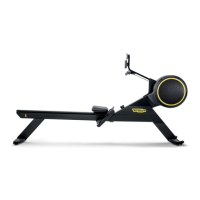
7. Scan with the camera of the smartphone the QR code of each SKILLROW console. Congure
each console with the number of the equipment, the name of the room and crew, through the
“Equipment Seing”of the Technogym Equipment setup APP.
WARNING: You must set the same name of the room, previously set in the pro.mywellness.com
site.
You can create 6 crews. Each crew can contain 8 equipment. So, the maximum number of
equipment is 64.
WARNING: You can associate to each equipment a number in the range [1 : 64].
8. Access to MYWELLNESS CLOUD of Unity Self. Scan with the camera of the smartphone the
QR code of the UNITY SELF. Congure the Unity Self with the number of Unity Self (associ-
ate a number not used by equipment) and the room, through the “Equipment Seing”of the
Technogym Equipment setup APP.
WARNING: You must set the same name of the room, previously set in the pro.mywellness.com
site. The name of the room in which is present the Unity Self must be equal to the name of the room
in which are present SKILLROW products.
WARNING: The Facility URL of SKILLROW products and Unity Self must be the same.
9. Create the layout of the class on the site pro.mywellness.com with SKILLROW products and
Unity Self.
SKILLROW:
Technical Service Guide - Rev. 1.1
Page 54
e-mail: support@technogym.com



 To Next Page