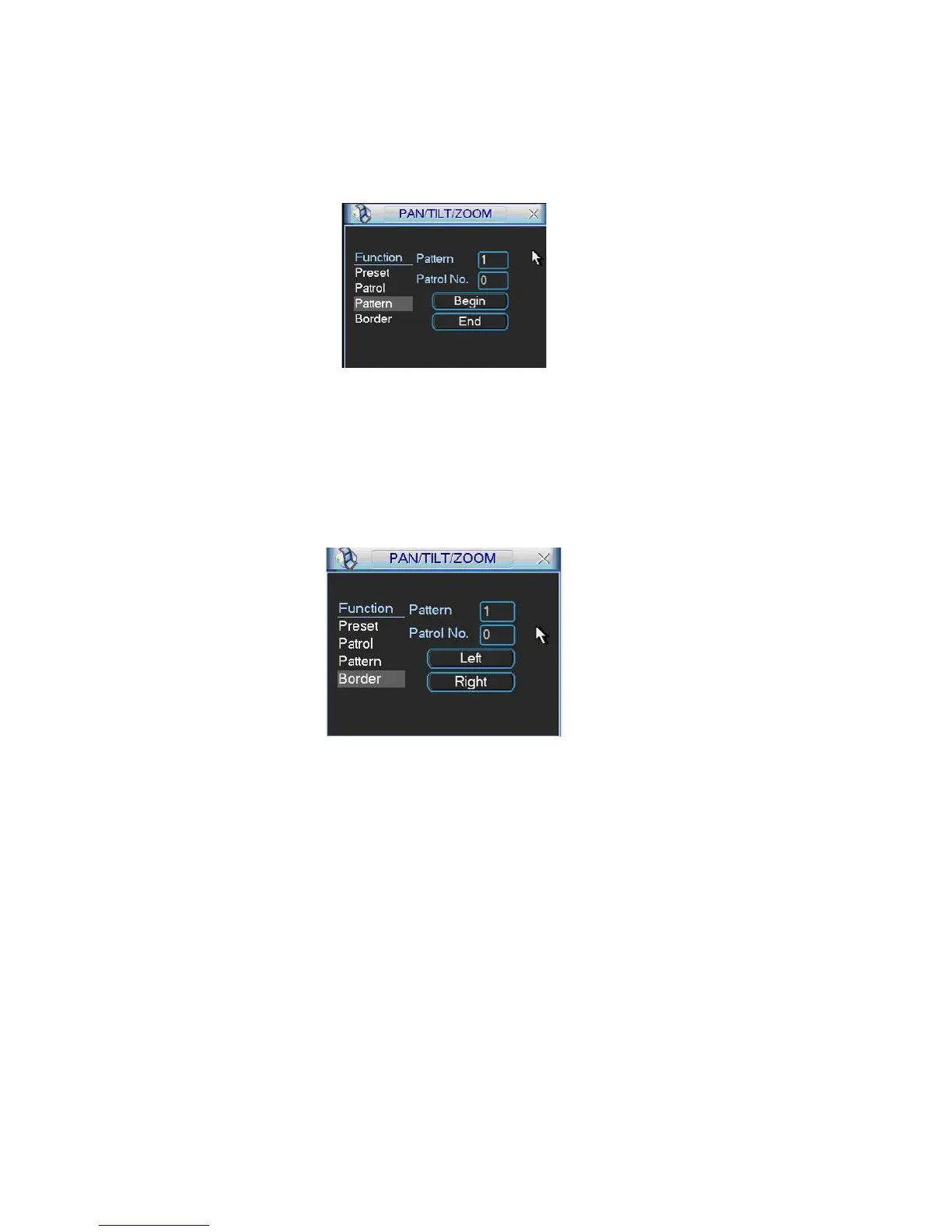
In Figure 6-
5, click pattern button and then click begin button. The interface shows
ure 6-2 to modify zoom, focus, and iris. Go back to Figure 6-9 and
e all these setups as pattern 1.
like Figure 6-9.
Please go to Fig
click end button.
You can memoriz
Figure 6-9
6.2.6 Activate Pattern Function
he No. blank, and click pattern button.
rder button. The interface is shown as in Figure 6-10.
then
In Figure 6-6 input mode value in t
6.2.7 Border Setup
In Figure 6-5, click bo
Please go to Figure 6-2, use direction arrows to select camera left limit, and
please go to Figure 6-10 and click left limit button
Repeat the above procedures to set right limit.
Figure 6-10
6.2.8 Activate Border Function
n, the system begins auto scan. Correspondingly,
6.2.9 Flip
-6, click page switch button, you can see an interface is shown as below.
igure 6-2.
In Figure 6-6, click auto scan butto
the auto scan button changes to stop button.
Click stop button to terminate scan operation.
In Figure 6
See Figure 6-11. Here you can set auxiliary function.
Click page switch button again, system goes back to F
90



 To Next Page