Aligna
®
4D User Manual
42 / 84
To change the value of these parameters there are different alternatives.
The most convenient way is to use the mouse wheel, when the mouse is located at the
device position (without clicking the left or right mouse button).
(It is strongly recommended to use a mouse with a mouse wheel, even at laptop
computers with sense pad.)
Even very fine or coarse changes can be realized:
The sensitivity of the mouse wheel can be controlled by pressing additional keyboard keys
while mouse wheel movement
- pressing the "shift" key: factor of 10 higher resolution
- pressing the "ctrl" key: factor of 100 higher resolution
- pressing the "alt" key: factor of 10 stronger variation.
(The scaling of the variation can be additionally defined by a device's parameter, called
"push factor", to any user-defined high or low sensitivity. This can be defined by editing the
device object, selected by right mouse key, "edit object #xxx".)
In the lack of a mouse wheel you can click at the device and push the value horizontally.
Even here the "shift", "control" and "alt" keys will increase or decrease the sensitivity.
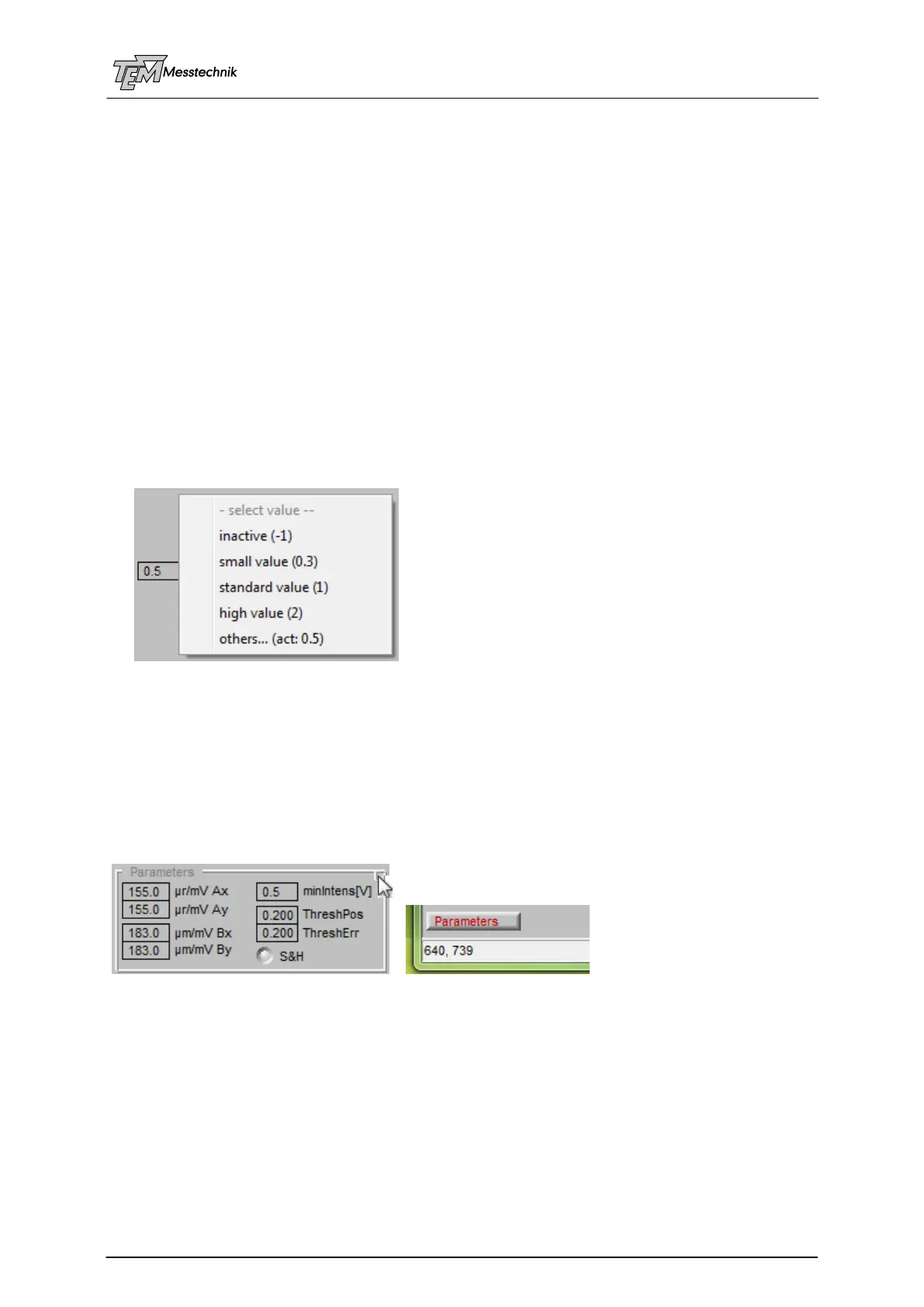
Many devices have predefined values, which are displayed by a pull-up menu when left-
clicking the device. Selecting item "others…" allows input of any user-defined value.
A right-click to the device opens a pull-up menu, which also offers the ability of defining the
value by selecting "set value" (even if no "toggle" pull-up menu is defined with this device.)
10.1.3 Sections
The configurations are usually separated into sections for more clearness and convenience.
Some sections contain parameters, which are not needed all the time, just for setting once, or
which are used rather seldom. By clicking the upper right "close" button, the section window
will be shrunk to a small button at the bottom line of the user screen. The section window can
be re-sized by clicking to the shrunk button.
.
10.1.4 Hotkeys
Most of the hotkeys are defined in the menu definition (which can be modified by the user.)
A list of the actual hotkeys is given in the menu item "Help / Kangoo / show common hotkeys".
Some of the hotkeys are described later, for explaining device control (like "Ctrl D" for switch-
ing on and off device activity), "r" for "redraw", "a" for "rescale all coordinate frames", etc.



 To Next Page