4 Software
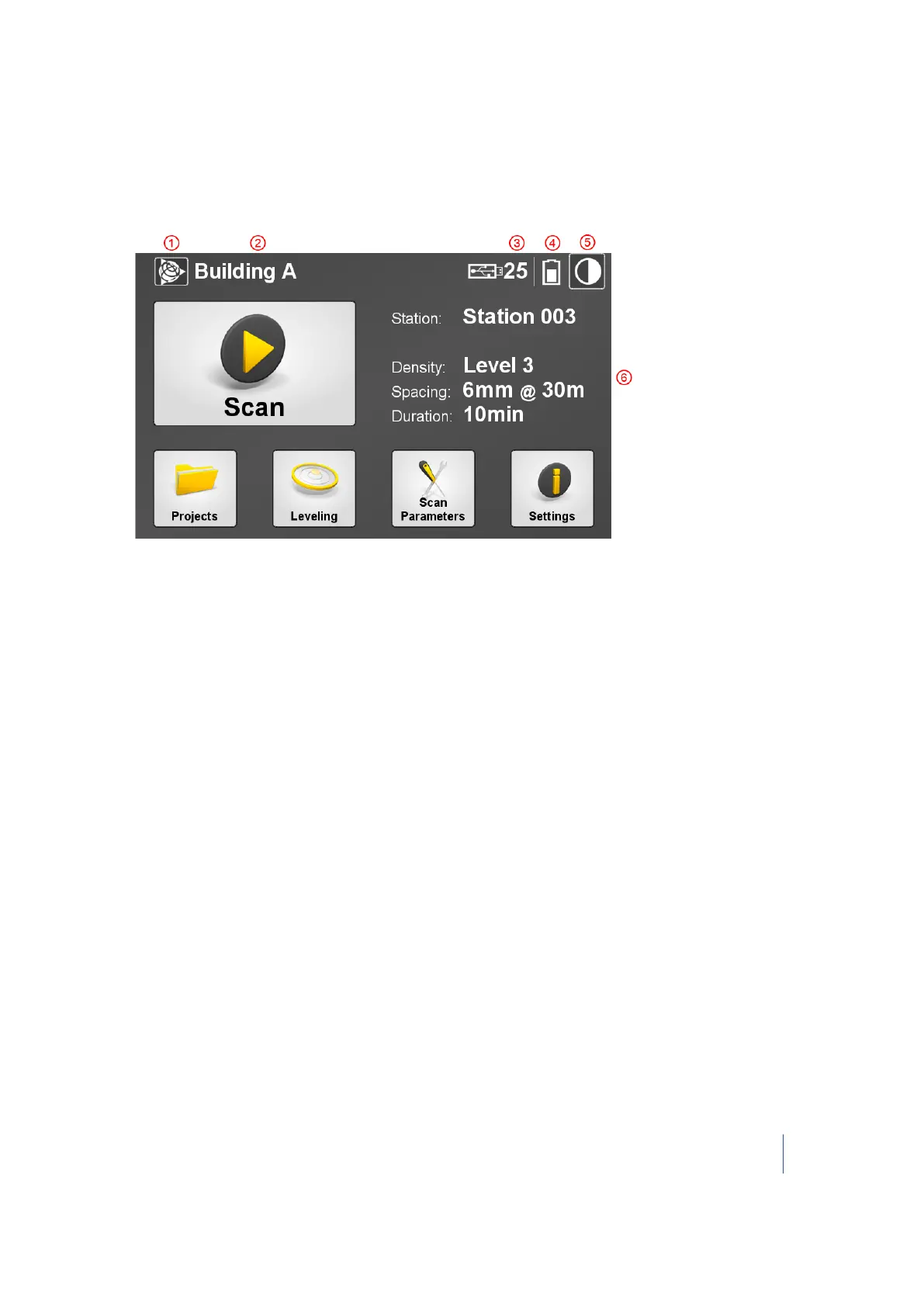
Touch screen
The touch screen is a resistive screen. You can use either your finger, or the stylus that comes with
the instrument to access the software settings and to perform scans.
1 Trimble icon 4 Approximate remaining battery power
2 Current project 5 High contrast icon
3 Number of scans that can be stored in
the USB flash drive using the current
scan settings
6 Current scanning settings
When powering the instrument with the USB flash drive missing, a dialog appears and prompts you
to insert a USB flash drive. The USB Flash Drive icon flashes red. The message No USB Flash Drive
appears next to the Trimble icon and there is no station name in the "Station" line.
Once an USB flash drive has been inserted into the USB port of the instrument, the dialog closes.
The message NO USB Flash Drive disappears. The red and flashing USB Flash Drive icon stops
flashing. It becomes white and displays the number of scans (based on the current settings) that it
can store.
Note – The dialog only appears when the instrument starts. When unplugging the USB flash drive
from the instrument while it is already powered on, only the USB flash drive icon flashes red and
the message NO USB Flash Drive appears next to the Trimble icon.
Note – If the USB flash drive is missing, some features of the software are disabled. Selecting these
features causes the screen to re-appear.
Trimble TX8 3D Laser Scanner User Guide 53



 To Next Page