4 Software
Managing projects
Projects can be created, opened, edited, and deleted.
Creating a project
1.
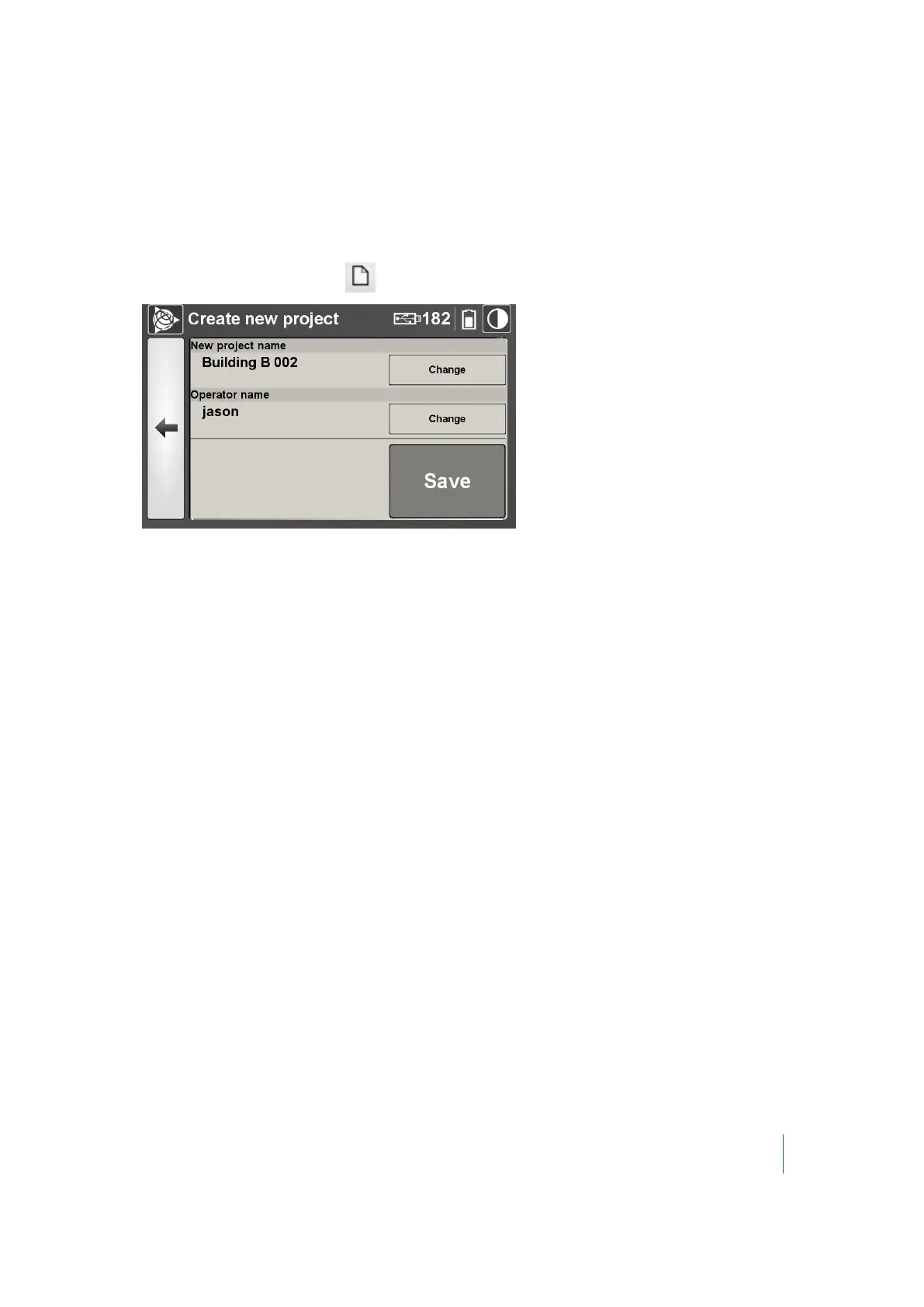
From the Projects menu, tap . The Create new project dialog appears:
2.
In the New Project Name panel, tap Change. The Project name dialog appears. Enter a name
for the project and then tap OK.
The name for the next project is the current (or last) project with an increment. This increment
can be either a number or a letter. For example, if the last character for the current project is 8,
it will be then 9. If it is a S, it will be then a T, and so on. The name can be composed of letters,
numbers, and characters. Some characters are forbidden, which are dimmed on the keyboard.
3.
In the Operator Name panel, tap Change. The Operator name dialog appears. Enter the name
of the operator and then tap OK.
If an operator name has been entered for the current project, this name is then used for the
next project and it is displayed in the panel. If there is no operator name, the Operator Name
panel is blank. The name can be composed of letters, numbers, and characters. The Operator
Name is reset to blank when you reset your Personal Settings.
4. Tap Save. The Create New Project dialog disappears.
A project folder named Project XXX is created under the root of the USB flash drive. Under that
folder, a RealWorks project file with an RWP file extension is also created.
Trimble TX8 3D Laser Scanner User Guide 55



 To Next Page