4 Software
Setting the date and time
If the default date and time settings do not match the current time zone, change them manually.
The format is Year/Month/Day (date) and Hour/Minutes/Seconds (time).
The Date - Time panel shows the current date and time.
1.
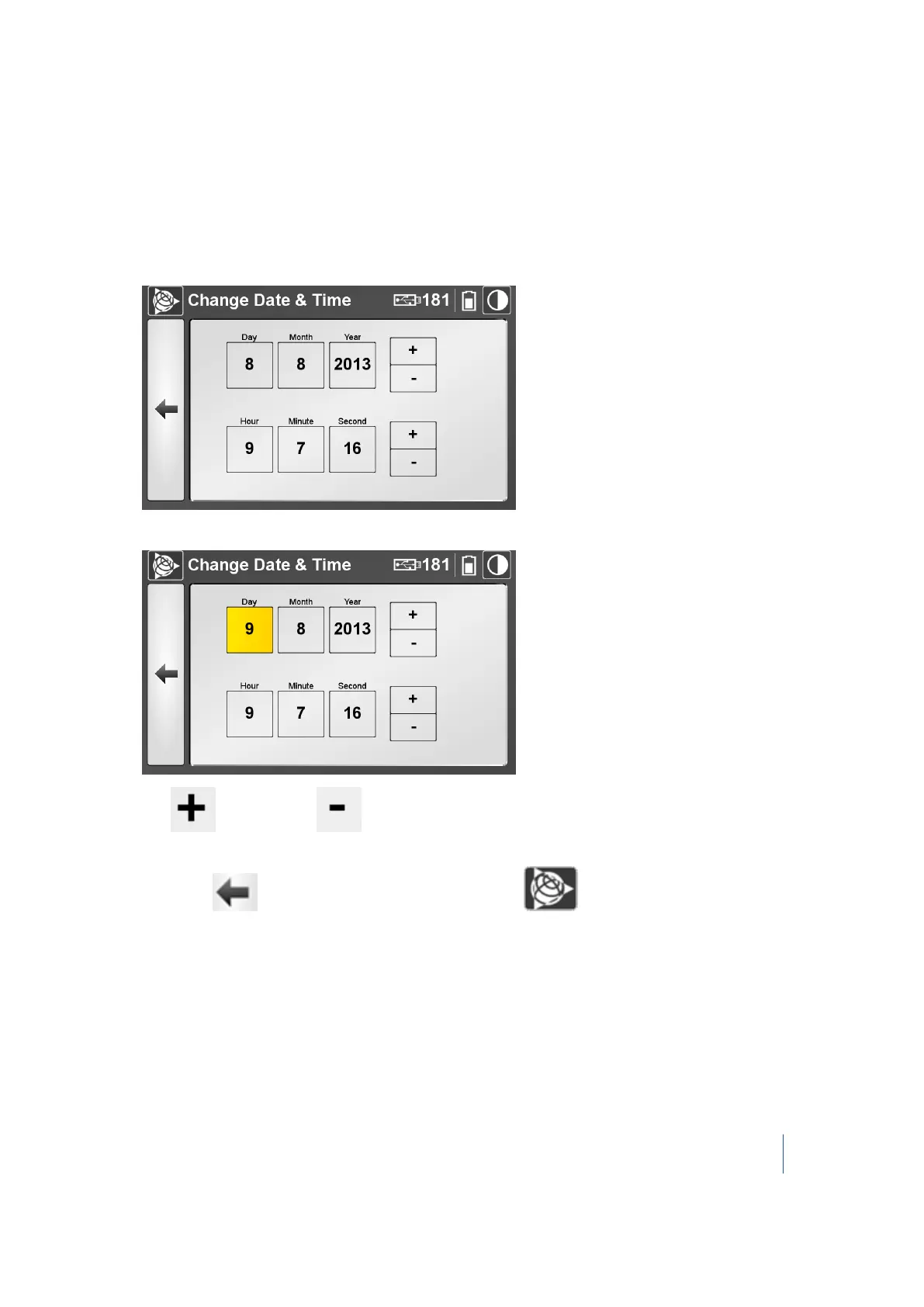
Next to the Date - Time panel, tap Change. The Change Date & Time dialog appears:
2.
Tap in a field. It is highlighted in yellow:
3.
Tap to increase or to decrease by one digit until the date and time change to your
requirements.
4.
Either tap to return to the Settings dialog or tap to return to the main menu.
Trimble TX8 3D Laser Scanner User Guide 84



 To Next Page