4 Software
Entering the instrument height
If your instrument has been initially leveled (green bubble) and the Compensator enabled, you are
able to enter the Instrument Height.
1.
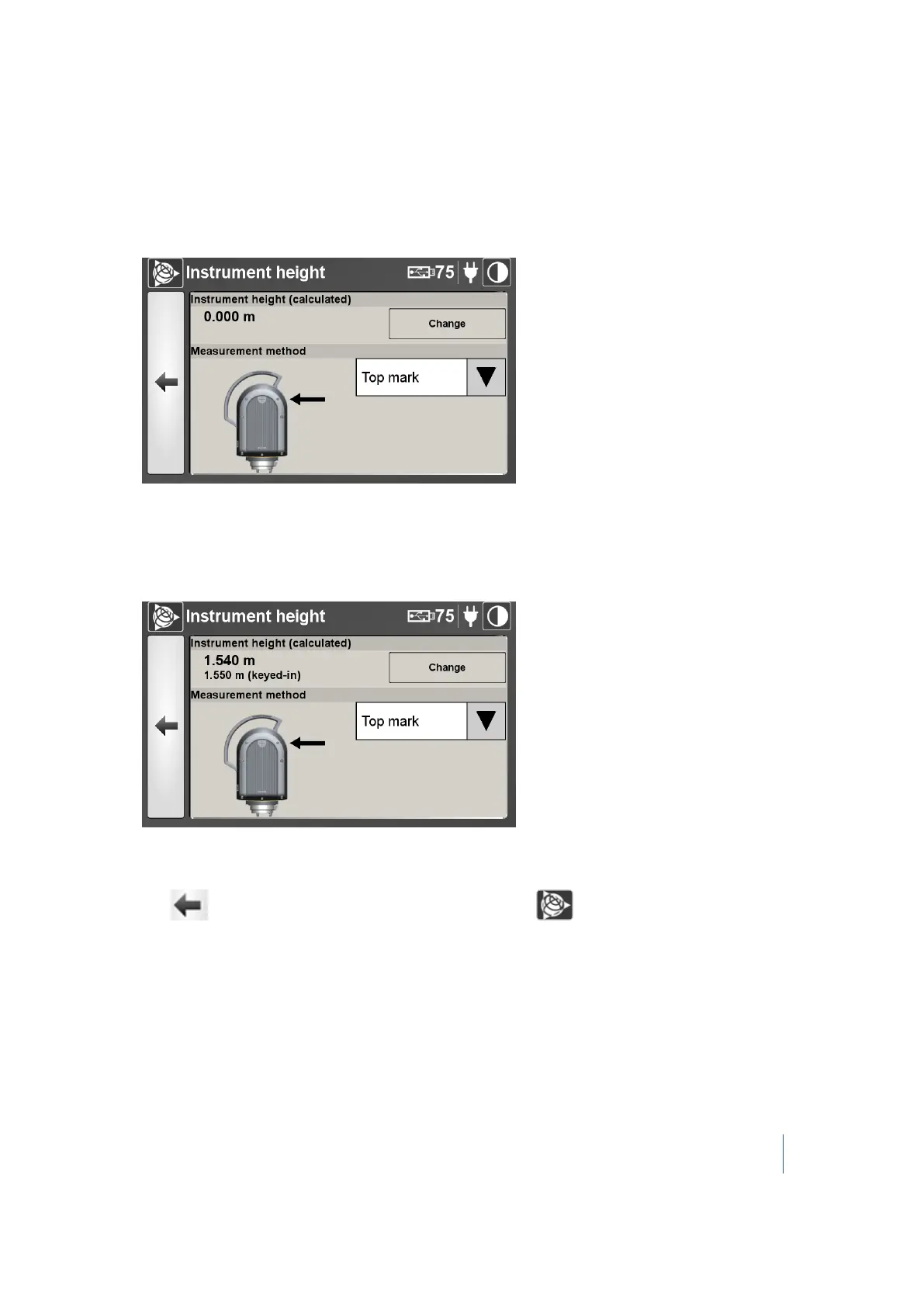
In the Instrument height panel, tap Change. The Instrument height screen appears:
2. Tap Change and the on-screen keyboard appears.
3. Enter the value measured in the field. You can add numbers that include a decimal point.
4.
Tap OK. The on-screen keyboard disappears. The keyed in value and the calculated value are
displayed:
5. In the Measurement method panel, tap the pull-down arrow and select Top mark or Bottom
mark. The calculated value changes according to the chosen method.
6.
Tap to return to the Scan parameters dialog or tap to return to the main menu.
Note – If the instrument has not been initially leveled (the bubble is yellow in the Leveling window)
or when it has been leveled (the bubble is green) but the Compensator is disabled , you are not
able to enter the instrument height and the Instrument height panel may show "Not Leveled" and
the Levelling button in place of the Change button.
Trimble TX8 3D Laser Scanner User Guide 80



 To Next Page