4 Software
Opening a project
1.
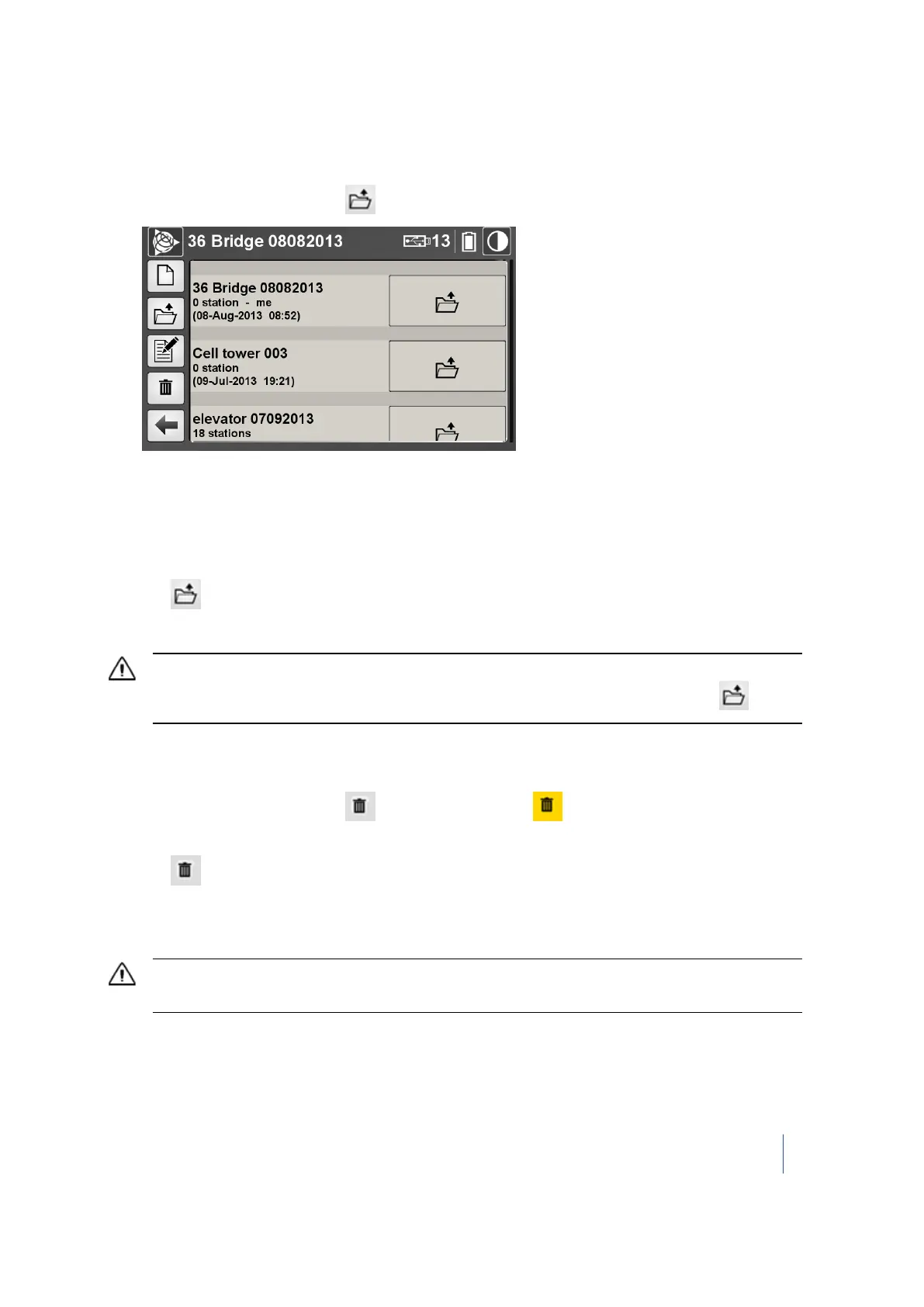
From the Projects menu, tap . All projects are listed in order of creation:
2. For each project, you can view the following information:
l l Project name.
l Number of stations – Operator name.
l Day/Month/Year and time of creation between parenthesis.
3.
Tap next to the project that you want to open. All stations in the project are listed. See
Managing stations, page 58.
CAUTION – Once you open and save a project in the Trimble RealWorks software, you will no longer be able to
open it on the TX8 scanner. It disappears from the projects list after you tap the Open Projects icon .
Deleting a project
1.
From the Projects menu, tap . The icon turns yellow and a Delete icon appears next to
each project except for the current open project. You cannot delete an open project.
2.
Tap next to the project that you want to delete. A dialog prompts you to confirm the
operation.
3. Tap Yes.
CAUTION – Deleting a project deletes the related project file (with an RWP extension) and folder (with an RWI
extension) as well as all scans in the project.
Trimble TX8 3D Laser Scanner User Guide 56



 To Next Page