37
set. There are only three sets of job settings available, one for each type of graphic element in your print
job: raster objects, vector cut objects and vector mark objects. All elements of the graphic interpreted as
raster objects will be converted to grayscale and printed using the raster job settings with a grayscale dither
pattern applied. A dither pattern is a method of mimicking shades of gray using patterns of dots with varying
spacing. Dots further apart will appear lighter gray and dots closer together will appear darker gray. This is
how the laser system is able to print shaded images and photographs. If you desire a solid background
removal for certain elements of your graphic instead of a dither pattern, you must make those elements
solid black in color. Objects to be vector cut must be in red and must have a thickness of .001” (.0254 mm)
or less. Objects to be vector marked must be in blue and must have a thickness of .001” (.0254 mm) or less.
Any vector elements in your graphic that are not blue or red in color will be converted to grayscale and
printed as raster objects. Order of execution when using the materials database tab proceeds with raster
objects first, then vector marking objects and finally vector cutting objects.
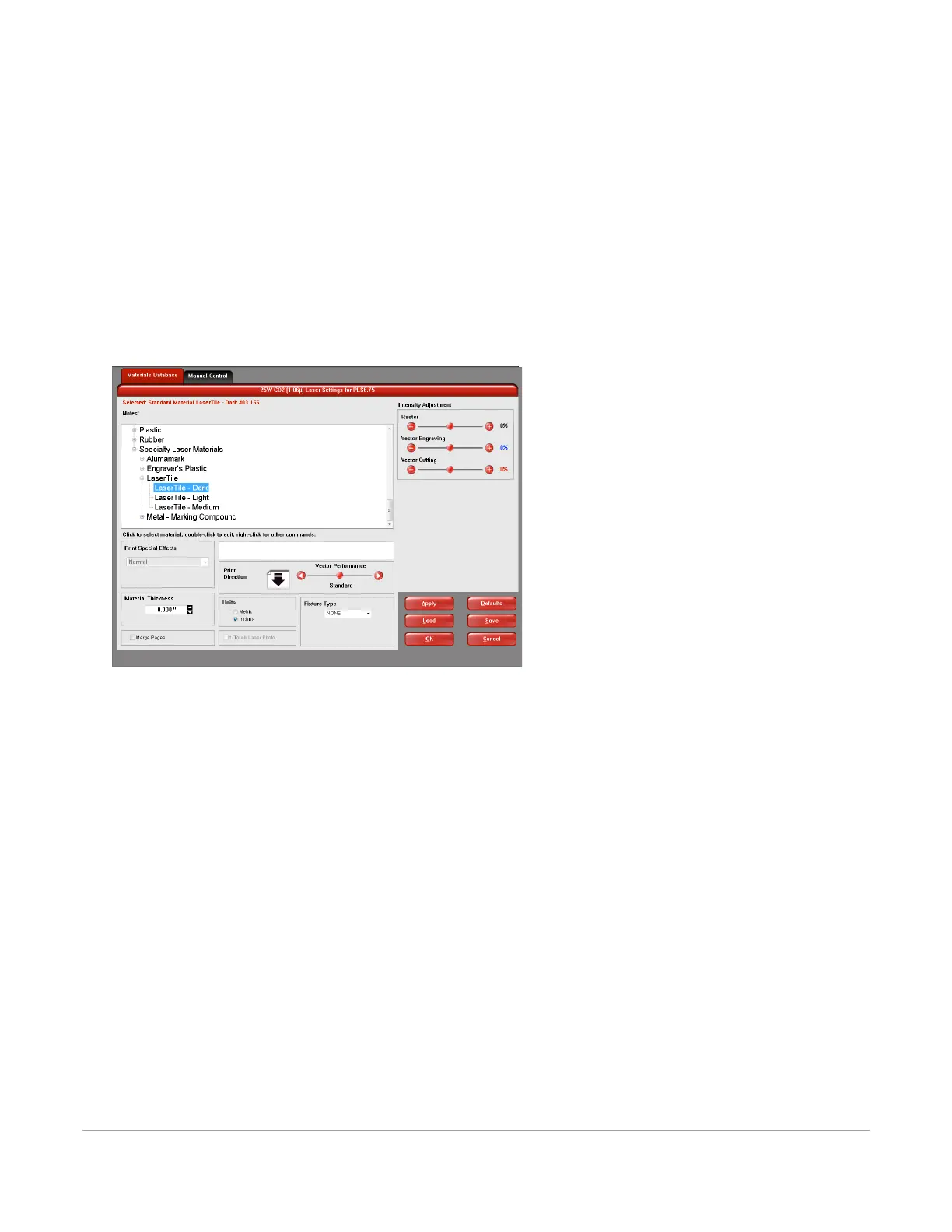
The various controls in the materials database printer driver tab are explained below:
Materials Tree
Materials settings in the database are arranged in a multi-leveled tree structure. Click the plus symbol next
to a material category to expand the category, and then select a material type. Double-clicking on a material
allows you to read the material record for standard materials and to read and edit custom or cloned
materials using the materials editor explained later in this section. Right-clicking on a material or category
opens a menu with the following options.
New Category (category only)
Create a new category in the materials tree.
New Material (category only)
Create a new custom material. You can then edit the settings using the material editor described later in
this section. Please note that new materials will not be compatible with the VLS air filtration unit.
Clone (material only)
Make a custom copy of the selected material. This copy can then be edited to make a new material
record. Please note that cloned materials will not be compatible with the VLS air filtration unit.



 To Next Page