56
Diameter
If a rotary fixture is installed in your laser system, the diameter of the cylindrical object being
processed is entered in this field. A correct diameter must be entered for the graphics being printed
to be scaled properly.
Rotation Factor
This factor allows you to calibrate your fixture if your application requires you to engrave or cut
completely around the cylinder (360 degrees). Print a vector line or raster graphic that extends from
the top of the page to the bottom of the page. If the fixture comes up short or overlaps by a few
degrees, you can compensate for this. If short, increase the factor; and if long, decrease the factor.
The factor is a ratio, so if you can measure the object and image circumference, you can calculate
the scale. If you do not have the equipment to measure this, you can use trial and error.
Pin Table (Enable)
This switch tells the system a pin table is installed which compensates for the height of the pin table
when using the auto Z feature.
The Universal Control Panel (UCP)
When a graphic has been printed through the printer driver a laser job is created and passed to the queue in a
piece of software called the Universal Control Panel (UCP). The UCP software provides a convenient interface for
interacting with and controlling your laser system. Once you have installed the UCP, a red diamond-shaped icon
will appear in the lower right corner of your Windows taskbar. If for any reason the UCP is deactivated, you can
reactivate it by using the ULS Engraver shortcut found on your computer’s desktop. The UCP is organized into
three convenient tabs: Viewer, System and Diagnostics. The following describes the features of each tab of the
UCP.
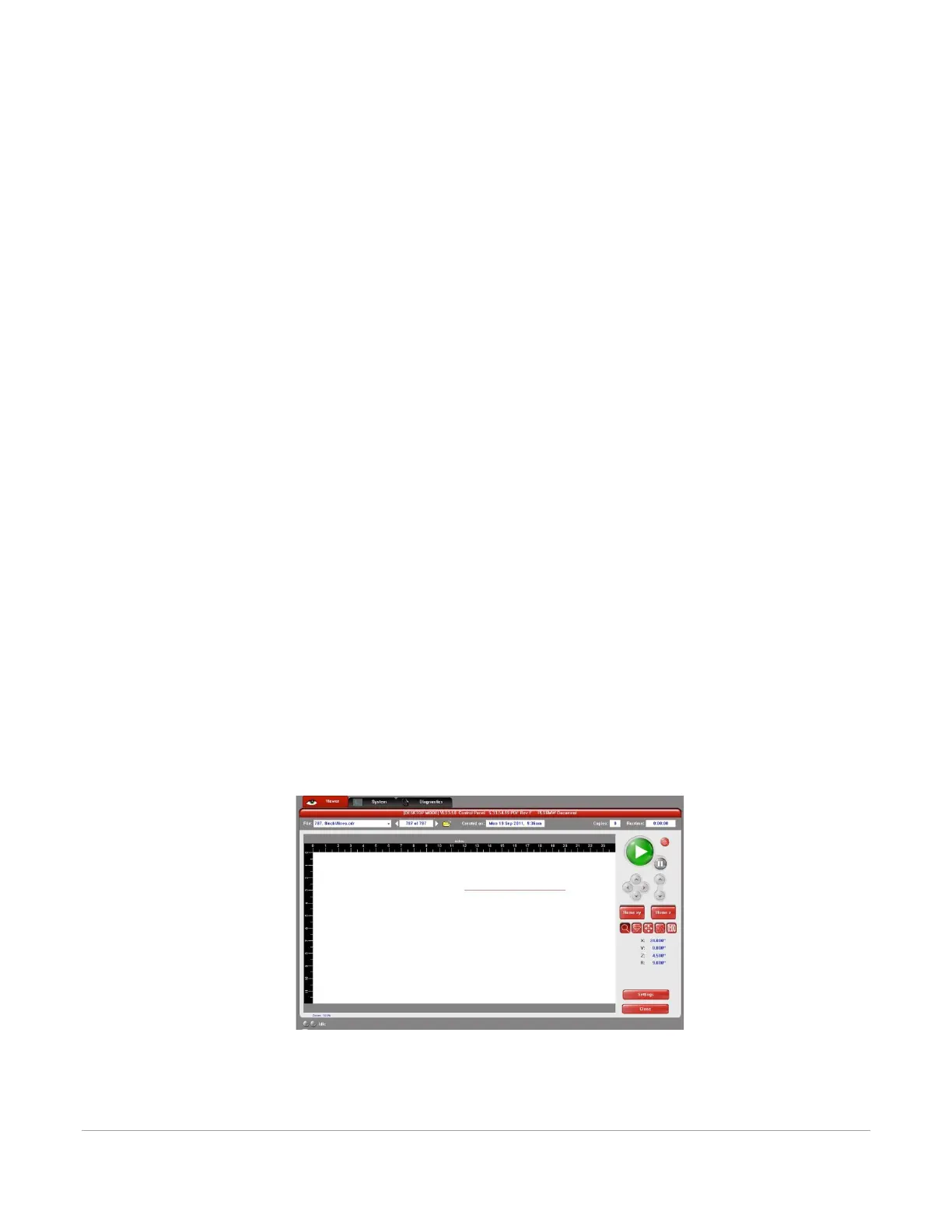
Viewer Tab
You send jobs to your laser system by printing to it. Anytime you print to the laser system, a job is created
and inserted into the laser systems job queue. Selecting the viewer tab allows you to navigate through and
manage the jobs in the laser system job queue. The viewer tab also allows you to operate your laser system
right from your computer.
The viewer tab has the following functions:
Laser System Controls
• The same controls found on the control panel on your laser system are duplicated here.



 To Next Page