55
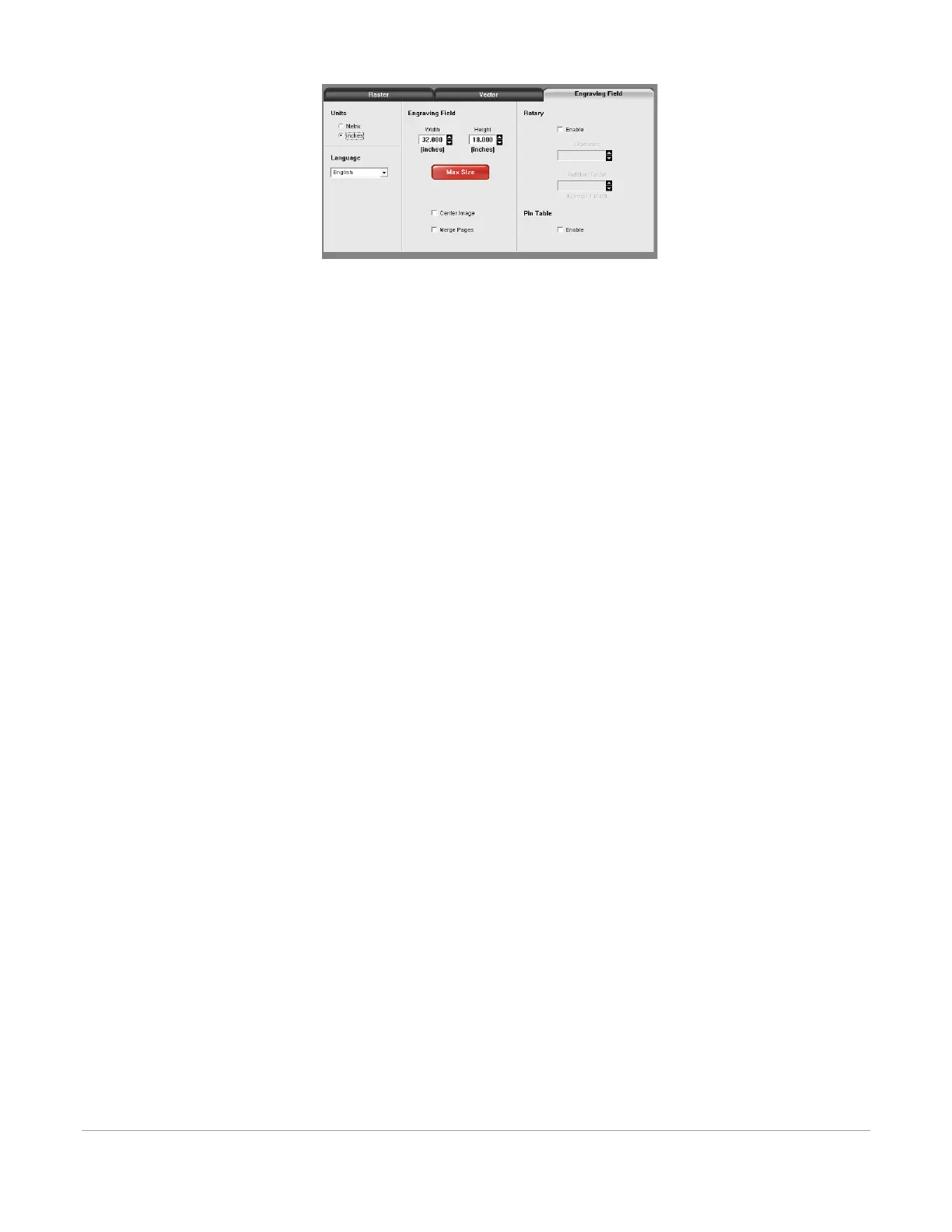
The controls in the sub-tab are described below:
Units
Units allows you to change units used between Metric and English.
Language
Select from many different languages in this dropdown list. Some language changes will not take effect
until the printer control panel is closed and then re-opened.
Engraving Field Width and Height
Normally you will want to set the width and height in printer driver at their max, matching the
processing field in your laser system, and set the page size in the graphic software to match. If your
graphic software does not allow large enough page sizes to match your processing field, you can reduce
this engraving field size and your reduced page size will print in the upper left corner of the field in the
laser system. Reduced page sizes are also useful in some special cases, such as rubber stamp engraving,
so you can take advantage of the invert page feature without having to engrave the entire field of the
laser system away.
Important Note: Make sure that the page size in your graphic program always matches the engraving
field size setup in the printer driver. Mismatched settings may cause your graphics to print in an
unexpected location or not at all.
Max Size Button
Selecting the Max Size button restores the width and height to the maximum values your laser
system can accept.
Center Image
This selection allows you to force jobs to always be centered in the processing area.
Merge Pages
This setting allows you to treat multipage documents in different ways. By default, multipage
documents are treated as separate jobs with each page having to be selected in the UCP and run
individually. This setting allows you to change that behavior. Selecting this setting once will merge
the pages with auto- start, meaning the pages will all be printed one after another as one job. This is
useful if you want all the graphic images to print on one piece of material, but you want to control
the order in which they are applied. Selecting this setting again will merge the pages with manual
start, meaning the pages will all be printed one after another as one job, but with the laser system
pausing in between each page. This is useful if you need to load new material in between each page.
Rotary
A rotary fixture option is available for all models. Please contact Universal Laser System for more details.



 To Next Page