42
Load Button
To recall a snapshot of the printer driver settings that have been previously saved to a .LAS file using
the save button, select on the “Load” button and choose the desired .LAS settings file from the
dialog box. The settings that are currently on screen will be replaced by the settings from the .LAS
file. You may abort these changes by selecting Cancel; selecting OK or APPLY will approve the
changes.
Save Button
The save button brings up a dialog box that allows you to save a snapshot of the laser job settings
which you can then reload at a later date. All settings will be stored in a file with “.LAS” extension.
Verify that you have pressed the SET button before you save any .LAS files to ensure that changes to
the color table are properly registered.
OK Button
The OK button saves all changes made to the printer driver settings and closes the printer driver
settings interface window and takes you back to the previous window.
Cancel Button
The Cancel button closes the printer driver settings interface window and takes you back to the
previous window without saving changes made to the settings.
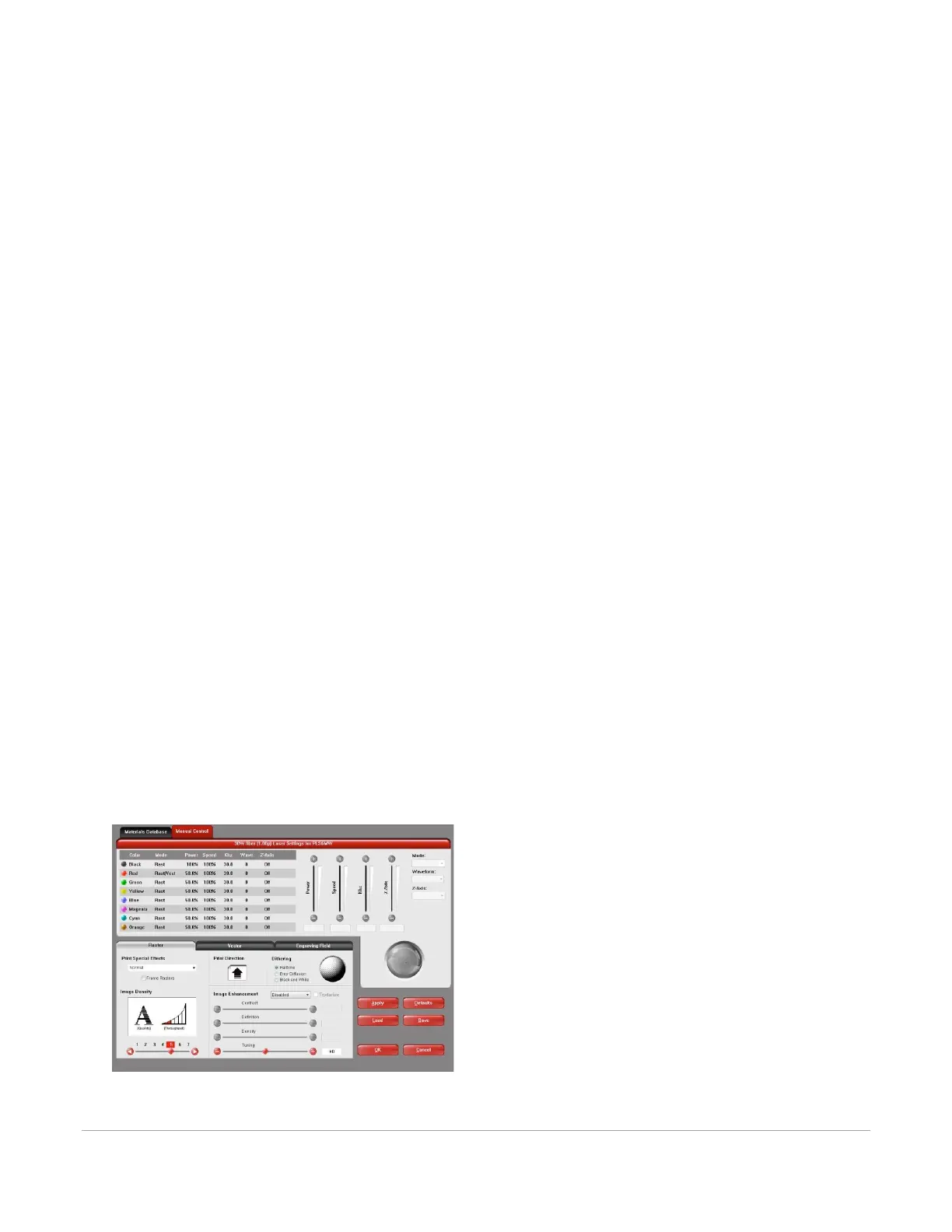
Manual Printer Driver Interface Tab (advanced users)
This tab of the printer driver is for the advanced user and allows the user to manually configure all laser job
settings. This approach allows the user much more configurability but requires a deeper knowledge of the
laser job settings and how they affect laser processing. Please note that when this tab is used laser settings
are applied to the graphic being printed by color and each color can contain raster and vector data. There
are eight colors available to which you can assign laser power and processing speed setting. Elements in the
graphic are interpreted as vectors only if their line thickness is .001 (.0254 mm) or less. All other elements in
the graphic will be treated as raster objects. Laser power and processing speed settings are then assigned to
the raster and vector objects by color. Any objects which have a color that does not map directly into a color
in the driver table will be matched to the nearest color. Any multicolor objects, such as grayscale or color
bitmaps, will have a black and white dither pattern applied and will be mapped to the black power and
speed settings. Order of execution when using the manual driver tab proceeds down the color table from
top to bottom with all raster objects being completed first, then vector objects follow.
A useful feature of the dual materials and manual tabs is the ability to select a material in the materials tab
and then switch over to the manual tab. When you do this, the settings stored in the materials database for



 To Next Page