Vertiv | SmartCabinet | User Manual 118
System Operation
» Choose a device from the list and the respective asset information will be displayed in the textboxes
on the lower part of the page.
»
results can be seen in the list on the upper part of the page.
»
• For a newly-added device, the default asset information is ‘--’.
4.2.4.7.2. Signal Setting
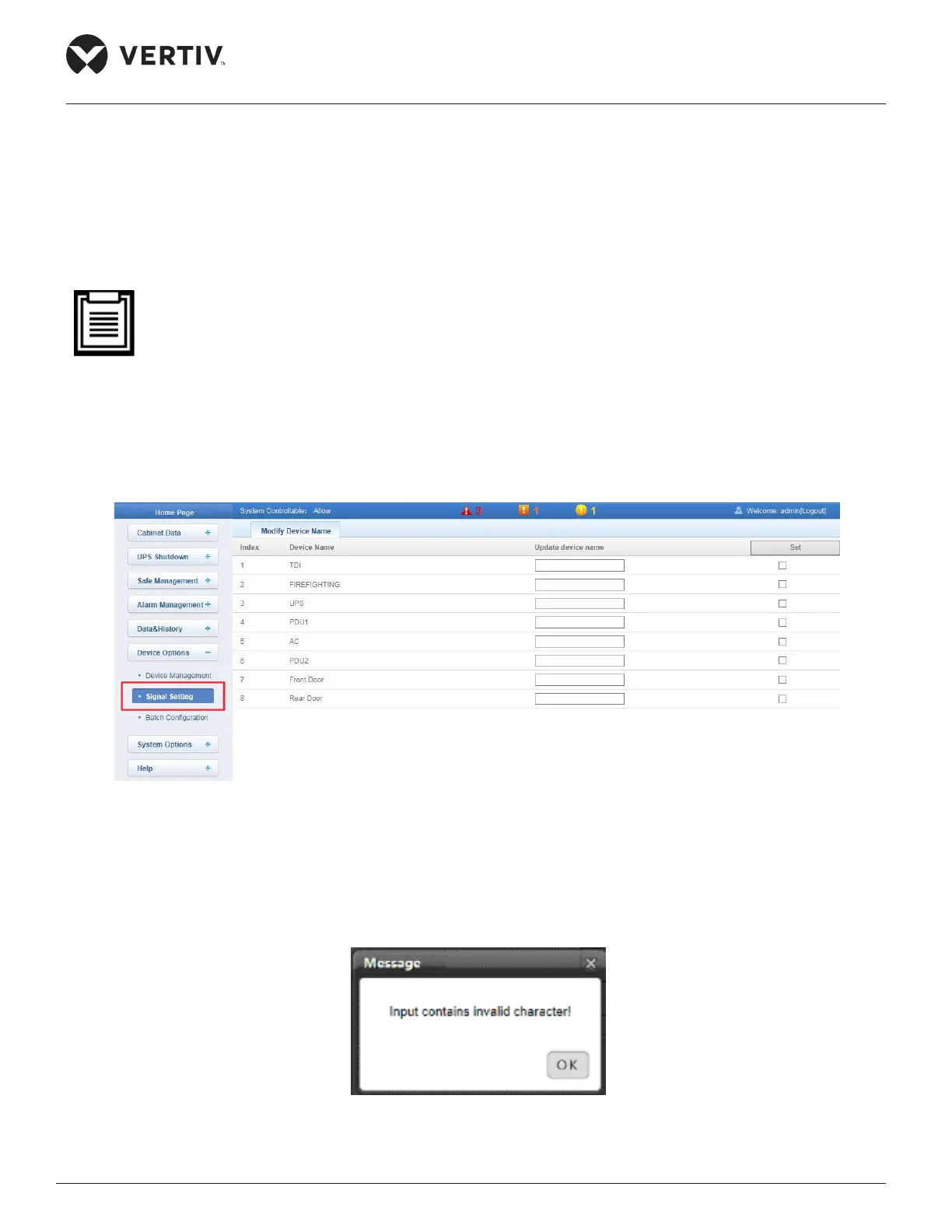
Click the Signal Setting sub menu under the Device Options menu. Figure 4-86 displays the page that is
displayed on clicking the Signal Setting sub menu:
Figure 4-90 Signal Setting menu
Enter the Device Name in the Update Device Name textbox and check the checkbox under the Set column
for that device. This will store the settings. The characters of the device name and signal name can be
English letters, digits, space and underline. A prompt dialog box, stating that the characters are invalid, will
pop up if any other characters are used as shown in Figure 4-91.
Figure 4-91 Prompt dialog box stating use of invalid characters


 To Next Page