25 Chapter 2: Using the Tablet
2.5 Using the On-Screen Keyboard
User will be able to enter text using the On-Screen Keyboard. Some applications will launch the keyboard
automatically. In others, user needs to touch a text field where user wants to enter text to launch the
keyboard.
2.5.1 Entering Text
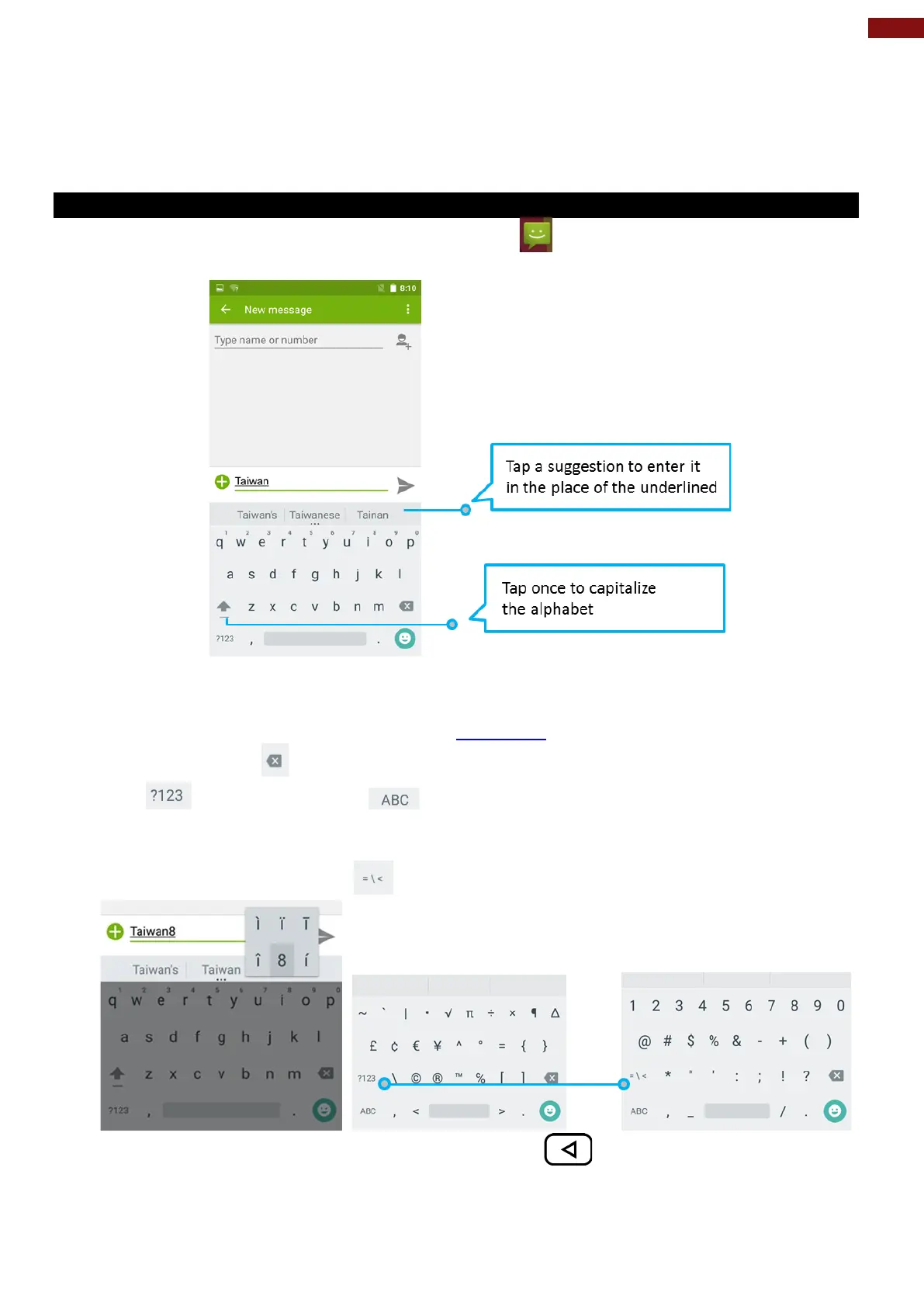
1. Open a text field, in this example we used Messaging to compose a message. The On-Screen
Keyboard opens.
*If user taps in a text field which already contains text, the insertion point is set where user tap and the
cursor appears. User can drag the cursor to pick exactly where you want to add more text. User can
also select a word to copy, cut and paste it. See “Editing Text
”.
2. Tap the delete key to erase characters to the left of the cursor.
3. Tap to enter numbers. Tap to return to letters.
4. To enter symbols and other characters, tap and hold one of the top-row keys and slide your finger
up to the list of the options. Lift your finger when you find your selection.
5. To view additional symbols, tap on the numeric keyboard.
6. To close the On-Screen keyboard, press the back button .



 To Next Page