53 Chapter 6: Using Barcode Reader
6.1.5 How to Change the Symbologies of Barcode
1. Go to the WDC application.
2. Tap Barcode Settings .
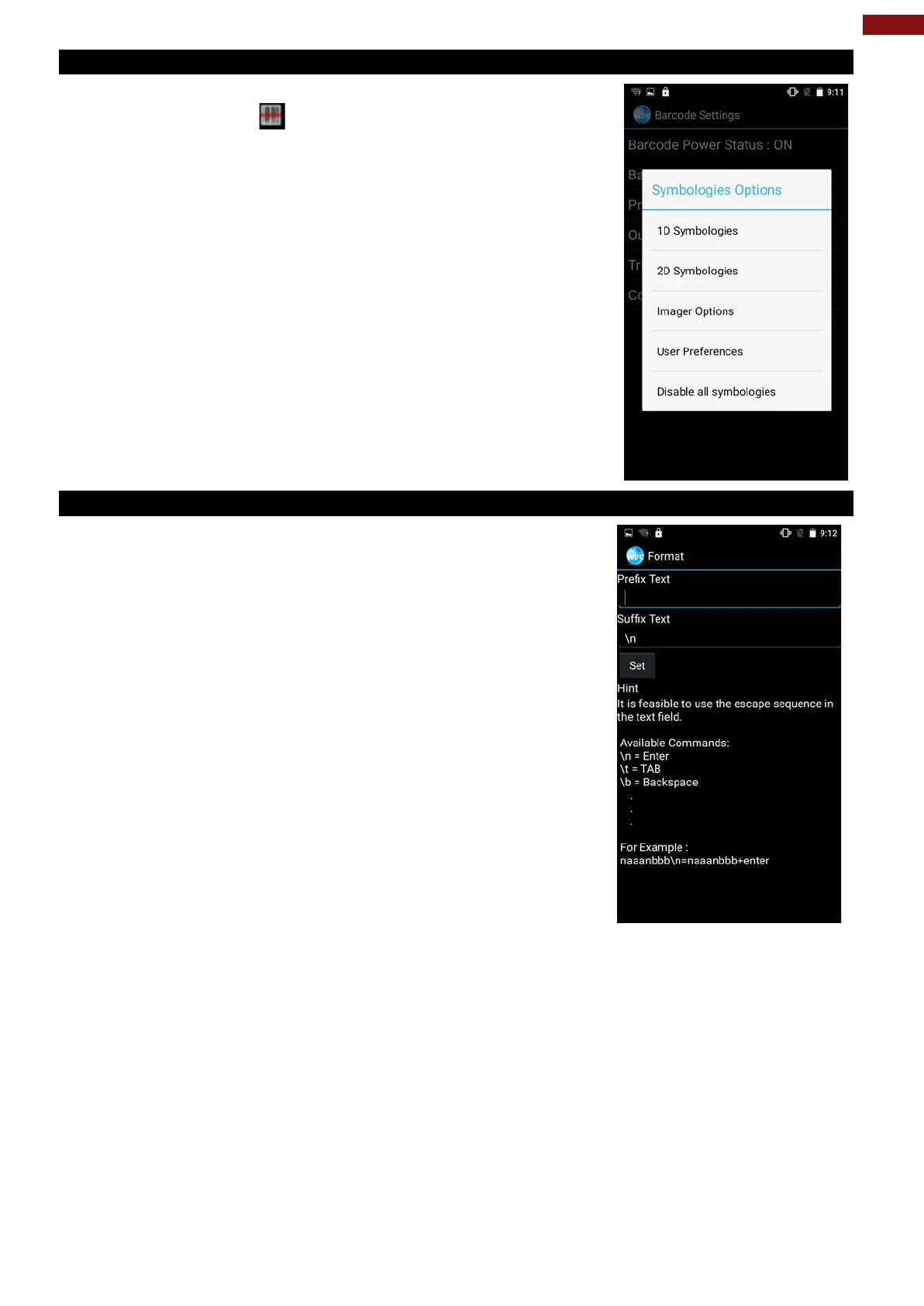
3. Tap Barcode Preference.
4. Users can change the symbologies of the barcode:
• 2D Symbologies
• Imager Options
• User Preference
• Disable all symbologies.
6.1.6 How to Add Command to the Barcode Output
1. Go to the WDC application.
2. Tap Prefix / Suffix.
3. Enter special characters at the beginning (prefix) or end
(suffix) of the scanned barcodes.
4. Tap Set to add into the data.
The output will show the command that you entered in the prefix or the suffix;
For example, if user enters “\n” in the prefix text, the output of the barcode reader will appear on the next
line of the page. And if the user enters “\n” in the suffix, the output of the barcode reader will show the
barcode and change to the start of the next line for the user. Same with the command “\t” and “\b”.



 To Next Page