48 M101M8 Rugged Android Tablet User Guide
5.1 Capturing Photos or Video
Winmate® M101M8 is equipped with an 8MP Camera on the rear side and a 2MP Camera on the front
side, which user can use to capture photos or video.
5.1.1 Opening Camera
1. Tap the launcher and then tap Camera .
Camera opens in Portrait mode, ready to take a picture or shoot a video.
Important:
Make sure the protective lens cover is clean before taking pictures.
A lens cover with smudges from fingers can cause blurry pictures.
5.1.2 Taking pictures
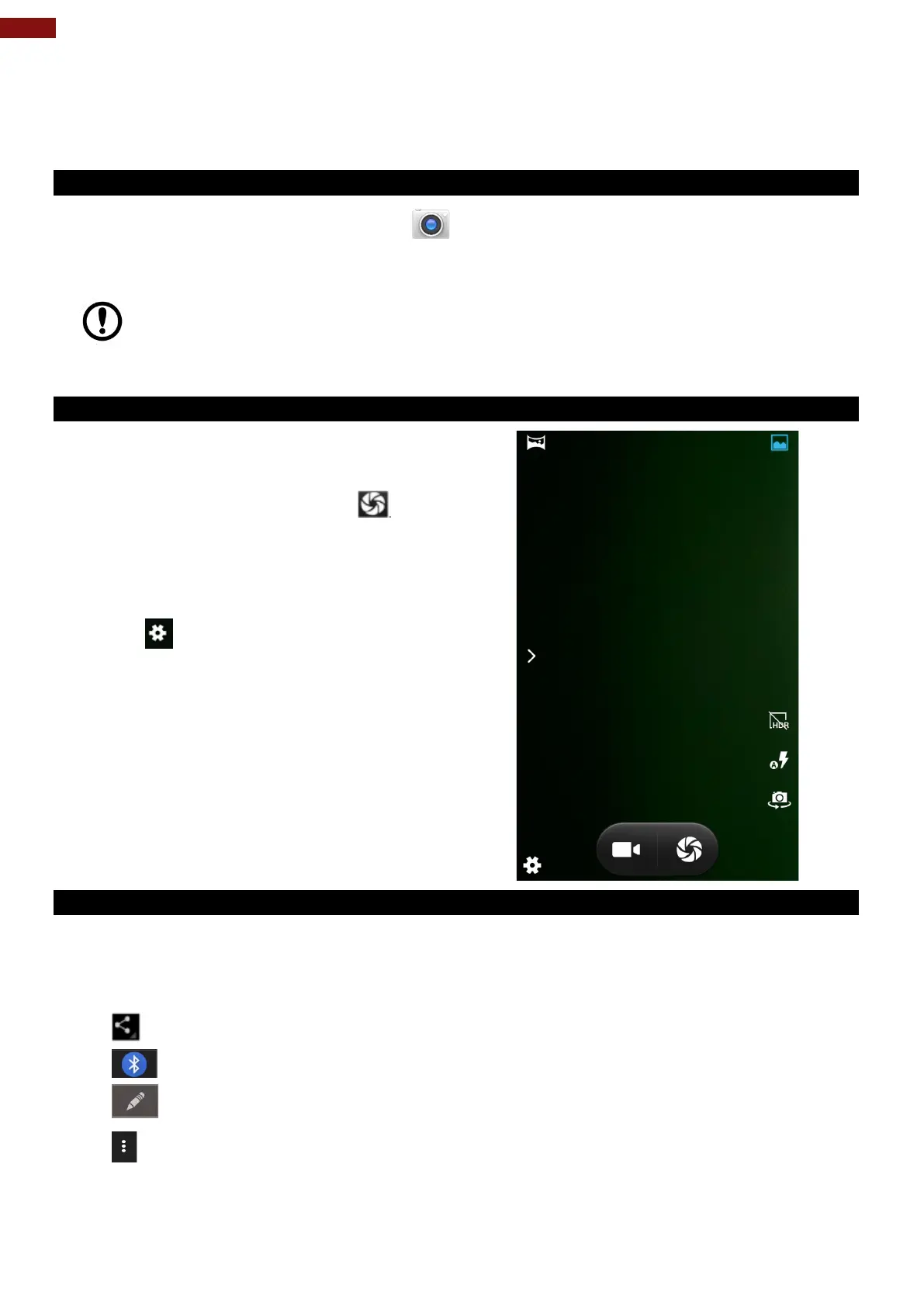
1. Adjust the exposure, flash, and other necessary
settings. Or leave it automatic.
2. Tap the On Screen Shutter icon .
3. The camera brings the image into focus, when the
image is in focus, the focus indicators in each
corner will turn green and ready to capture.
4. Tap
to change camera settings.
5.1.3 Viewing pictures
1. After taking a photo, a thumbnail of the picture is shown on the corner of the capture screen. Tap
the thumbnail to view it.
2. Tap the onscreen button:
to share a photo.
to share through BT.
to edit the photo
For more Camera options such as Delete, Edit, Rotate, Crop or photo details.
3. Swipe right or left to view more photos.



 To Next Page