31 Chapter 2: Using the Tablet
Changing the Keyboard Language
The current keyboard language is displayed on the Space key and user can switch languages.
1. Tap and hold the space key
2. Without lifting the finger, slide it to the left or right until the language you want to use appears in
the center of the small window above the Space Key.
3. Lift the finger to change the keyboard language.
2.9 Changing Touchscreen Mode
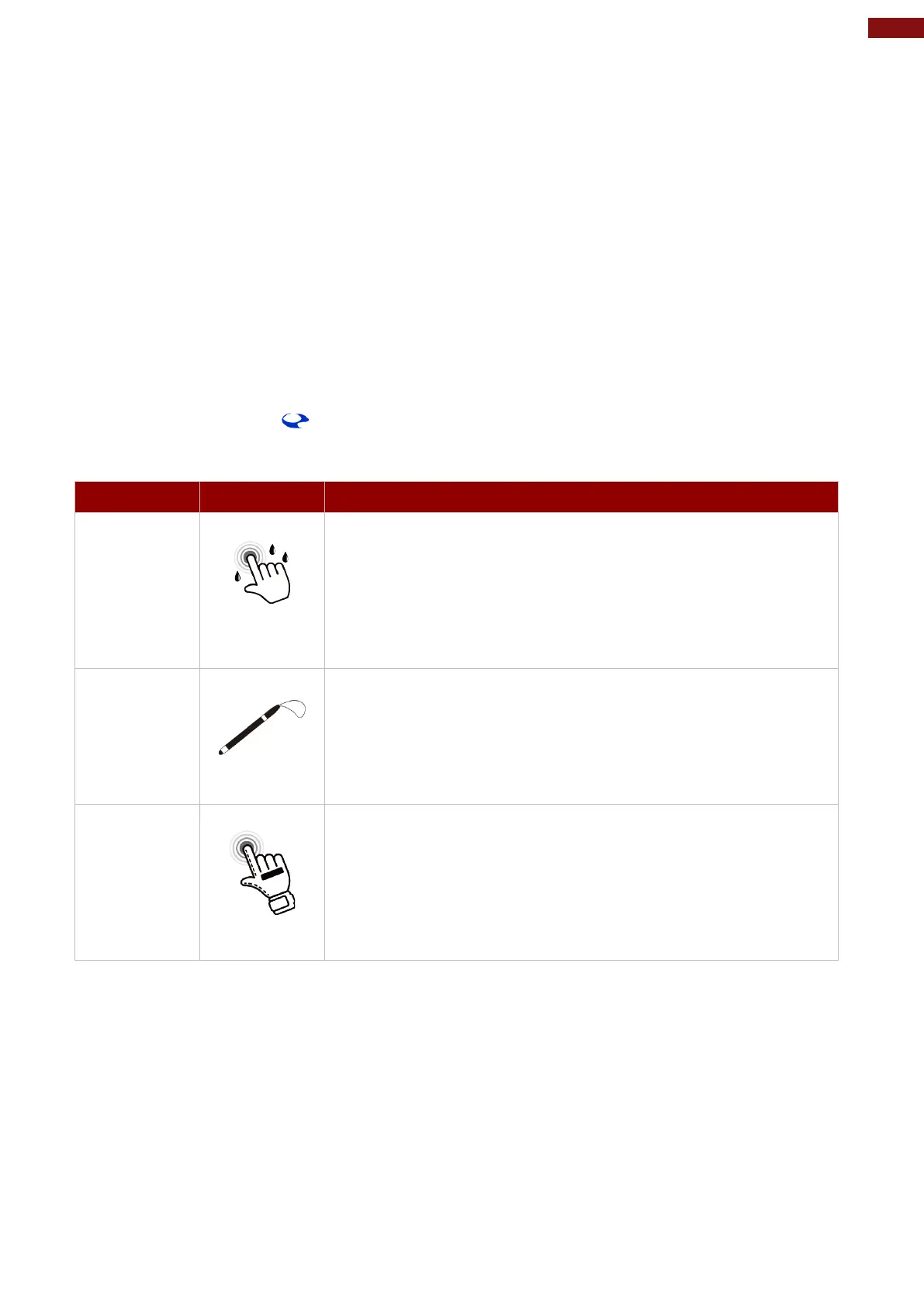
The M101M8 rugged tablet’s touch screen supports hand, stylus and glove modes. You can change the
touch mode by eGloveSwitch application.
To change touch mode:
1. Open eGloveSwitch application.
2. Select touch mode. Follow the table.
Mode 0
Hand/Rain
(Default)
In Hand/Rain mode the touchscreen rejects false inputs from
liquid drops. When the liquid is removed, the touchscreen
accepts touch inputs from bare fingertips.
Supports input by:
Rubber tip passive stylus
Bare fingertips, even with water drops on the screen
Mode 1
Stylus
In Stylus mode, the touchscreen supports inputs from the passive
capacitive stylus (shipped with tablet).
Support input by:
Rubber tip passive stylus
Mode 2
Glove
In Glove mode, the touchscreen supports inputs while the user is
operating the touchscreen with gloves on.
Supports input by:
Glove
Rubber tip passive stylus
3. Press OK.



 To Next Page