30 M101M8 Rugged Android Tablet User Guide
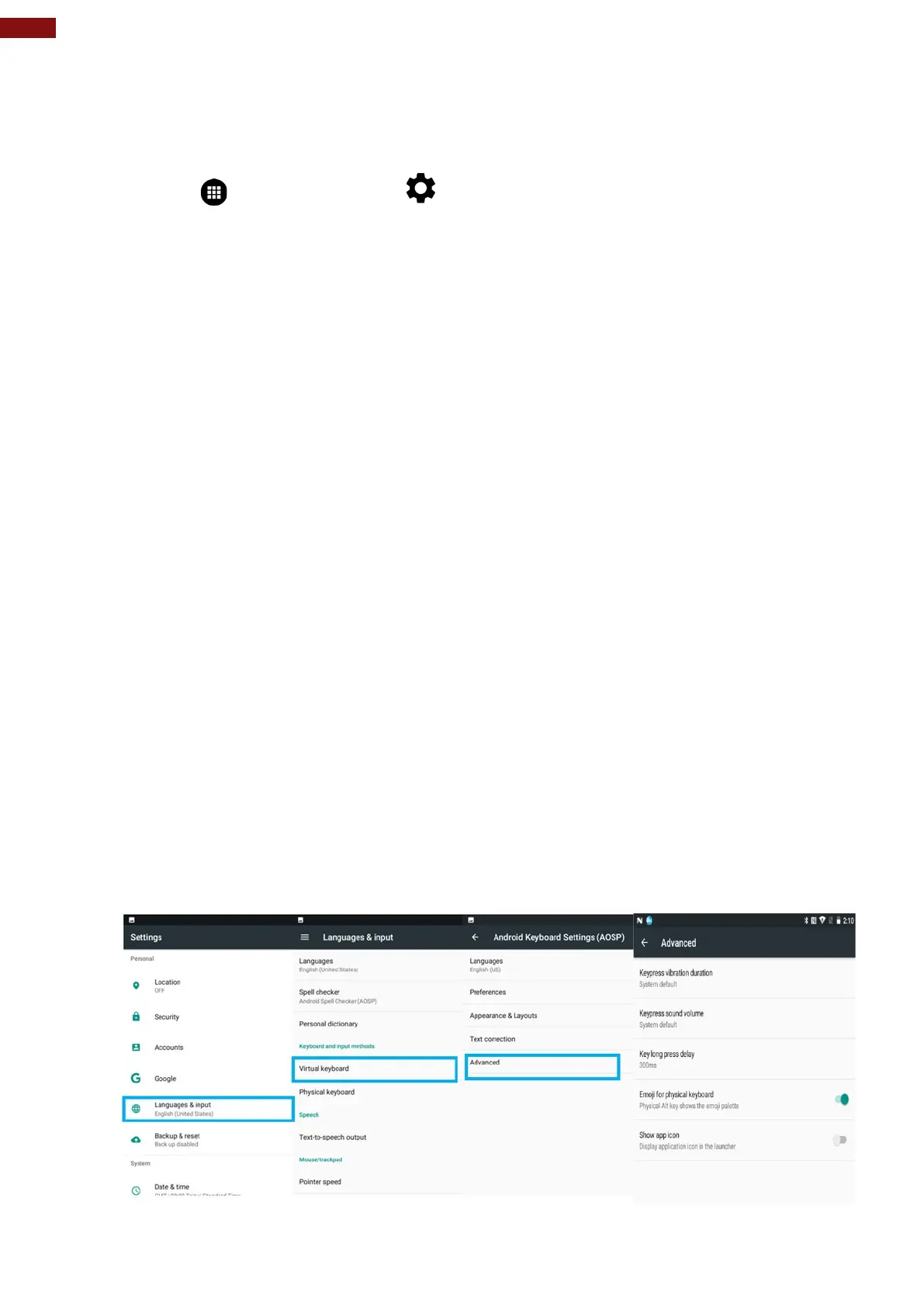
2.8 Language and Keyboard Settings
Use the Language & keyboard settings to select the language for the text on your tablet and for configuring
On-Screen Keyboard, including words that you have added to its dictionary.
1. Tap MENU and then tap Settings .
2. In the Personal tab, select Language & Input.
• Language – to open the language screen, where user can select the language to use for the
text on the device.
• Spell Checker – to activate Android Spell Checker (AOSP) and check to correct misspelled
words.
• Personal dictionary- to open a personal dictionary.
• Keyboard & input methods
o Virtual Keyboard – to apply the onscreen keyboard that is included with user’s device.
Default Android Keyboard (AOSP).
o Physical Keyboard – allows the user to apply physical keyboard settings if connected.
• Appearance & layouts
o Theme – to select the theme of layout.
o Custom input styles – user can select custom input style, such as QWERTY keyboard.
o Enable split keyboard – toggle to activate split keyboard layout.
• Text Correction
o Personal dictionaries
o Add-on dictionaries
o Block offensive words – disable suggesting potentially offensive words
o Auto-correction – spacebar and punctuation automatically correct mistyped words.
o Show correction suggestions – display suggested words while typing.
o Personalized suggestions – learn from your communications and typed data to improve
suggestions.
o Suggest contact names – use names from Contacts for suggestions and corrections.
o Next-word suggestion – use previous word in making suggestion.
• Advanced
o Keypress vibration duration
o Keypress sound volume
o Key long press delay
o Emoji for physical keyboard
o Show app icon



 To Next Page