Installation and Connection DRS5116
Wren
2003. 09. 06 (v 1.0)
22
5. Running OSD Menu
5.1. Using Menu
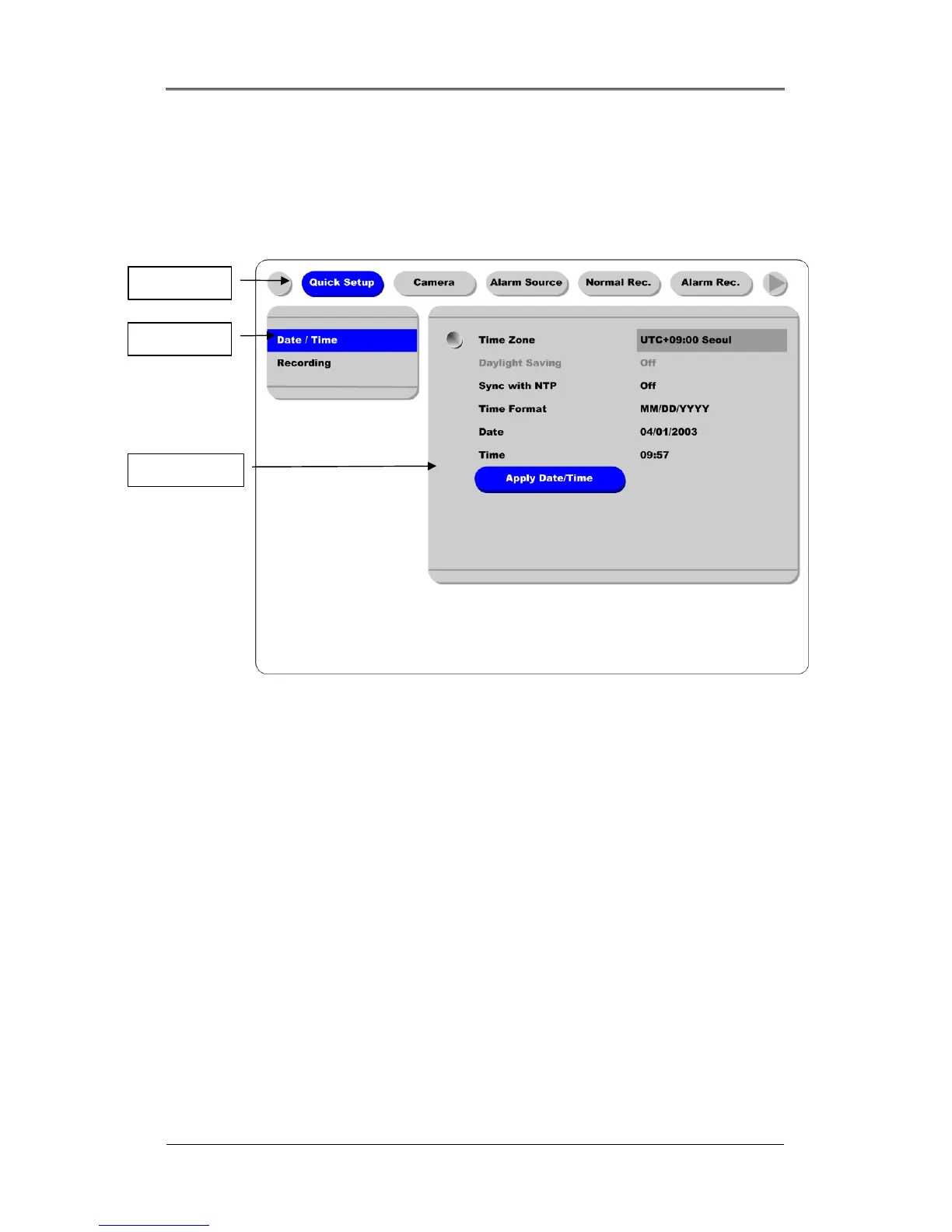
Press the [MENU] button to open the OSD Configuration menu.
(1) Main Menu Tabs: The selected tab is shown in blue and the related sub-menus will be shown below
the tab. To move to the previous/next Main Menu Tab, use the [◄◄/►►] arrow buttons. To move to
a sub-menu, press the [ENTER] or [▼] buttons.
(2) Sub-Menu: The selected sub-menu is shown in blue and the related setting page will be shown to the
right of the sub-menu. Use the [▲/▼] arrow buttons to move within the sub-menu list. To move to the
setting page, press the [ENTER] button. To exit the setting page, press the [EXIT] button.
(3) Setting Page: The selected item is shown in gray. To move within each page, use the [◄◄/►►] or
[▲/▼] arrow buttons. Press the [ENTER] button to change the value of a setting. When the setting
value is a word, a dialogue box to edit the word will open. When the setting value is a number, it should
be set with using the [◄◄/►►] or [▲/▼] arrow buttons. After the value is set, press the [EXIT]
button. To exit the Setting Page, press the [EXIT] button.
(4) Help message: Related information for each menu/setting will be displayed here.
(1) Main Menu
(2) Sub-Menu
(3) Setting Page



 To Next Page