Installation and Connection DRS5116
Wren
2003. 09. 06 (v 1.0)
30
8.2.4. Time Format
(1) Select “Time Format” using the [◄◄/►►] or the [▲/▼] buttons and press the [ENTER] button.
(2) Two Time Formats are available; ‘MM/DD/YYYY’ and ‘YYYY/MM/DD’. Select a value using the
[▲/▼] buttons, and press the [EXIT] button when finished. (Default value is ‘MM/DD/YYYY’)
8.2.5. Date
(1) Select “Date” using the [◄◄/►►] or the [▲/▼] buttons and press the [ENTER] button.
(2) Select ‘MM’/‘DD’/‘YYYY’ using the [◄◄/►►] buttons, and select the value using the [▲/▼]
buttons.
(3) Press the [EXIT] button when finished.
8.2.6. Time
(1) Select “Time” using the [◄◄/►►] or the [▲/▼] buttons and press the [ENTER] button.
(2) Select ‘HH’/‘MM’ using the [◄◄/►►] buttons, and select the value using the [▲/▼] buttons.
(3) Press the [EXIT] button when finished.
8.2.7. Apply Date/Time
Most setting values are applied automatically, when exiting from the related menu page. But
“Date” & “Time” settings are not applied automatically because they may critically affect the file
system of the recorded HDD. To apply Date/Time settings, confirm the settings with the [Apply
Date/Time] button.
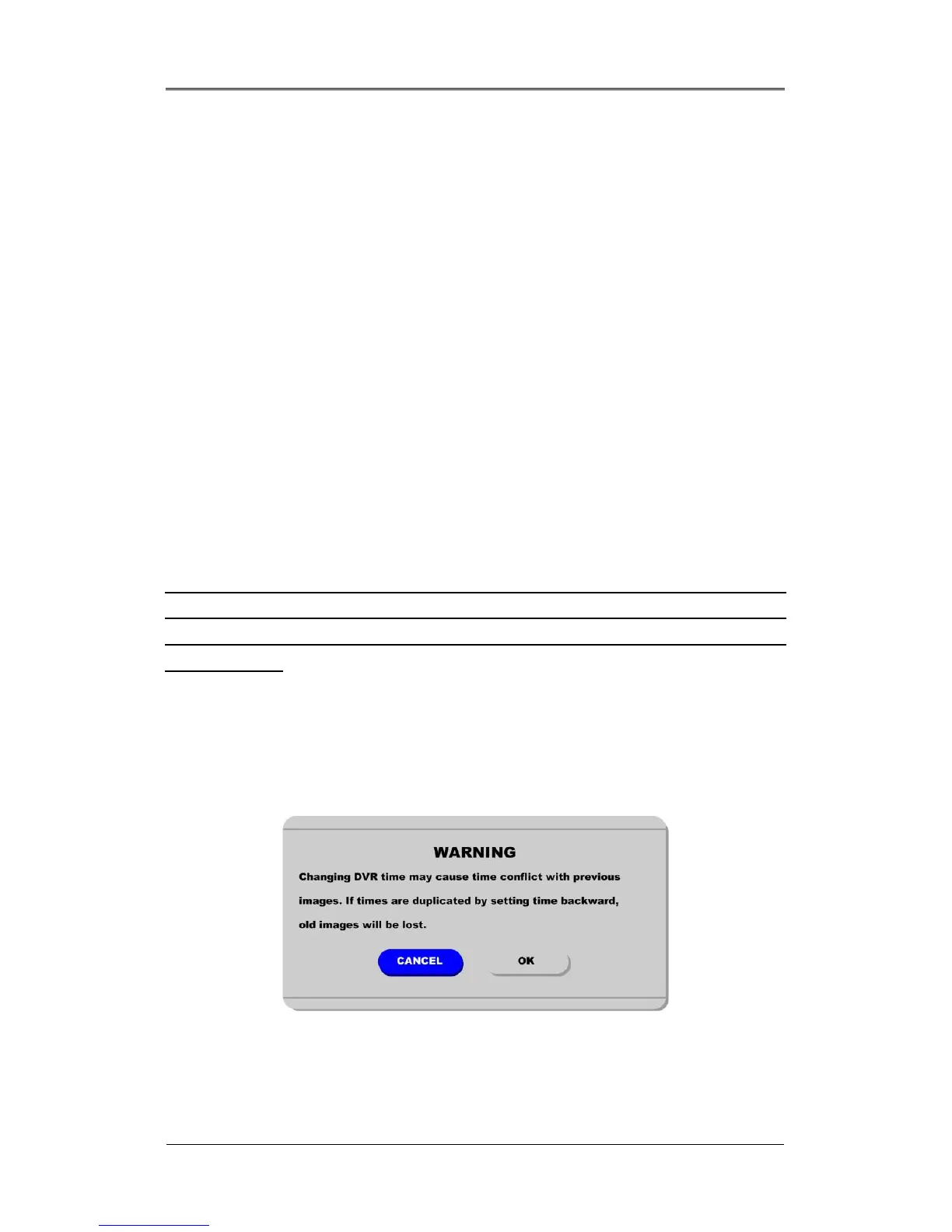
(1) Select “Apply Date/Time” using the [◄◄/►►] or the [▲/▼] buttons and press the [ENTER] button.
A warning message will appear.
(2) Select “OK” using the [◄◄/►►] or the [▲/▼] buttons and press the [ENTER] button. To cancel,
press the [EXIT] button.



 To Next Page