AACCTTIIOONN YYEESS NNOO
SStteepp 33
Check if the flash drive is supported.
Is the flash drive supported?
Go to step 4. Insert a supported flash drive.
SStteepp 44
1 Check if the USB port is
enabled.
2 Remove, and then insert the
flash drive.
Does the printer recognize the flash
drive?
The problem is solved. Contact customer support.
ENABLING THE USB PORT
From the control panel, navigate to:
SSeettttiinnggss > NNeettwwoorrkk//PPoorrttss > UUSSBB > EEnnaabbllee UUSSBB PPoorrtt
For non-touch-screen printer models, press
to navigate through the settings.
CHECKING THE PRINTER CONNECTIVITY
1. Print the Network Setup Page.
From the control panel, navigate to:
SSeettttiinnggss > RReeppoorrttss > NNeettwwoorrkk > NNeettwwoorrkk SSeettuupp PPaaggee
For non-touch-screen printer models, press
to navigate through the settings.
2. Check the first section of the page and confirm that the status is connected.
If the status is not connected, then the LAN drop may be inactive or the network cable may be unplugged or
malfunctioning. Contact your administrator for assistance.
204
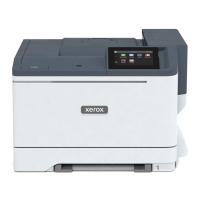
Xerox
®
C310 Color Printer User Guide
Troubleshoot a Problem



 To Next Page

