Pannoramic 250 1.15 User’s Guide 4 Software Description
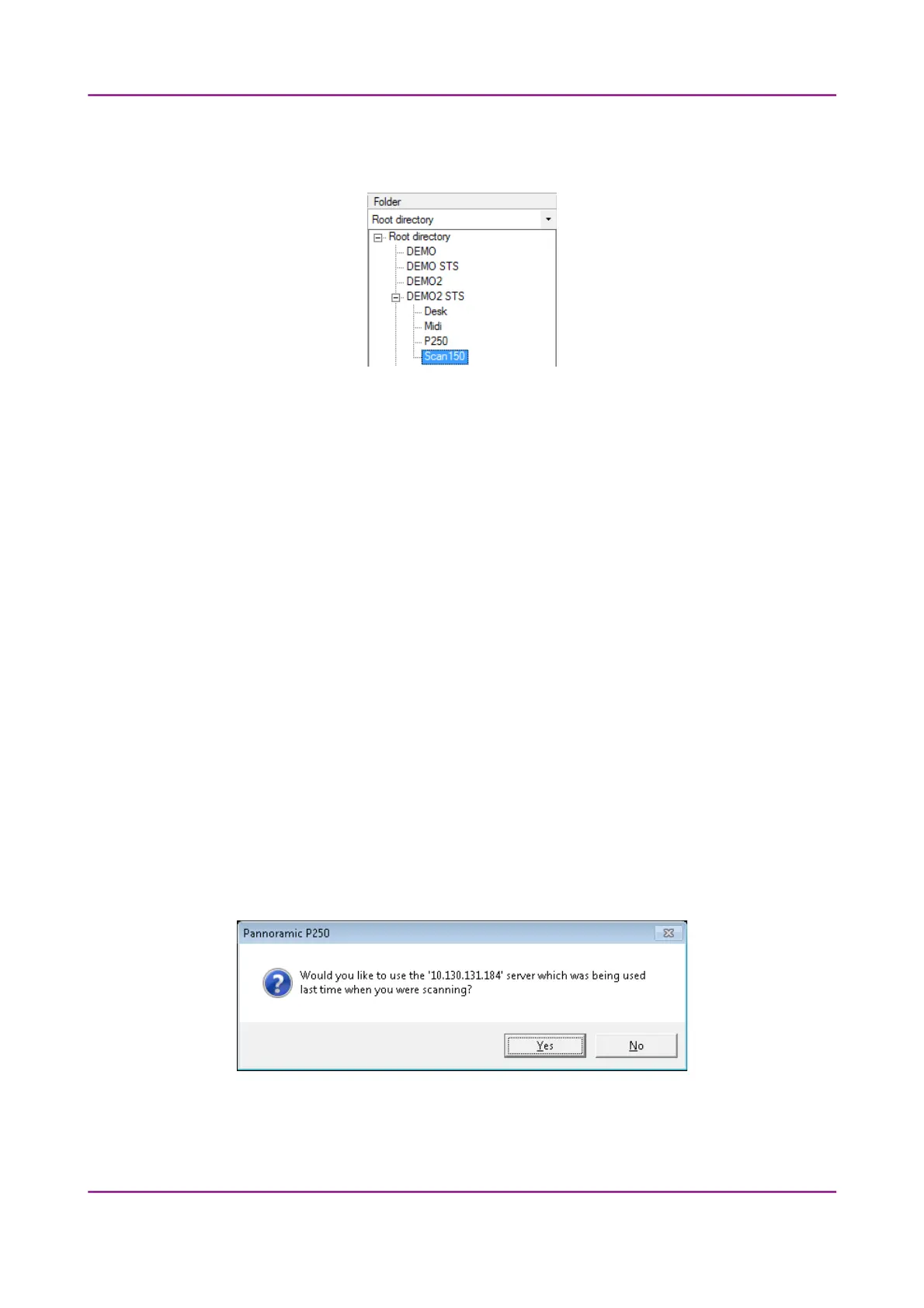
• Select a folder where the slide will be scanned to. After clicking the Folder drop-
down list, a path will be displayed in which the destination folder can be selected.
Figure 76 – Folder selection
• Fill in the Case and Block fields in case you do not use masks, or select an item from
the drop-down list.
• With the Multi fill option the selected slides will be given the same input data to
their specific fields. Profile, Folder, Case, and Block fields can be auto-filled this way
by clicking the drop-down lists at the Multi fill section at the bottom of the window.
Rows can be selected one by one clicking the row headings while the Ctrl button on
your keyboard is pressed down, or select the entire form by clicking the gray field at
the top left corner.
• To erase/reset fields to default, click the Reset all button.
• If modification is done to the folder tree of the CaseCenter server while the
CaseCenter window is open, click Update Tree to refresh the tree view.
• Click Done when finished or Cancel to quit the CaseCenter window. If you save the
form, slides will be scanned to server according to the data recorded in the form
after you start scanning.
• After restarting the scanner software a dialog window appears when scanning to
server is performed previously. Click Yes to use the last used server, or No to define
a different one.
March 13, 2012 – Rev. 1 3DHISTECH Ltd.
112(135)


 To Next Page