local job records to the AGR platform.
③Aircraft information: Check the aircraft module version and number, check the module version
update details, and upgrade each module.
④ Charge monitoring: check the battery and charger status, and count the battery information
plugged into the charger
⑤ Help and feedback: troubleshooting, self-service query of common problems; feedback,
feedback on AGR products; after-sales analysis, online after-sales analysis, online positioning of
aircraft problems; after-sales repair, repair information registration, progress query.
⑥ Perform operations: view aircraft status and parameter information; set aircraft flight
parameter configuration; select different operating modes for operation.
⑦
Plot planning: After clicking to enter, you can select map selection, remote control, aircraft
management, network management, base station management.
⑧Connect to the aircraft: Bluetooth or USB to connect the aircraft.
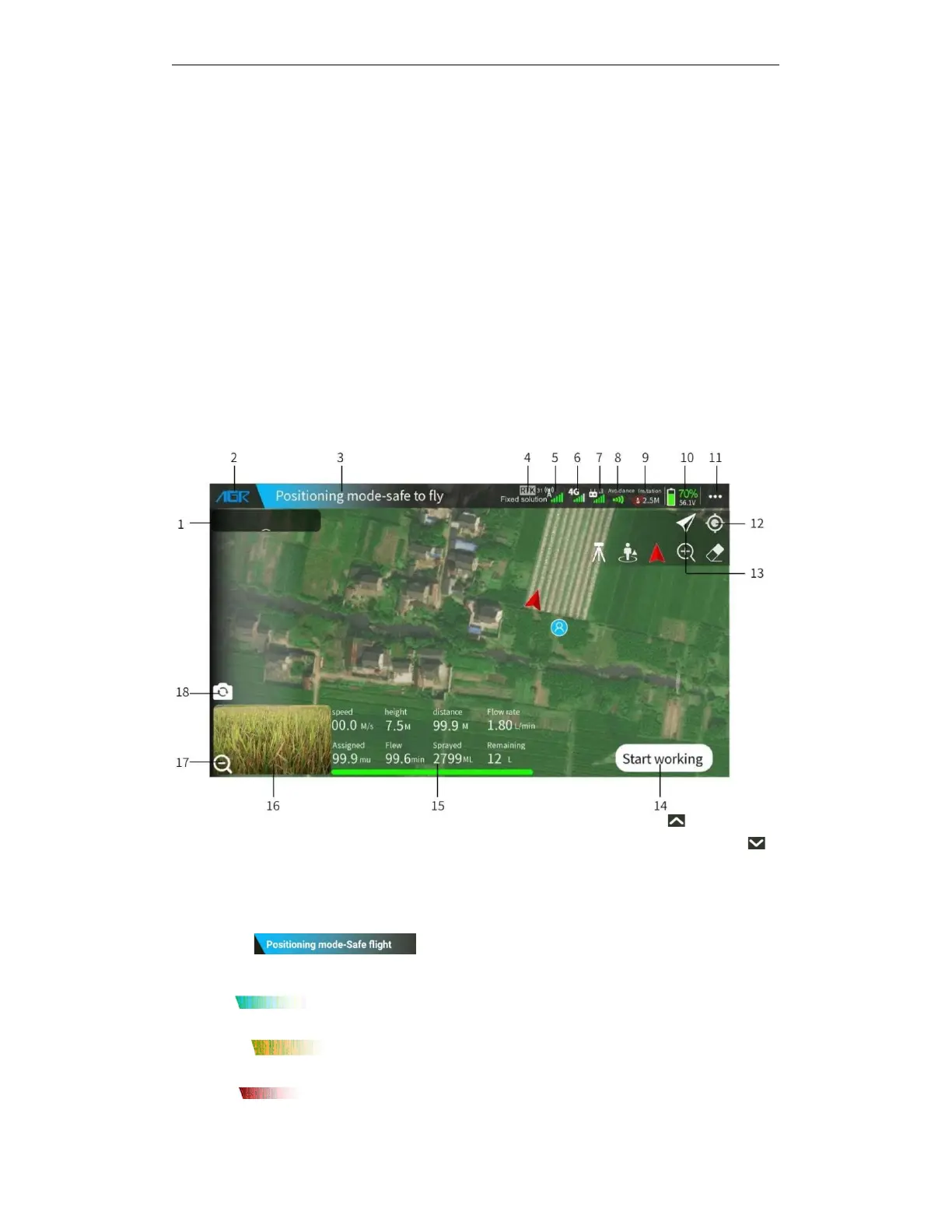
4.2. Operation Interface
①Display Information box: drone status information,click the bottom button when unfolding
to pull up the collapsed reminder box, when collapsed, click the top drop-down button to
expand the tips box. Swipe the information in the tips box up and down to view more historical
tips information/
②AGR: Click this button to return to the main interface
③Status Bar:
A.
Color of status Bar:
blue indicates that the drone is in a normal state and the drone can be used
normally
Orange indicates a first-level warning that the drone may be in danger, such as a
low battery alarm.
Red indicates a secondary warning that the drone cannot fly, such as a severe


 To Next Page