Allworx
®
Verge™ IP Phone Series User Guide
Page 62 866.ALLWORX * +1 585 421 3850
www.allworx.com
Version: D Revised: June 1, 2017
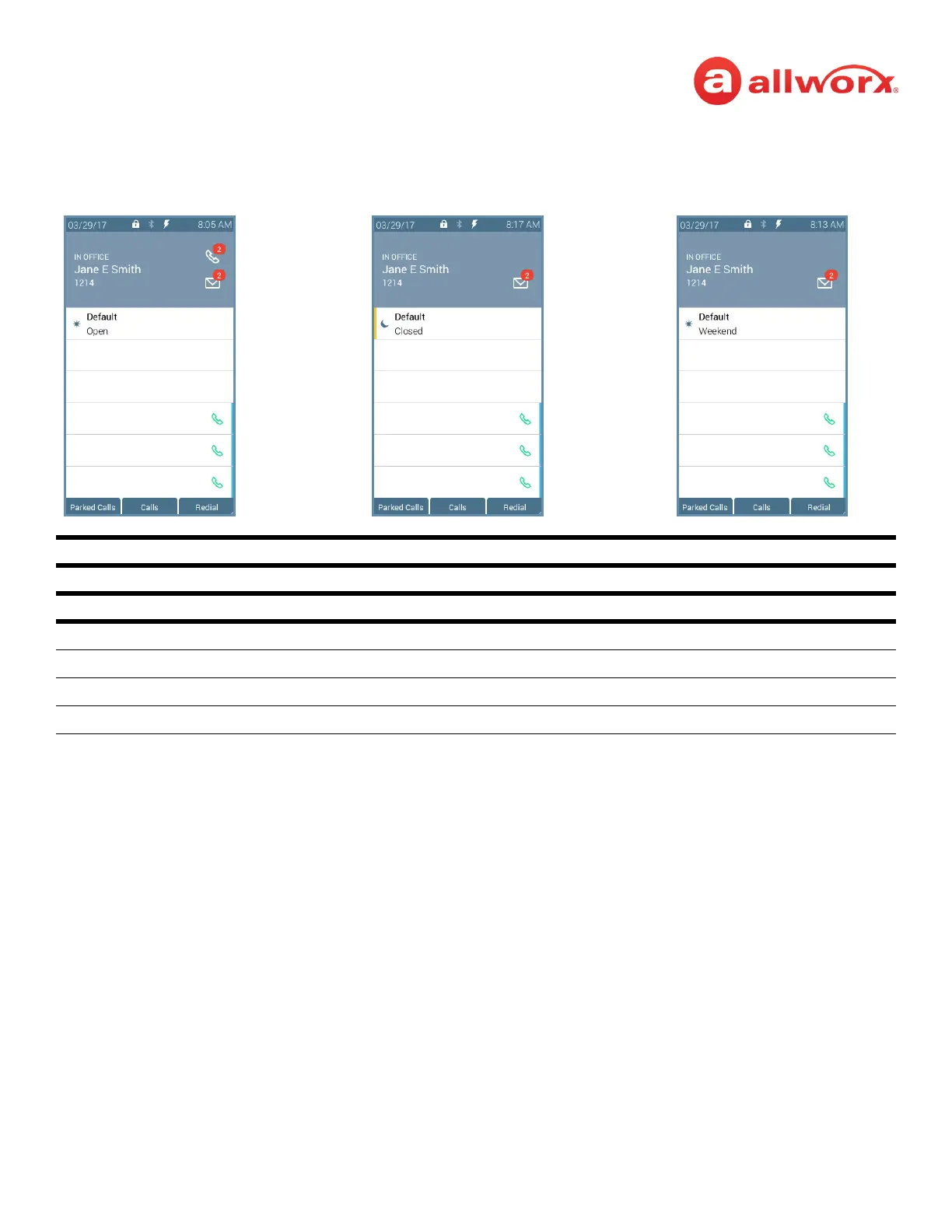
Schedule programmable button examples:
To change the day/night mode or greeting options:
1. Press the Schedule programmable button. The default screen displays.
2. Do one of the following:
• Press the OK soft key to update to the New Settings on the Default screen. The Verge IP
phone reboots with the updated settings.
• Press the Options soft key. Use the up/down navigation buttons to highlight the setting,
and then press the Select button.
• Day/Night Mode - overrides the Allworx server defined schedule and changes the mode
to day or night. If selecting Night Mode, the programmable button LED is solid amber.
• Greetings - selects which greeting for the Auto Attendant to play.
Use the up/down navigation buttons to highlight the option to use, and then press the Select
(twice) > Back > OK. The Verge IP phone reboots with the updated selections.
Schedule LED Programmable Button
Solid amber Night mode is active.
Soft Keys Available
Cancel Returns to the idle screen.
Options Opens the Default screen to manage the mode and greeting in use.
OK Accepts the mode and greeting in use changes. The Verge IP phone reboots.
Back Returns to the previous screen.
Schedule: Default
Mode: Day
Greeting: Open
Schedule: Default
Mode: Night
Greeting: Closed
Schedule: Default
Mode: Day
Greeting: Weekend



 To Next Page