94
NEO 1 and NEO 2
User Manual
W ORKING WITH ALPHAS MART MANAGER
Sending Files, Rubrics, or Write On! Lessons to NEOs
. . . . .
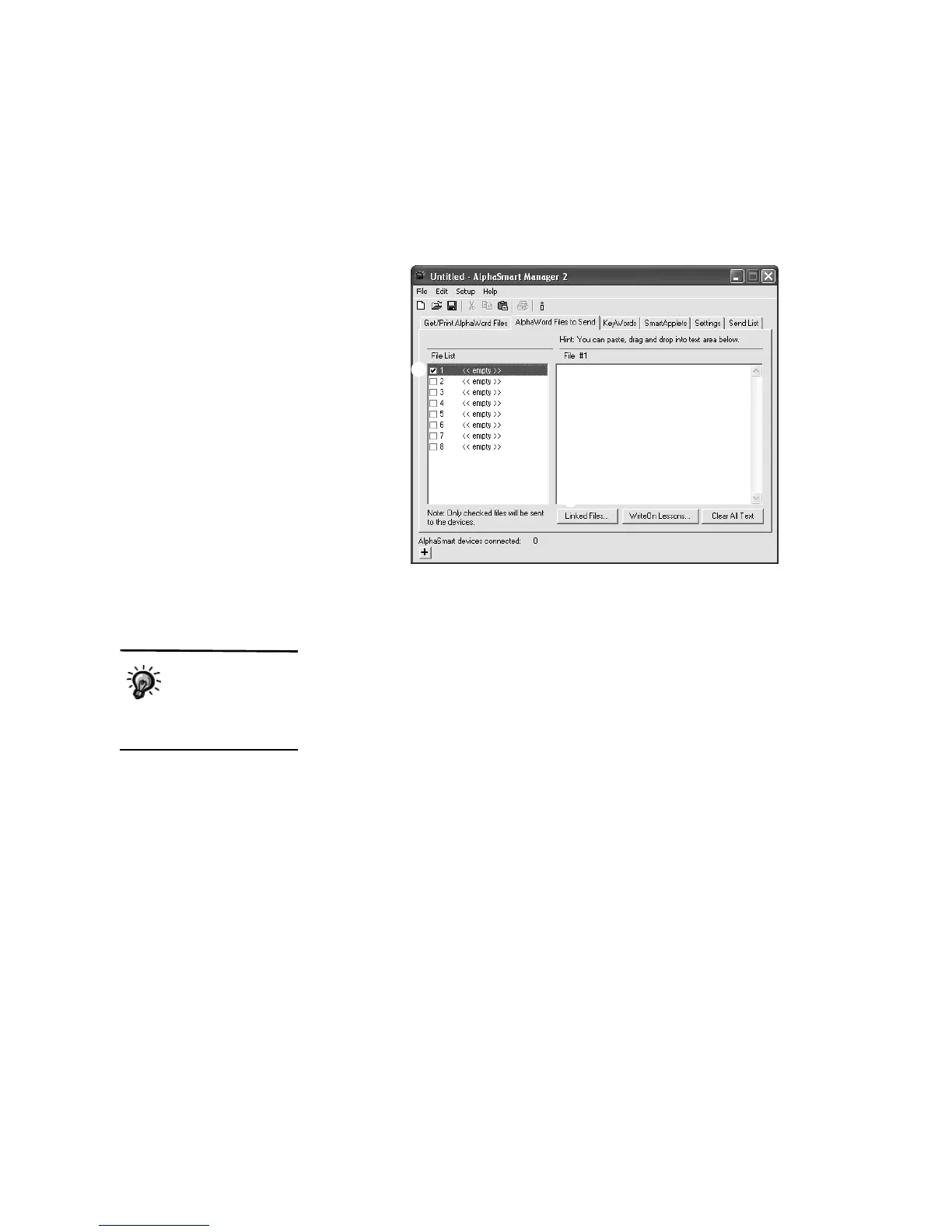
2. Check the box next to the number of the file to which you want to send the
rubric or other linked file
A. (Note that if there is existing text in the file
number on the NEO, that text will be removed.)
3. Click Linked Files
B at the bottom of the window.
4. Now, you can create a linked file, select a sample one, or open a file that
contains the text you want to link:
• To create your own rubric or other linked file, type the text
between the <form> and </form> tags in the window (C on the next
page). If you want to insert a check box, click Insert a check box
D
and change the text that is inserted behind the box. If you want to
save the linked file to use again, click Save As
E and save the linked
file as a text file in the location you select. When the linked file is done,
click OK. The text will be shown in the File # area of the AlphaWord
Files to Send tab.
A
B
Any text that is
outside the <form>
</form> tags will be
in the file workspace itself,
not in the linked file.


 To Next Page