64
NEO 1 and NEO 2
User Manual
U SING THE RESPONDER SMARTA PPLET ON NEO 2
Using NEO 2 with the 2Know! Toolbar
. . . . .
How Teachers Can Use NEO 2 to Control the 2Know! Toolbar Program
Teachers can use NEO 2 to control the 2Know! Toolbar program. The steps
are similar to those you would use on a Responder:
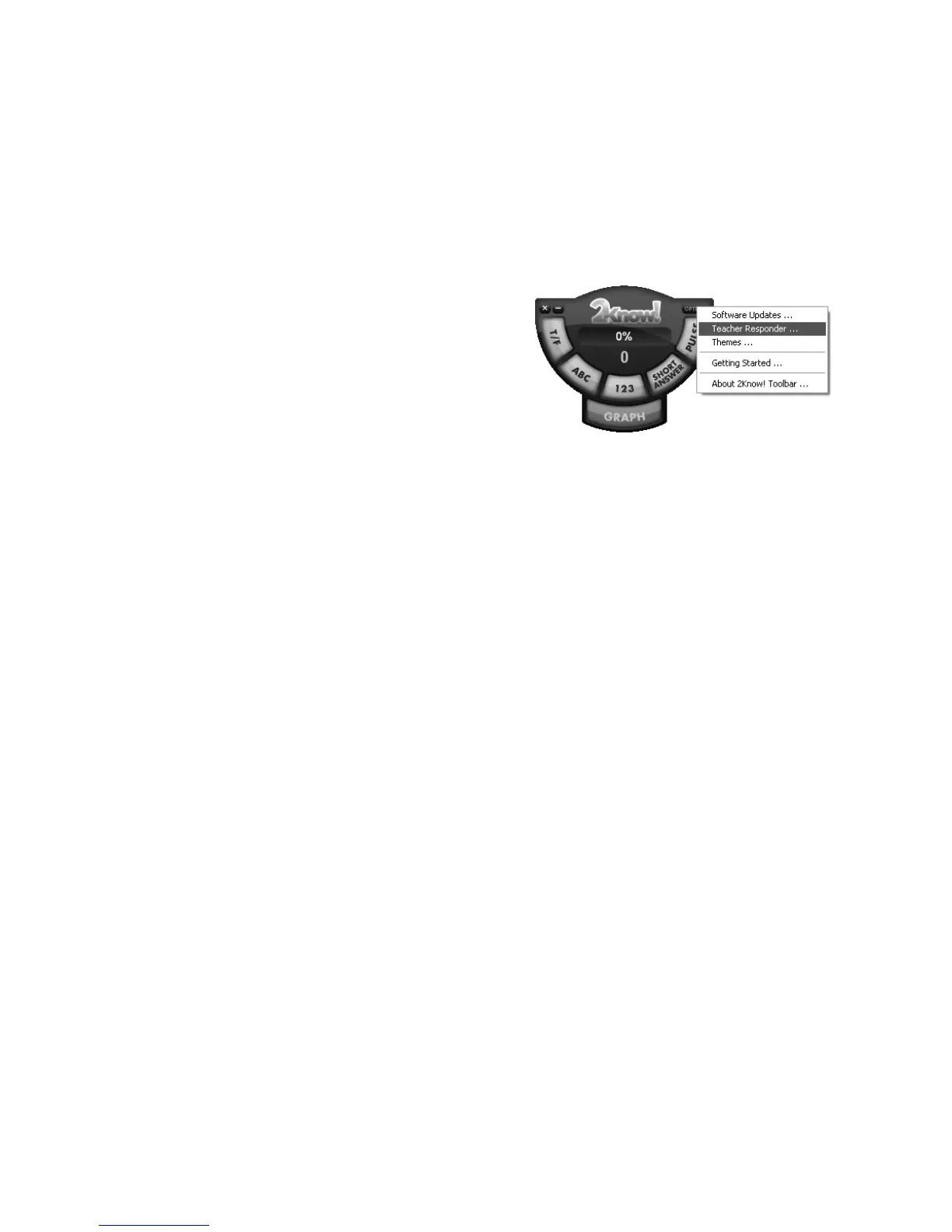
1. In the 2Know! Toolbar
program, click the
Options button and
choose Teacher
Responder from the
menu.
2. Click Assign in the
Teacher Responder dialog
box. The program will show you a PIN. Leave this dialog box open.
3. Press on/off on the NEO 2 to turn it on.
4. Press applets.
5. Make sure the cursor is next to Responder; then, press enter.
6. NEO 2 will attempt to join the session. If you have connected to a
Renaissance Receiver before, it will ask if you want to stay connected to
it; press Y for yes or N for no. Then, press enter.
If you haven’t connected to a Renaissance Receiver before, NEO 2 will
show you a list of networks (Renaissance Receivers). Use the arrow keys
to highlight the one you want to connect to; then, press enter.
7. When NEO 2 asks you to enter the Teacher Responder PIN, enter the
one that is shown in your 2Know! Toolbar program. Then, press enter.
8. In the 2Know! Toolbar program, click Close to go back to the toolbar.
9. NEO 2 will list your options. Press A to ask a question, B to show a graph,
or C to minimize the toolbar on your computer or maximize it again; then,
press enter.
After you choose to view a graph, press A to stop receiving responses, B
to close the graph, or C to reset so participants can respond again; then,
press enter. To choose or enter the correct answer while viewing the
graph, press D, then enter; then, type or select the answer.
10. When you’ve finished, you can unassign the NEO 2 so it is no longer
meant for use by the teacher. Follow these steps:
a. In the 2Know! Toolbar program, click Options and choose Teacher
Responder.
b. Click Unassign in the Teacher Responder dialog box.
c.
Click Close.


 To Next Page