14
NEO 1 and NEO 2
User Manual
G ETTING STARTED
Printing from NEO
. . . . .
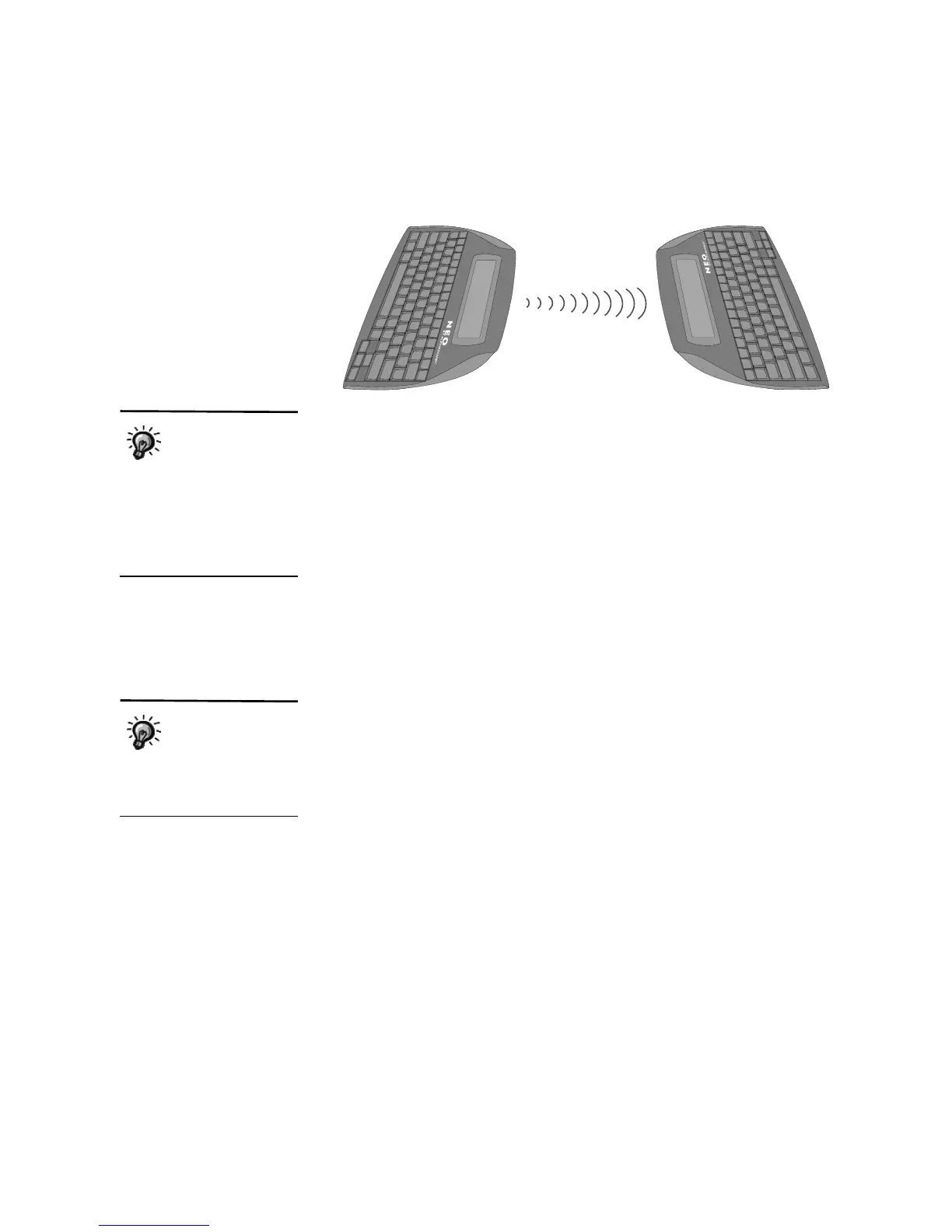
2. The sender should open the file he or she wants to send and press ctrl-
send.
3. The receiver should open the file space that he or she wants to receive
the text into and press ctrl-B.
4. If the file that the receiver chose was not empty, a message will ask if you
want to overwrite it or append to it (that is, add the beamed text to the end
of the file). Move your cursor next to an option and press enter.
Printing from NEO
There are several ways to print your AlphaWord files through your computer.
If you prefer to print from your computer, you can do one of the following:
• Send the file to your computer as described on the previous pages and then
print from your word processing program.
• Retrieve files using AlphaSmart Manager and then print them. (See
page 83.)
If you prefer to print directly from the NEO, there are three ways to do this:
• You can connect NEO to your printer with a USB cable and then press
print on the NEO. See the instructions on page 15.
• You can use IR beaming to send the file from NEO to your printer. (For
more about IR setup, see page 18.) To print this way, see page 15.
• For NEO 2 only, you can use radio frequency technology to send the file to
your printer for wireless printing. To print using this method, see page 15.
A
If there is text in the
clipboard of the NEO
that’s receiving a
file, NEO will ask if you want
to overwrite the clipboard with
the file you’re receiving. To
continue and allow the
clipboard to be overwritten,
press enter.
For more about
printers that are
compatible with
NEO, go to
http://support.renlearn.com/
techkb/techkb/6833262e.asp.


 To Next Page