W RITING ON NEO USING ALPHAW ORD PLUS
Finding Text in AlphaWord Plus Files
35
. . . . .
NEO 1 and NEO 2
User Manual
• Press the arrow keys to scroll through the surrounding text so you can
see the found text in the context of nearby text.
• Press esc to exit without finding or replacing this or any other text.
Finding Sections of a File
In AlphaWord Plus, a “section” is a block of text separated by as few as one or
as many as nine blank lines. In longer files, it is helpful to go straight to one of
these sections instead of scrolling through the files. To do this, follow these
steps:
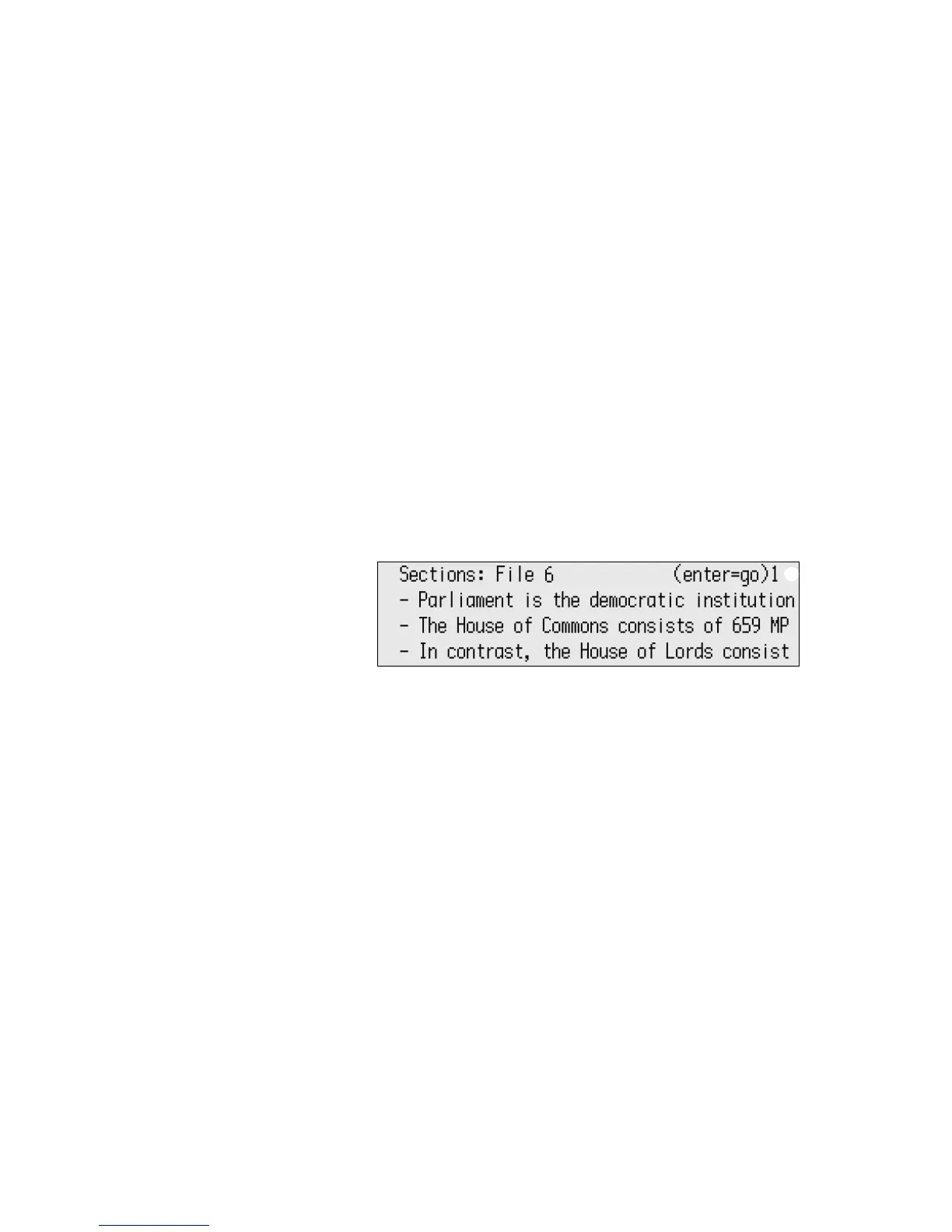
1. Press a-S. A list of sections in your file appears.
2. The number in the top right corner of the screen shows how many blank
lines AlphaWord Plus expects to see between sections
A.
If you have more or fewer blank lines between sections in this document,
type the number you have used (any number from 1 to 9). When
AlphaWord Plus asks if you want to change the section separator, press Y
for yes.
3. Use the arrow keys to move the cursor next to the section you want; then,
press enter to move to the beginning of the section you chose.
An Example of How Sections Work in AlphaWord Plus
In the example on the next page, the user typed two blank lines between
sections of the document about bears. For this document, when you are
looking for a section, you would press a-S to see a list of sections and press 2
to change the number of blank lines between sections to two. You would then
see a list like the one shown.
A


 To Next Page