34
NEO 1 and NEO 2
User Manual
W RITING ON NEO USING ALPHAW ORD PLUS
Finding Text in AlphaWord Plus Files
. . . . .
Finding and Replacing Text
Follow these steps to search and replace in the file you have open. (You can’t
search and replace in all files at the same time.)
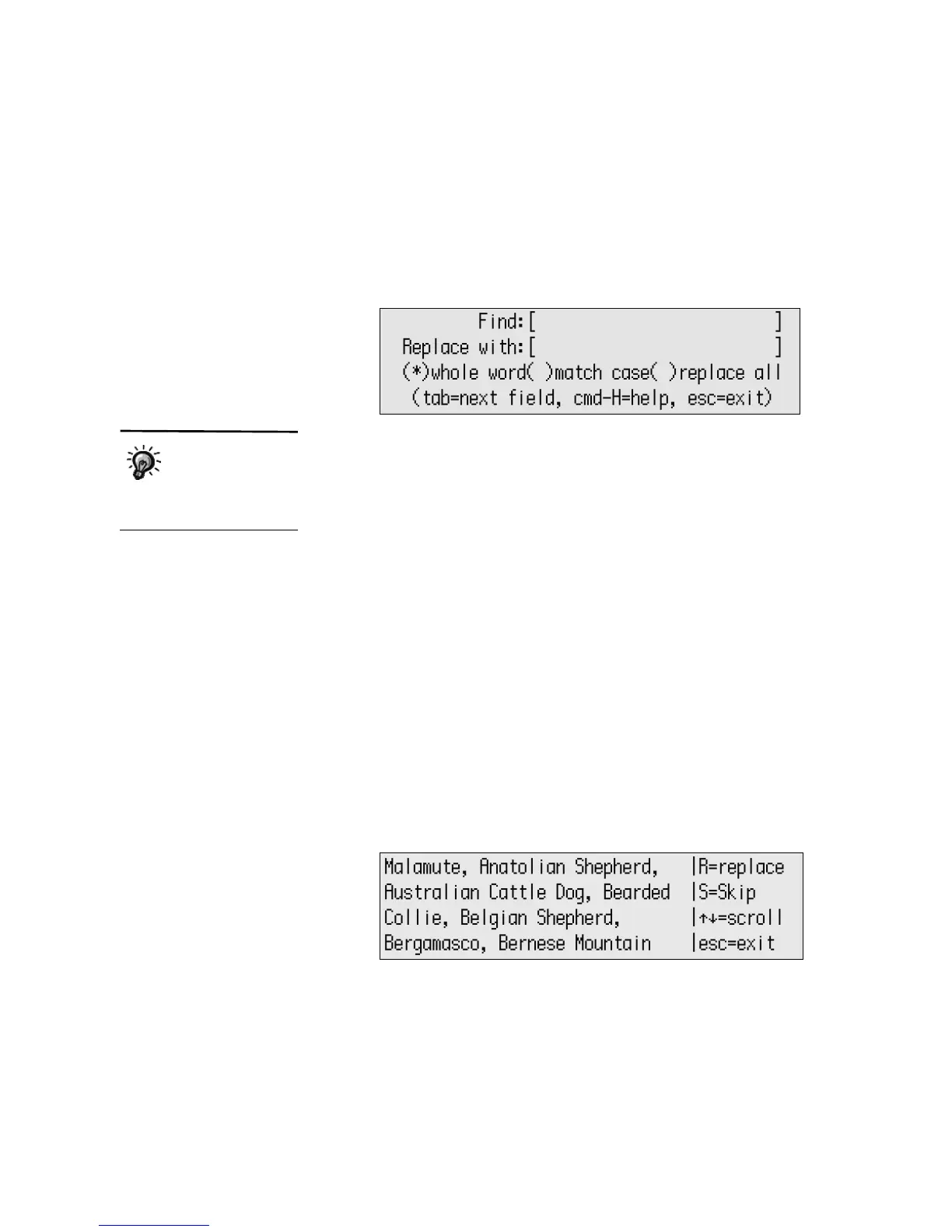
1. Press ctrl-find. The Find/Replace screen appears.
2. Type the text you want to find in the Find field, then press tab or to
move to the Replace field. (If you searched for and replaced text before,
press clear file in each field to remove your earlier text entries.)
You can search for up to 100 characters, including spaces.
3. Type the replacement text.
4. Press tab or
, then or to move between options for the search
(whole word, match case, and replace all). Press the spacebar to enable
or disable each option. When the option is selected, you’ll see * between
the parentheses next to that option.
• Whole word searches for complete words only. If you don’t select this
option, NEO searches for characters that may be part of a longer word
or part of more than one word (for example, searching for hat would
find that, chat, and hatchet).
• Match case finds text that exactly matches the capitalization of the
text you typed in the Find field.
• Replace all specifies that you want to replace all occurrences within
the file.
5. Press enter to begin the search. When AlphaWord Plus finds the text, it
will show you the first occurrence with options listed to the right as in the
example below.
6. Do one of the following:
• Type R to replace the found text with the replacement text.
• Type S to skip that occurrence of the found text and leave it as is.
You can use the
clipboard to paste
text into both the
Find and Replace With
fields.



 To Next Page