56
NEO 1 and NEO 2
User Manual
S MARTA PPLETS
Managing SmartApplets
. . . . .
• Change the startup SmartApplet (the one that starts automatically when
you start a NEO). See page 109.
• Disable SmartApplets on your NEOs (see page 110).
• Change SmartApplet settings on NEOs (see page 109).
You can also perform some of these tasks on the NEO itself. For example,
from the SmartApplets menu, you can quickly change the SmartApplet that
starts when you start the NEO (see page 56), and you can disable
SmartApplets (see page 56).
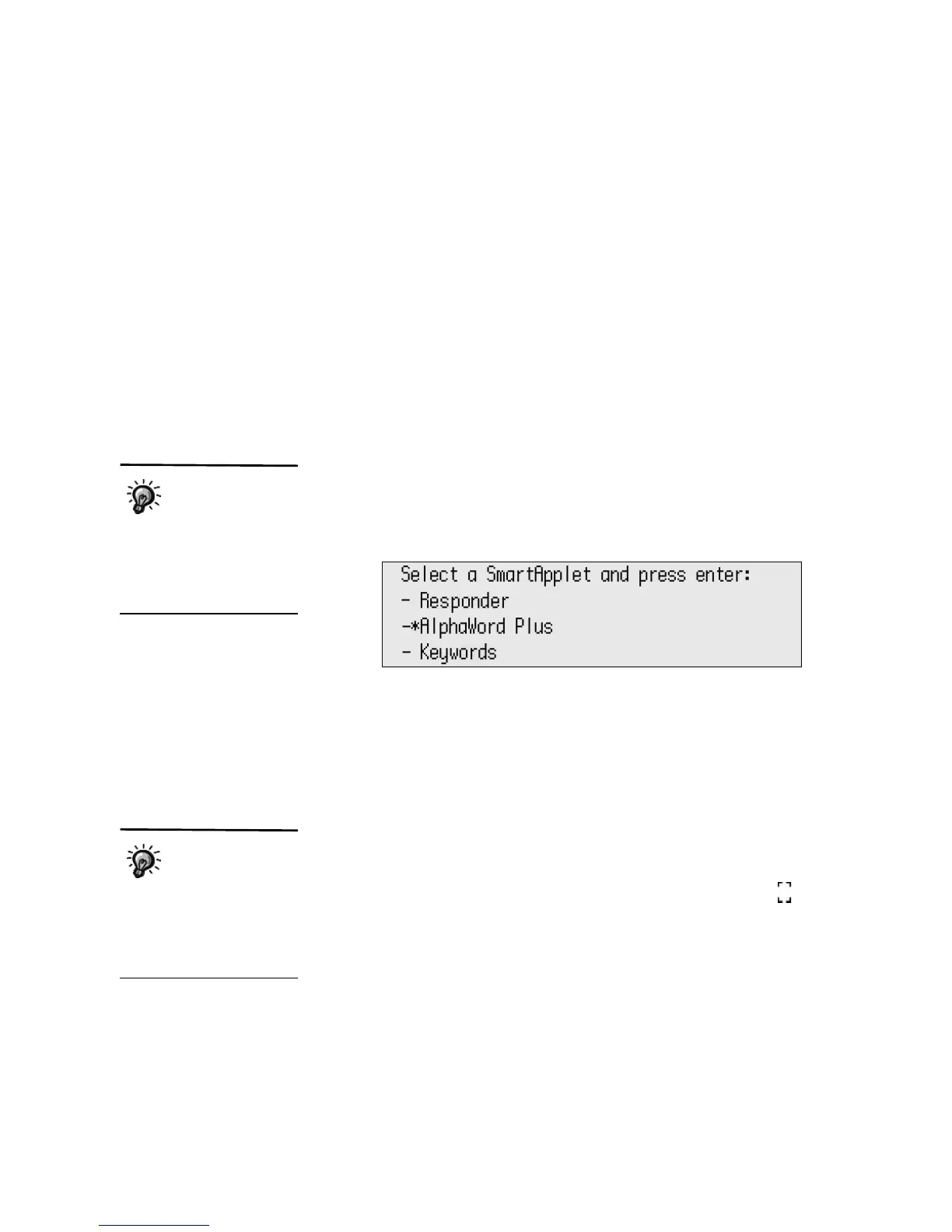
How to Change the Startup SmartApplet from the SmartApplets Menu
1. Press applets.
2. Use the arrow keys to move the cursor next to the SmartApplet that you
want to start when you turn on your NEO.
3. Press ctrl-applets. An asterisk designating the startup SmartApplet
appears in the menu.
Repeat the steps to turn the setting off.
How to Disable a SmartApplet from the SmartApplets Menu
Follow the steps below to disable a SmartApplet on the NEO. You can also
disable SmartApplets using AlphaSmart Manager; see page 110.
1. Press applets.
2. Move the cursor next to the SmartApplet you want to disable.
3. Press ctrl-a-L.
4. Enter the master password (see page 115) and press enter. The
symbol appears next to the SmartApplet to show it has been disabled.
Repeats these steps to enable the SmartApplet.
If you want to disable the Calculator SmartApplet, from within AlphaWord
Plus, you can press ctrl-a-C and then enter the master password.
If you don’t set a
startup SmartApplet,
when you turn on your
NEO, it goes to the
SmartApplets list, with the
cursor next to the SmartApplet
you were working in when you
turned the NEO off.
You need the master
password to disable
SmartApplets. You
can use AlphaSmart Manager
to set this password (see
page 115) or contact
Technical Support to get the
default master password.



 To Next Page