W ORKING WITH ALPHAS MART MANAGER
Sending Files, Rubrics, or Write On! Lessons to NEOs
93
. . . . .
NEO 1 and NEO 2
User Manual
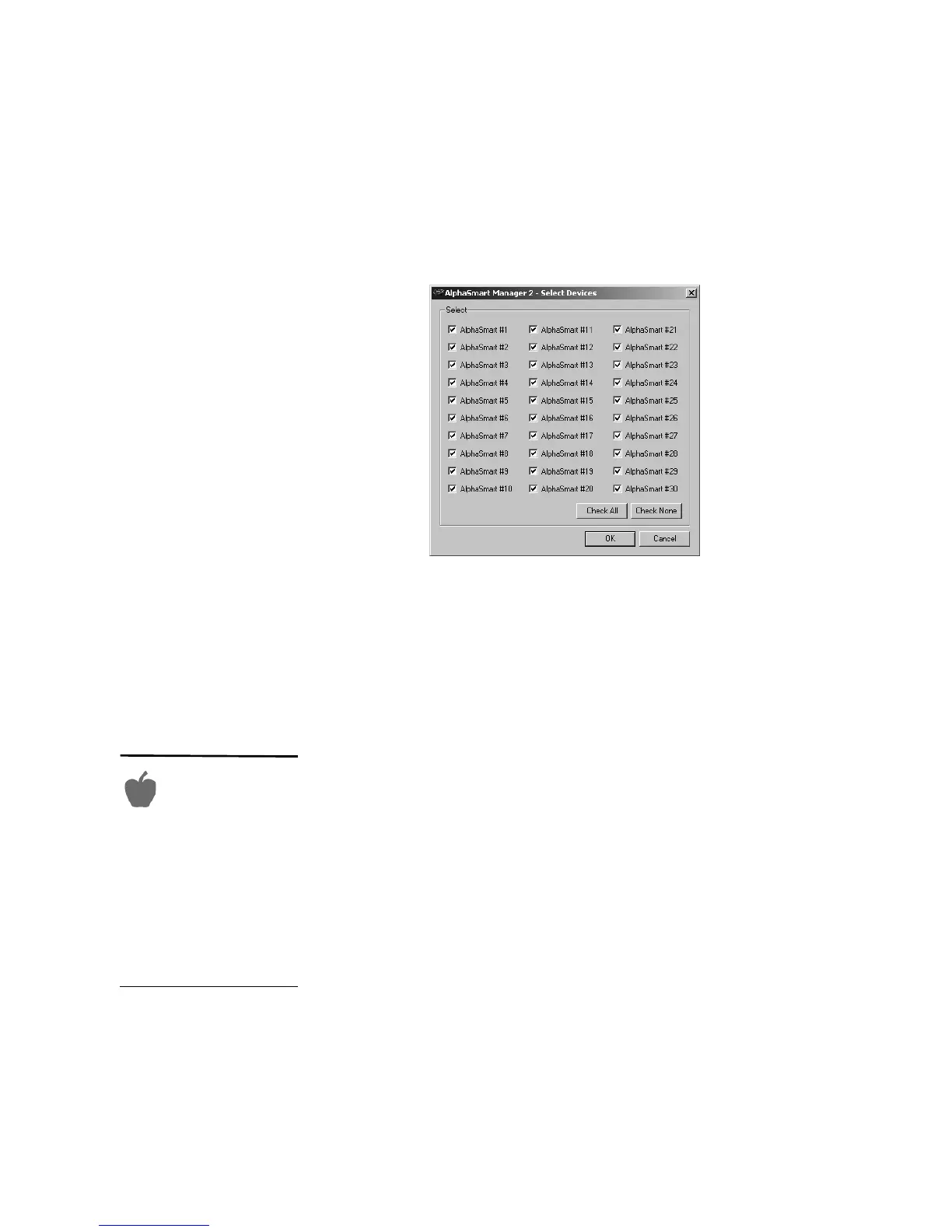
5. If you are using a SmartOption Mobile Lab and you want to send the text
to some, but not all, of the NEOs, click Select Devices, check the devices
to which you want to send the text, then click OK. (To send to all
connected NEOs, skip this step.)
6. Click Send. If you have set a send list password (see page 116), you must
enter the password and click OK.
You can transfer multiple files simultaneously. To do so, repeat steps 2 and 3
until you’re ready to send, then review the Send List Display to make sure all
the files appear before clicking Send.
Sending Rubrics or Other Linked Files to NEOs
AlphaSmart Manager can also send assignment rubrics or other linked files to
NEOs. You can create your own rubric or linked file to send, open a text file
that you want to link to the main file, or select one of the sample rubrics.
The file that you create or choose will be linked to the main file that you send
it to on the NEO; the text won’t be in the main file. For more about linked
files, see page 42.
Follow these steps to send a rubric or another linked file to NEOs:
1. In AlphaSmart Manager, click the AlphaWord Files to Send tab.
Encourage students
to use their pre-
writing to type a
rough draft, then present
them with a rubric, either as
a linked file or on paper. This
encourages students to use
keyboarding skills to actually
revise instead of just looking
for typos. Rubrics can
incorporate requirements
commensurate with current
grammar lessons.


 To Next Page