CHAPTER 3: SYSTEM CONFIGURATION
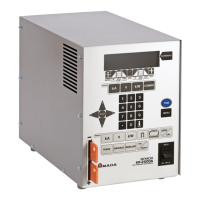
HF-2500A HIGH FREQUENCY WELD CONTROL
3-4 990-371
1. Schedule Lock
This function prevents unauthorized users from selecting any weld schedule other than the displayed
schedule, and from changing any weld energy/time parameters within the weld schedule.
2. System Lock
This function prevents unauthorized users from changing any of the options on the main menu. It also
prevents unauthorized users from changing weld energy/time parameters within weld schedules 1-99.
Note that schedule 0 is a “scratchpad” and can still be edited when the System Lock is ON. This security
level allows you to select different schedules from the front panel.
3. Calibration
This function prevents unauthorized users from modifying any of the calibration settings.
NOTE: All security options use the same procedure to enter a security code and to turn the security code
OFF.
1
SCHEDULE
LOCK
. This will bring up the CHANGE
STATUS
screen, as shown at the right.
2. Enter a 7-digit number, from 0000001 to
9999999, in the code field, and then
enter a period. This will bring up the
SYSTEM SECURITY menu screen, this
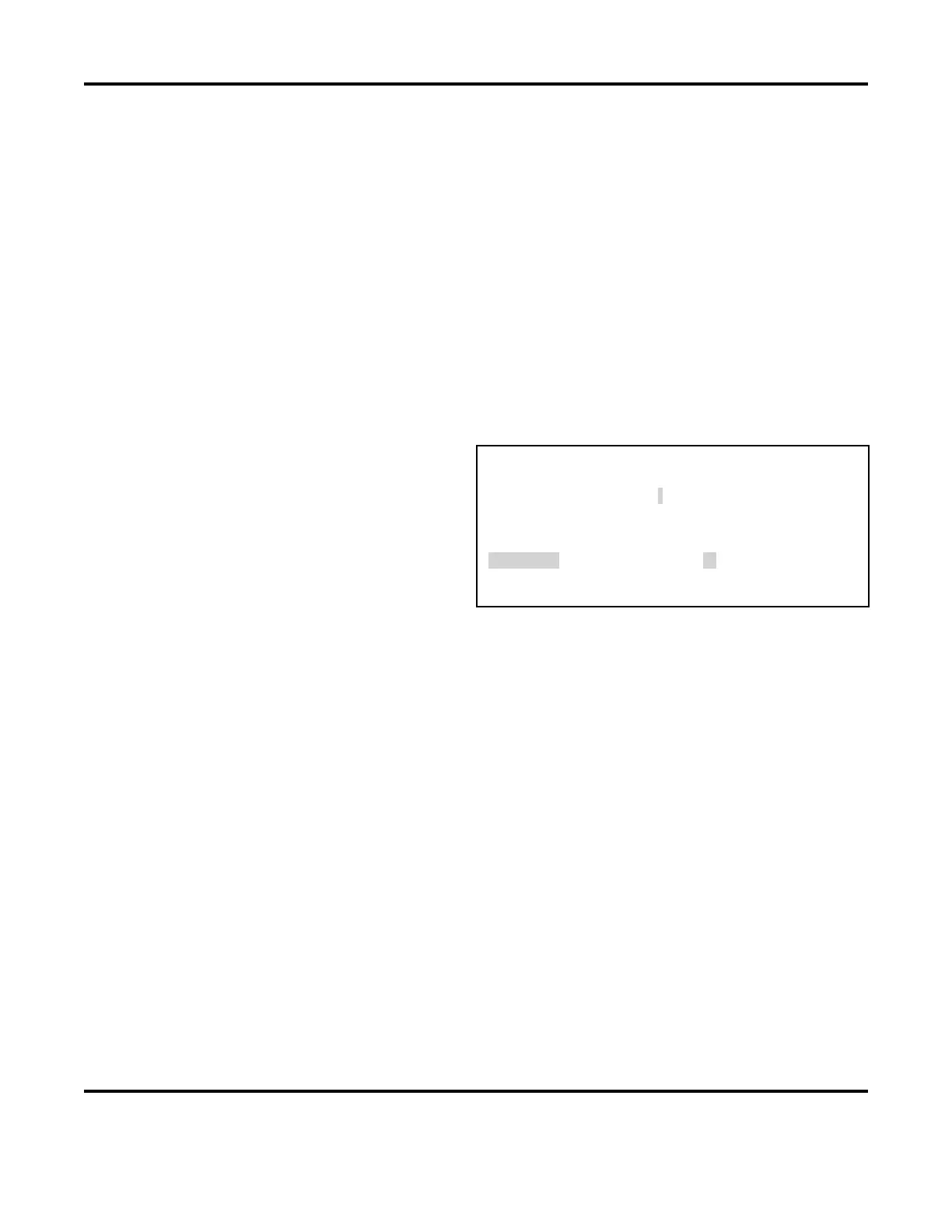
<CHANGE STATUS>
PASSWORD :
– – – – – – –
NUMBERS for code followed by [.]
time with SCHEDULE LOCK: ON. With ON selected, all other weld schedules are locked out and
cannot be modified or used for welding.
3. To unlock the Power Supply from security protection, return to the CHANGE STATUS screen and
enter the code that you entered in Step 2. This will bring up the SYSTEM SECURITY menu screen,
this time with
SCHEDULE LOCK: OFF.
4. If you forget the security code and wish to unlock the Power Supply from security protection:
• Return to the CHANGE STATUS screen.
• Enter a security code of
280.


 To Next Page