Section 4 Unit Operation
4-8
4.2.2 Setup Screen
Pressing a direct key when the unit is in the measurement state (the LCD will be displaying the measurement screen and the
front panel Setup LCD will be lit) enters the parameter setup state (the LCD will be display the setup screen and the front
panel Setup LED will light). The following describes the two types of setup screens.
[Menu Screen]
The menu screen displays a list of menu corresponding to direct keys. You can use the [<] and [>] keys to select param-
eters, select setting values, and enter numeric data.
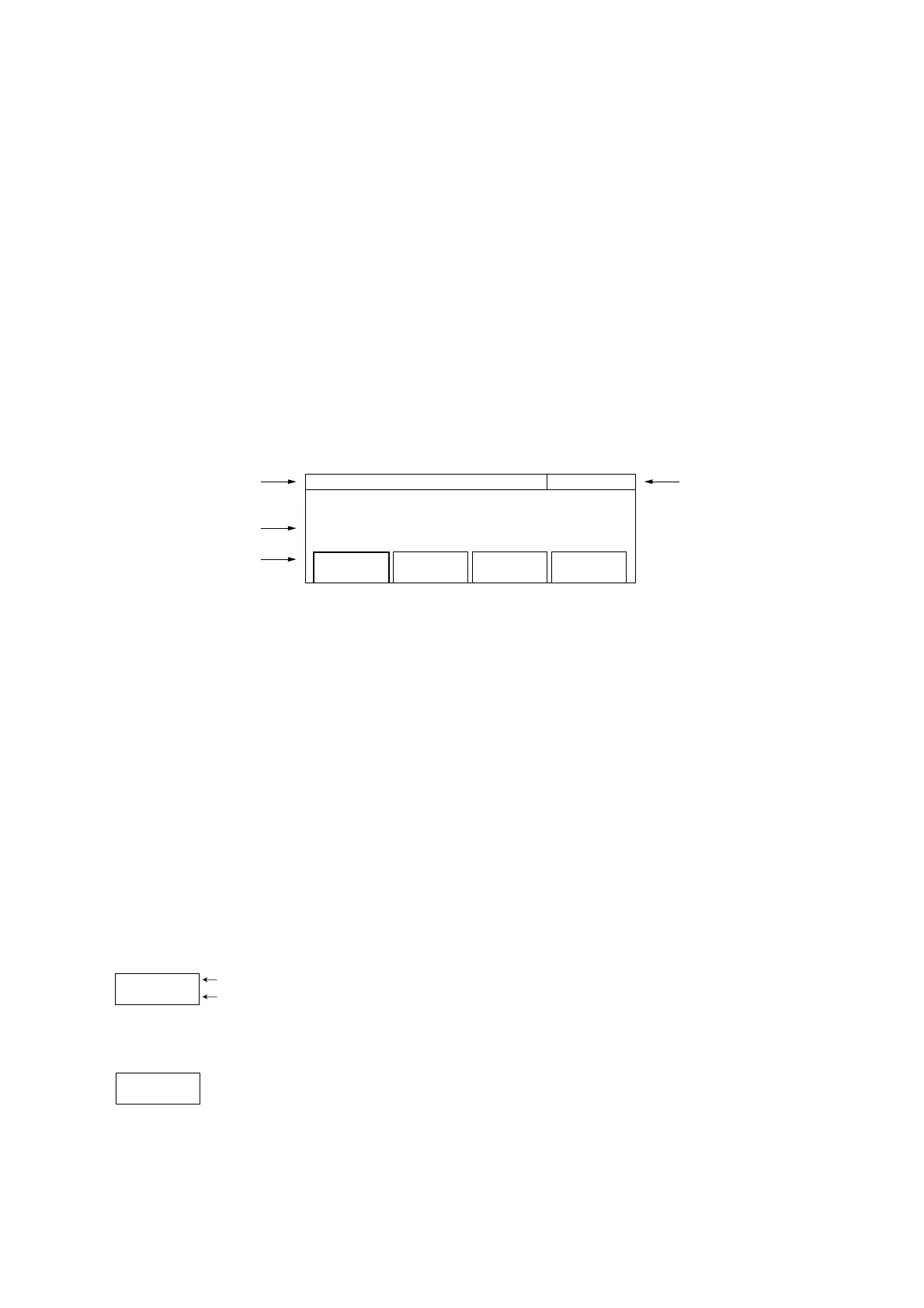
Fig. 4-5 shows the basic screen.
20 000 000 0
00
Hz Freq Acq
Manual Freq : 20 000 MHz
Mode
[Manual]
Last
Measure
Set
Freq
Count
[Fast]
F1 F2 F3 F4
(1) Frequency
(2) Setting display
(3) Menu
(4) Title
Fig. 4-5 Menu Screen
The following describes items (1) to (4) in Fig. 4-5 shown above.
(1) Frequency
Displays the results of frequency measurements.
(2) Setting display
Displays settings with a large number of digits such as frequencies. Displays numeric data such as frequencies.
(3) Menu
• The menu displays up to four function selections. For the sake of convenience, they are called F1, F2, F3, and
F4 starting from the left.
•A selected functions is highlighted and displayed within a thick frame.
• The following describes menu structure.
(A)
Function name
[Setting state]
Displays the name of the function that can be set.
The content between square brackets [ ], if displayed, consists of a number of possible
parameter selections.
(B)
Lower screen
Displays a group name and an asterisk when the menu extends to a lower level.←
*
• The following describes how to use menus.
(1) Use the keys ([<] [>]) to select a function (F1 to F4) to set.
(2) The way you set parameters depends on the menu type. Table 4-6 shows how to make settings for each
menu type.



 To Next Page