27
Par.
6.3
Scrolling menu items.
Increase / decrease data
Quit the function or
data changes
Conrm access or
data changes.
Shift the
cursor
Reset / disable
data
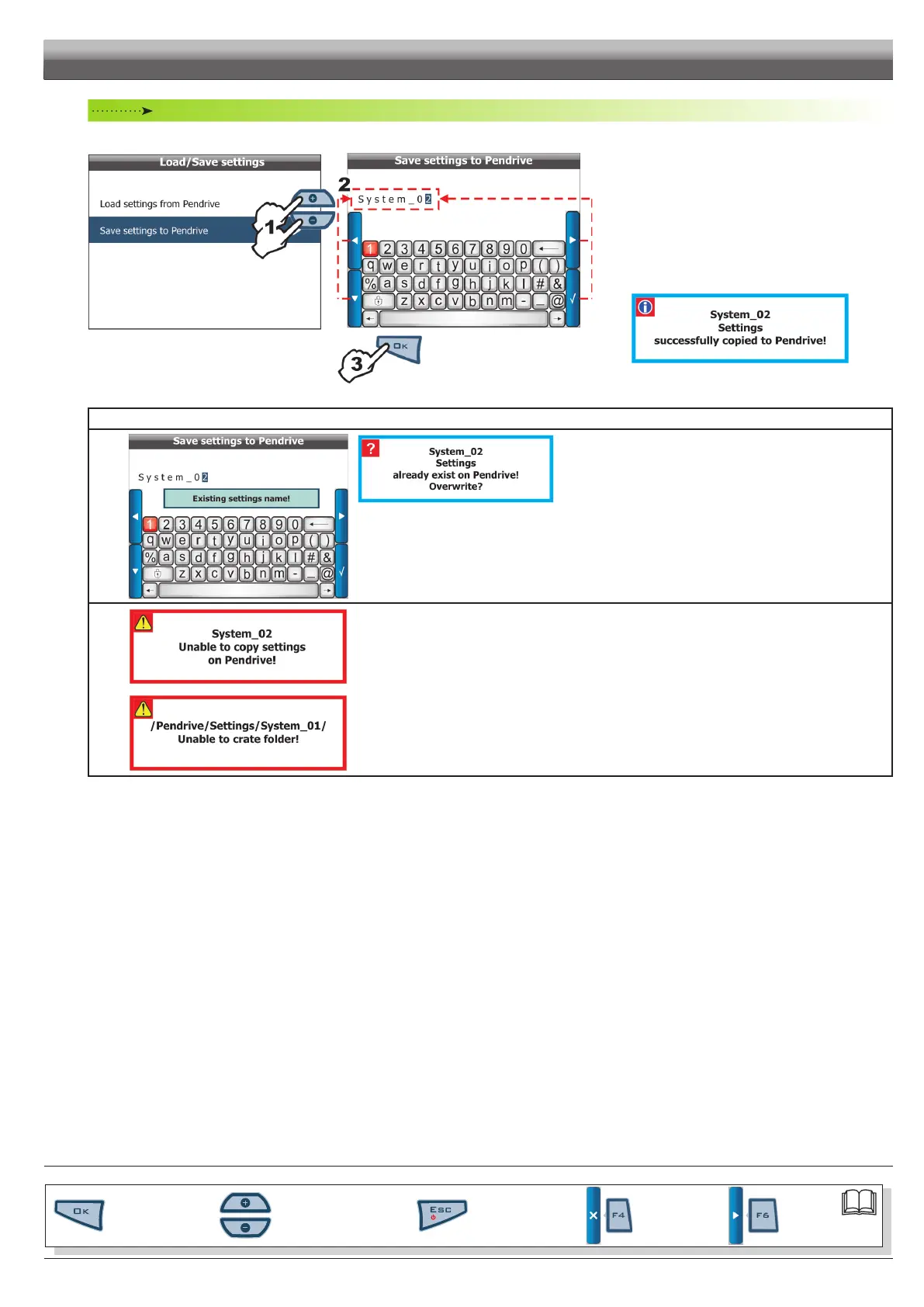
Save settings to Pendrive
Allows saving Skipper LT conguration to pendrive: you can upload it again at a later moment, any time it is necessary to repeat the same settings.
Fi g. 76
Fig. 77
1 Select item
Save settings to Pendrive (Fig. 76) and
press OK;
Skipper LT prompts you to set a new name.
2 Enter le name using keys shown in Fig. 77, as described in
par. 6.3 - Using the programming keys;
3 Conrm name by pressing
OK.
A conrmation message is displayed once saving is com-
pleted (Fig. 78). Press
ESC.
Fig. 78
ERROR MESSAGES
Fig. 79
Fig. 80
The pendrive already contains a le with this name. Following are the two possible instances:
- Press OK twice to replace le.
WARNING:ALLdataconcerningreplacedlewillbelost.
- Press ESC to avoid replacing le: check le content or change its name before repeating saving control.
Fig. 81
Possiblecauses:
- Space available on pendrive is over: eliminate some les from pendrive and try saving again.
- The pendrive is locked: unlock and repeat saving.
If the problems persist, please contact the service centre.
Fig. 82
END OF PAR. 6.6.3 - LOAD / SAVE SETTINGS
PROGRAMMING - MEMORIES MANAGEMENT


 To Next Page