96 Camera Controls
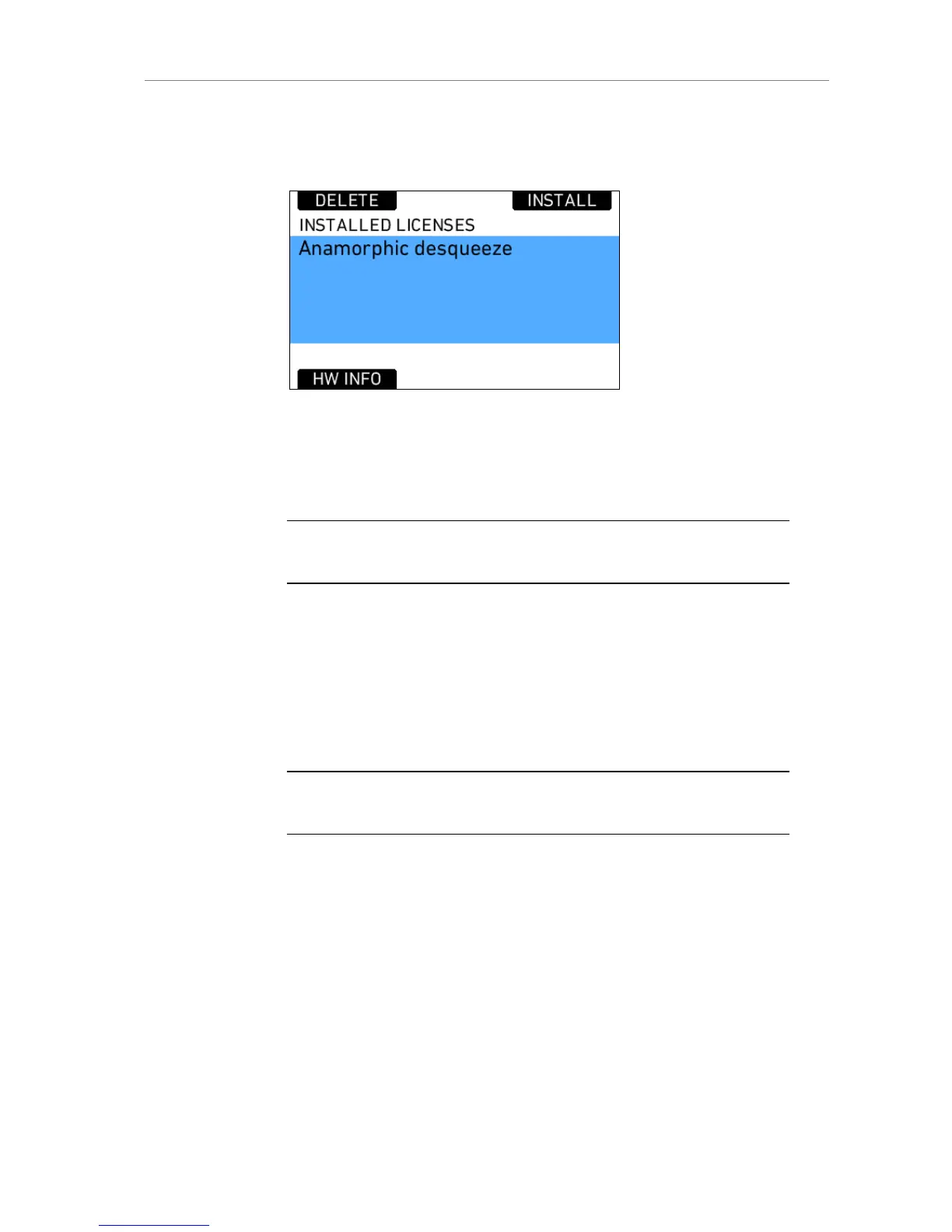
The INSTALLED LICENSES screen shows currently installed license keys
for licensed features. New license keys located on the SD card can be
installed by pressing the INSTALL button.
Figure 76: List of installed licenses
The license key file (suffix .lic) to be installed must be located on the SD card
in the correct folder (folder ARRI >subfolder ALEXA >subfolder Licenses).
Note: Only license keys that have been created for the camera in use will appear in
the SD card license list.
The list shows the file names in the SD card directory. Below the list the
feature contained in the license key is displayed for the currently selected
license key file.
Press the jogwheel to install the currently selected license on the camera.
License keys can be deleted from the camera to prevent the use of the
feature. The license can be reinstalled at any later point in time. Press the
DELETE button and select the license to be removed. Confirm the removal
by pressing the jogwheel.
Note: Make sure to keep an offline copy of the license file! In case you lost a license
file, you can reload it from your account in the license webshop.
To save the hardware info file of the camera, press the HW INFO button.
The file will be saved to the SD card root directory, named sn####-
AlexaHardware.ipkg.



 To Next Page