6. Shapes and Pixel Mapper effects - Page 105
TitanUniversal_Man_v8-0_TT.doc 05 August 2014
1> Select the group of fixtures.
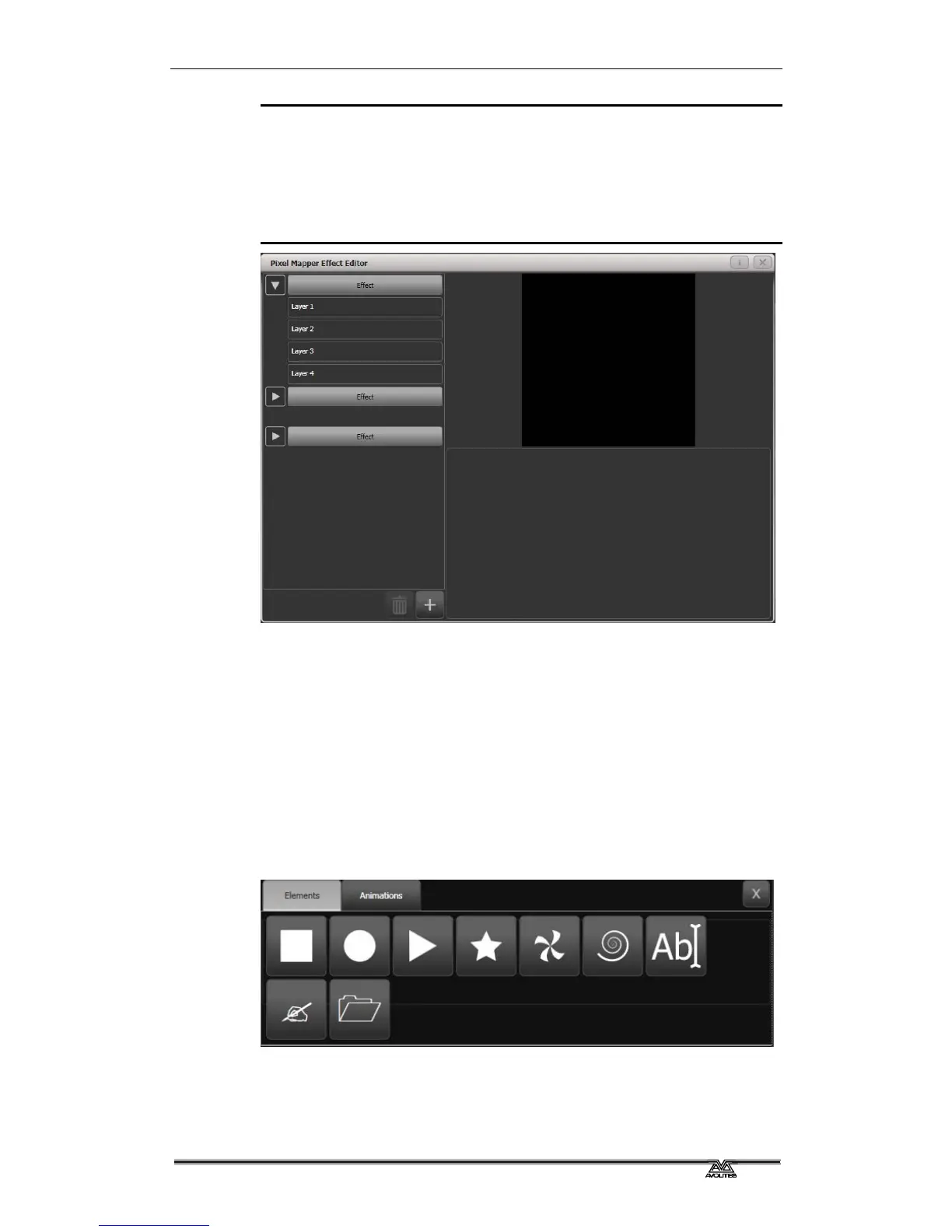
2> From the top level menu select [Shapes and Effects] then [Pixel
Mapper]
3> Select [Create effect]. The Pixel Mapper Editor will open with a
blank background. You can overlay your fixture layout on the
window, to help you see where your fixtures are, by clicking on
the [Fixture Overlay 50/50] context menu button.
Click on the + button at the bottom to add an effect, and choose a
graphic element. The graphic buttons as shown below provide the
following effects:
• Square
• Circle
• Triangle
• Star
• Fan
• Spiral
• Text
• Scribble (you draw an image on the touch screen)
• Image/bitmap (loaded from disk)
Then click on the + button again and choose an animation (how your
graphic element will move). The animated effect will show in the
black window.



 To Next Page