5. Palettes - Page 95
TitanUniversal_Man_v8-0_TT.doc 05 August 2014
5.2.3 Only showing relevant palettes
If the User Setting [Filter Relevant Palettes] is enabled, when you
select fixtures any palettes which are not applicable will grey out. This
is very useful to see which palettes are available for the fixtures you
are working with.
5.2.4 Quick palettes with no fixtures selected
If you press a palette button when no fixtures are selected, the
palette will be set to all the fixtures the palette applies to. This is
called a Quick Palette. For example if you’ve got some colour palettes
programmed for your MAC 2000’s, pressing one of the palettes when
no MAC 2000’s are selected will set the colour to all the MAC 2000’s.
5.2.5 Setting palettes to all fixtures in a playback
You can apply a palette to all fixtures in a particular playback. Hold
the palette button and press the select button of the playback which
the palette is to apply to.
5.3 Editing palettes
5.3.1 Viewing and editing the content of palettes
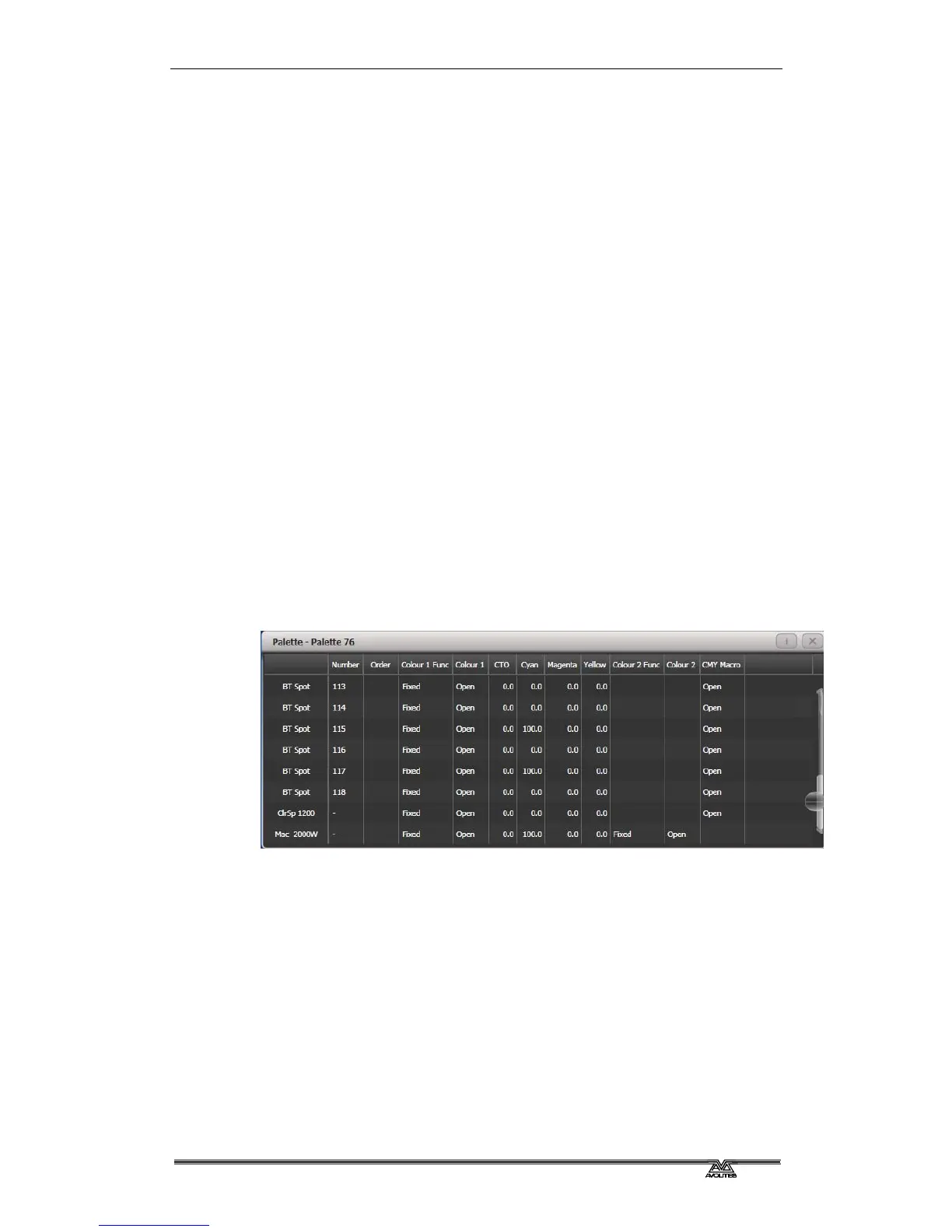
You can view the contents of a palette in the Palette View window.
This lists all fixtures in the palette and the attribute values stored for
them. A context menu button allows you to switch to displaying
Times.
Press
View, then the palette button. The Palette View window will
open.
To edit an attribute value, touch/click on it in the window. The
softkeys will give you a list of available settings for this attribute or
you can type in a numerical value.
There is also a [Delete] button which allows you to remove the value
from the attribute. This is the same as using the Off function.
• When the palette contains other palettes, the context menu
option [View/Hide Nested Palettes] sets whether or not the view
shows the actual attribute value or just the name of the nested
palette.
5.3.2 Changing the content of palettes
To edit a palette entry, press the Update Palette button, select the
palette to edit (this will automatically select the fixtures used in the



 To Next Page