3. Patching - Page 59
TitanUniversal_Man_v8-0_TT.doc 05 August 2014
• Where a fixture has been exchanged from more than one
source fixture you can switch between them by selecting the
relevant source fixture under the 'exchanged from' column.
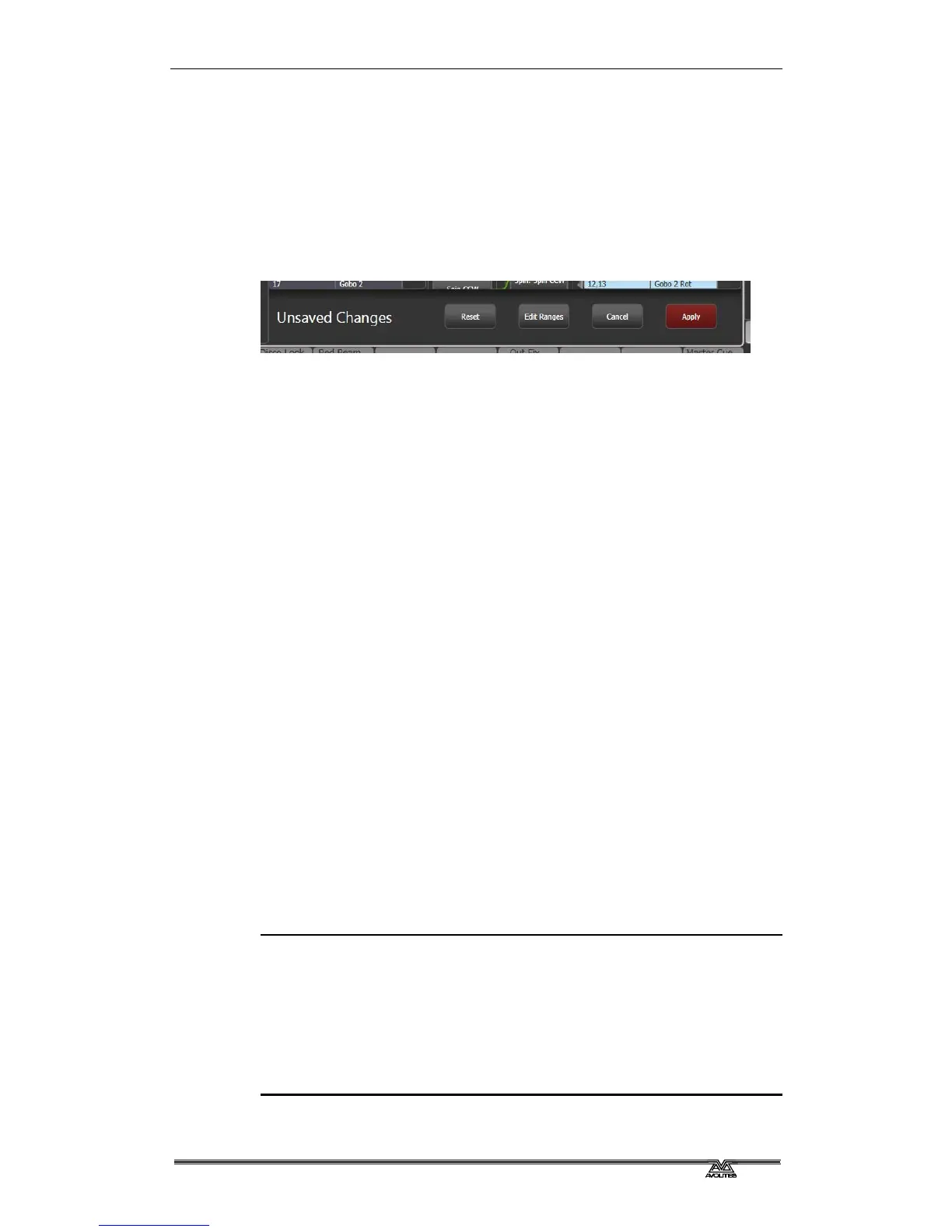
• When you change the mapping, the 'Unsaved Changes' options
will pop up at the bottom of the screen. Here you can store the
new mappings by pressing Apply, forget the changes by
pressing Cancel or restore all mappings to Avolites factory
default by pressing Reset. All these actions have to be
confirmed by pressing the [Confirm] softkey.
Range mapping
If the destination function has a range (for example 0-100%) you can
adjust the range to which the source function is mapped.
Where multiple source functions are mapped to a single destination
function with a range, separate destination buttons are shown
allowing you to set a different destination range for each source
function.
To set the range, first select a destination function, then click the Edit
Ranges option at the bottom of the window. Then select the function
whose range you wish to change. (Note that it is only possible to
adjust the range of a mapped function. Any functions that are not
mapped or are not ranges will grey out). You can then adjust the
maximum and minimum values for the range either by wheel, by
touching the wheel view on touch consoles or by selecting the
relevant softkey and entering the value.
Once complete, click Apply then [Confirm] to commit the changes or
Cancel then [Confirm] to forget.
3.2.8 Update personalities
This option allows you to update the personality for a fixture used in
your show. Normally a copy of each fixture personality in the show is
saved in the showfile, so updating the personality library on the
console does not update fixtures which are already patched.
• It’s a good idea to save your show before using Update
Personalities, then you will be able to undo any changes if you
change your mind or have problems.
1> Enter patch mode by pressing Patch.
2> Press [Update Personality] to update an individual fixture type,
or [Update All] to update all patched fixtures to the most recent
version in the library.
3> If updating individual fixtures, the console shows you a list of
personalities used in the show which can be updated.
4> If updating individual fixtures, press the personality you want to
update.



 To Next Page