Page 92 – 5. Palettes
TitanUniversal_Man_v8-0_TT.doc 05 August 2014
5.1.5 Setting legends for palettes
You can enter a legend for each palette which is displayed on the
palette touch button.
1> Press [Set Legend] at the top level menu.
2> Press the palette button for the palette you want to legend.
3> Type the legend on the keyboard.
4> Press Enter when you have finished.
• On touch buttons, the palette number is shown top left. The
IPCGBES attribute groups contained in the palette are displayed
below your legend, so for example Position palettes will show a
P, colour palettes a C and so on. In the top right corner is
shown G for Global, N for Normal or S for Shared palette.
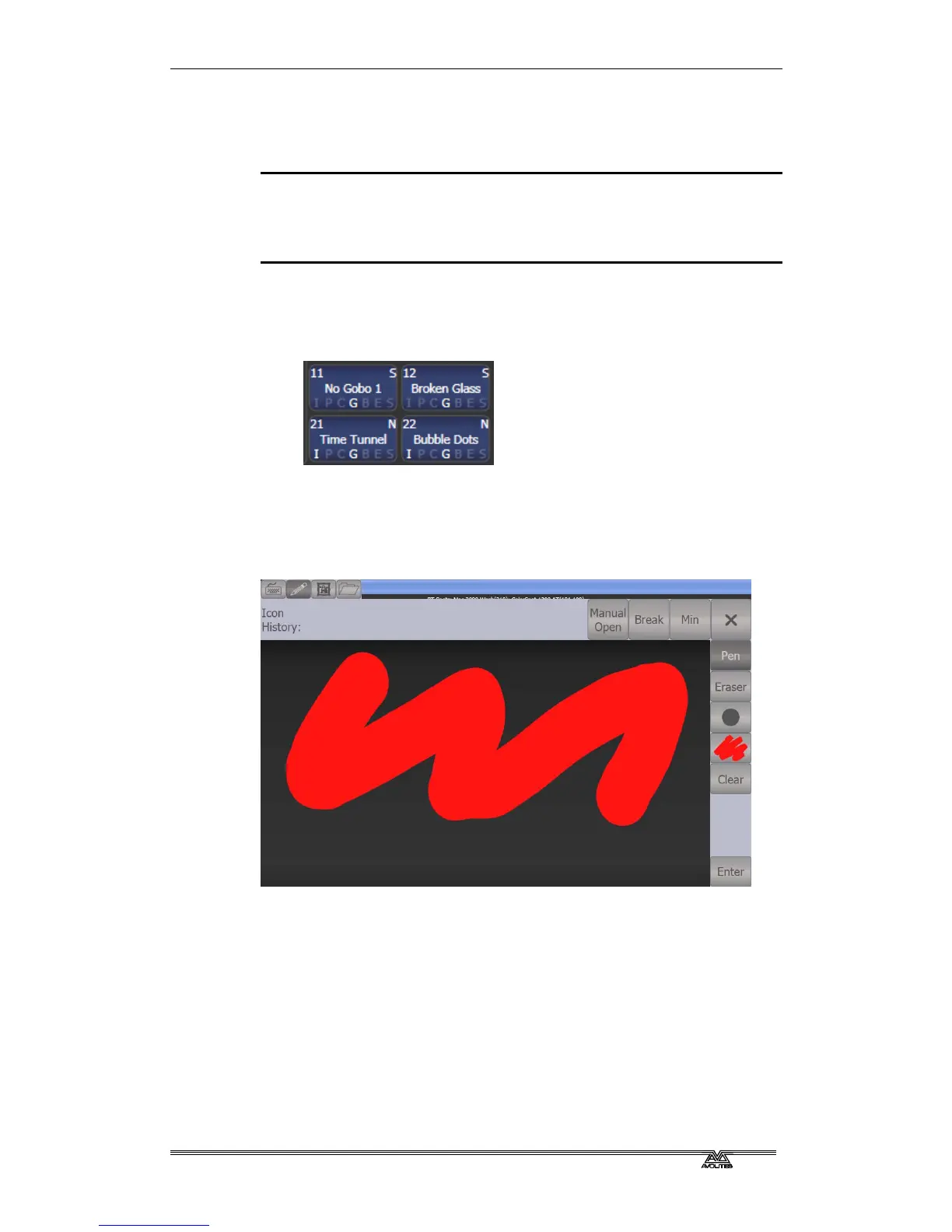
You can create a picture legend for your palette which could for
example represent the colour or gobo it will create. After pressing
[Set Legend] and the palette button, press [Picture]. The picture
editor will open.
The tab buttons on the top left allow you to select Keyboard entry
(legend reverts to text), Draw, Icon Library, or Load File. On the right
you can choose Pen or Eraser, set the pen/eraser size, set the colour
(white in the above picture), clear the whole picture, and Enter the
legend. The Min button top left reduces the editor to a smaller size.
If you select Library you can choose a picture from a wide range of
pre-programmed pictures. The pictures are sorted into various folders
which are listed on the left.



 To Next Page