Page 192 – 11. Remote control
TitanUniversal_Man_v8-0_TT.doc 05 August 2014
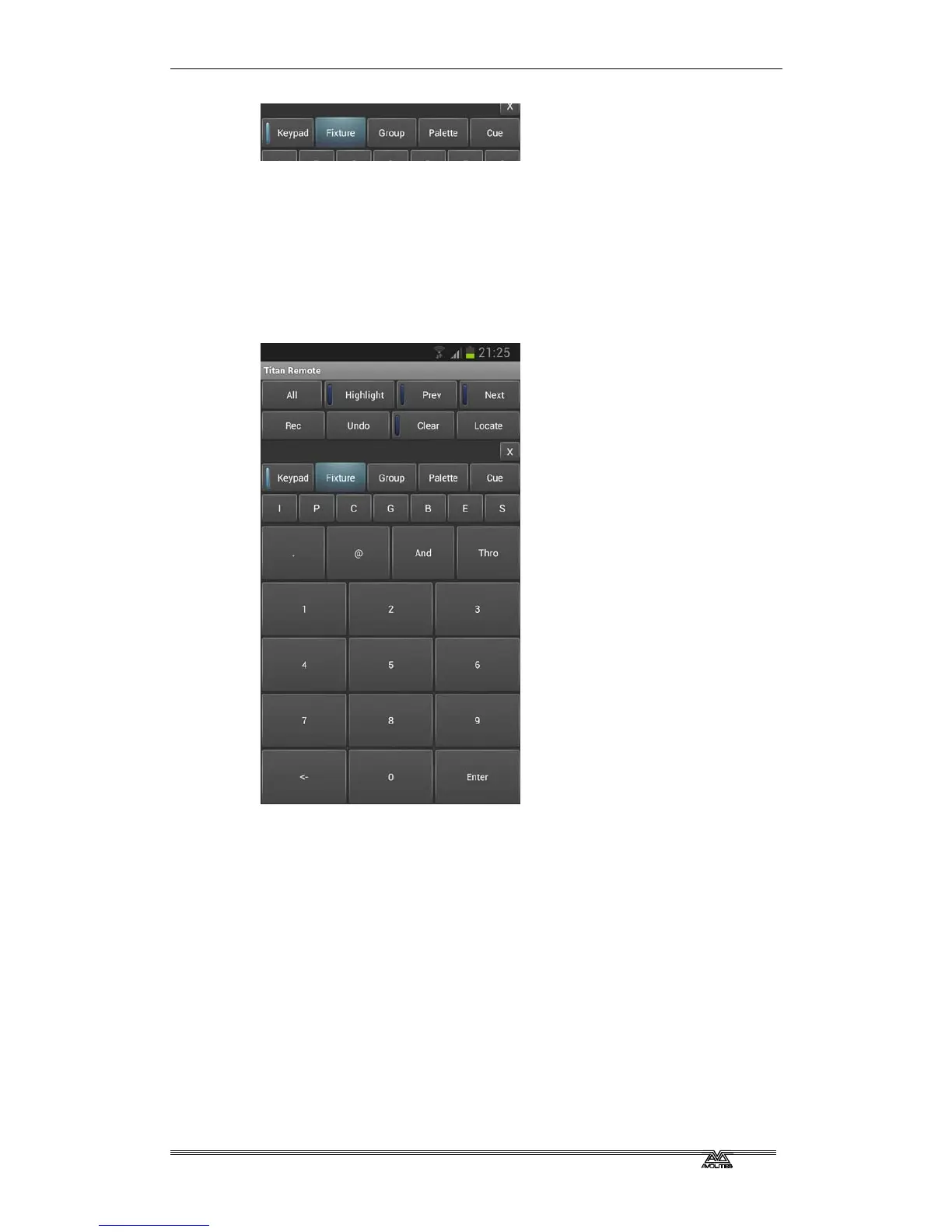
Choose what you want to control using the row of buttons across the
middle of the app. The Keypad button enables or disables the numeric
pad (the keypad overlays all the other screens, so you will need to
turn it off to see the others).
11.2.1 Keypad
The keypad screen lets you do most common tasks in the way a
programmer's remote normally works. You can turn on/Locate
fixtures and dimmers either singly or together.
The User Number of the fixture or dimmer is used for control. For
example to turn on dimmer 3 at 50% you would press:
3@5
To turn on dimmers 1-10 at 80% you would press:
1 Thro 10 @ 8
For 100% you just press @ twice, for example
1 Thro 10 @ @
To locate one or more fixtures, press Locate instead of the @ button.
You can select multiple ranges of dimmers or fitures using the And
button, for example 1 Thro 10 And 20 Thro 30 @ 6.
11.2.2 Controlling fixtures
The fixture screen allows you to select fixtures exactly as you would
on the console.



 To Next Page