2. Setting up and using the console - Page 31
TitanUniversal_Man_v8-0_TT.doc 05 August 2014
Control Panel opens a sub-menu allowing changes to monitor
settings and to the USB expert console which links the front panel
controls to the system. The 'More…' option opens Windows Control
Panel allowing you to change the operating system configuration.
Touch Screen Setup (in Control Panel) opens the setup utility which
allows you to align touch positions on the screen. See next section.
Usb Expert Console (in Control Panel) sets up the connection
between the front panel controls and the software. If you are having
problems this can be used to troubleshoot.
Folders opens the file explorer. You might need this when backing up
show files or when updating the operating software.
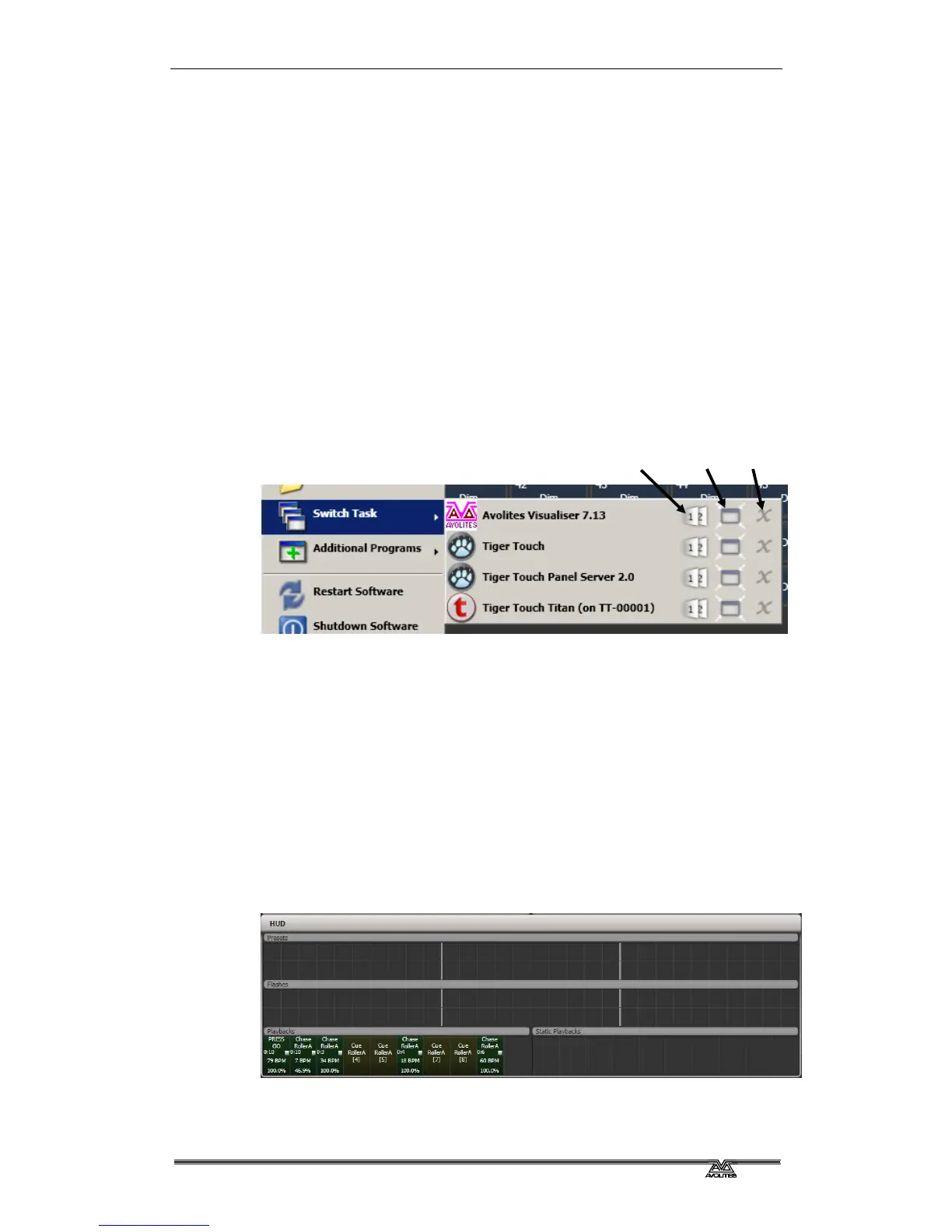
Switch Task allows you to show other programs (may be needed
when upgrading software) on the touch screen or move them
between screens. Touch the Switch Screen icon to swap the program
between different screens. Touch the Centre icon to centre the
window on the screen. Touch Close to close the program. The
appearance of this window varies depending on the console.
Additional Programs allows you to run some diagnostic programs
which might help Avolites Support find problems you’re having.
Restart and Shutdown Software restarts and closes the Titan
software. You would normally only use these when upgrading the
software.
2.3.4 The Heads-Up Display (HUD)
The HUD window is shown as one of the workspace windows. Most of
the HUD information is now shown in other windows, but if you’re
used to using it you might like to have it displayed.
Fixtures are highlighted in dark blue if in the programmer and in light
blue if selected.
Switch screen Centre Close



 To Next Page