Page 52 – 3. Patching
TitanUniversal_Man_v8-0_TT.doc 05 August 2014
Fixtures must be equipped with RDM for this to work;
many fixtures are not. Also if you have DMX buffers or
splitters in your rig, they must be RDM enabled or they
will block the information being sent back to the
console.
Press
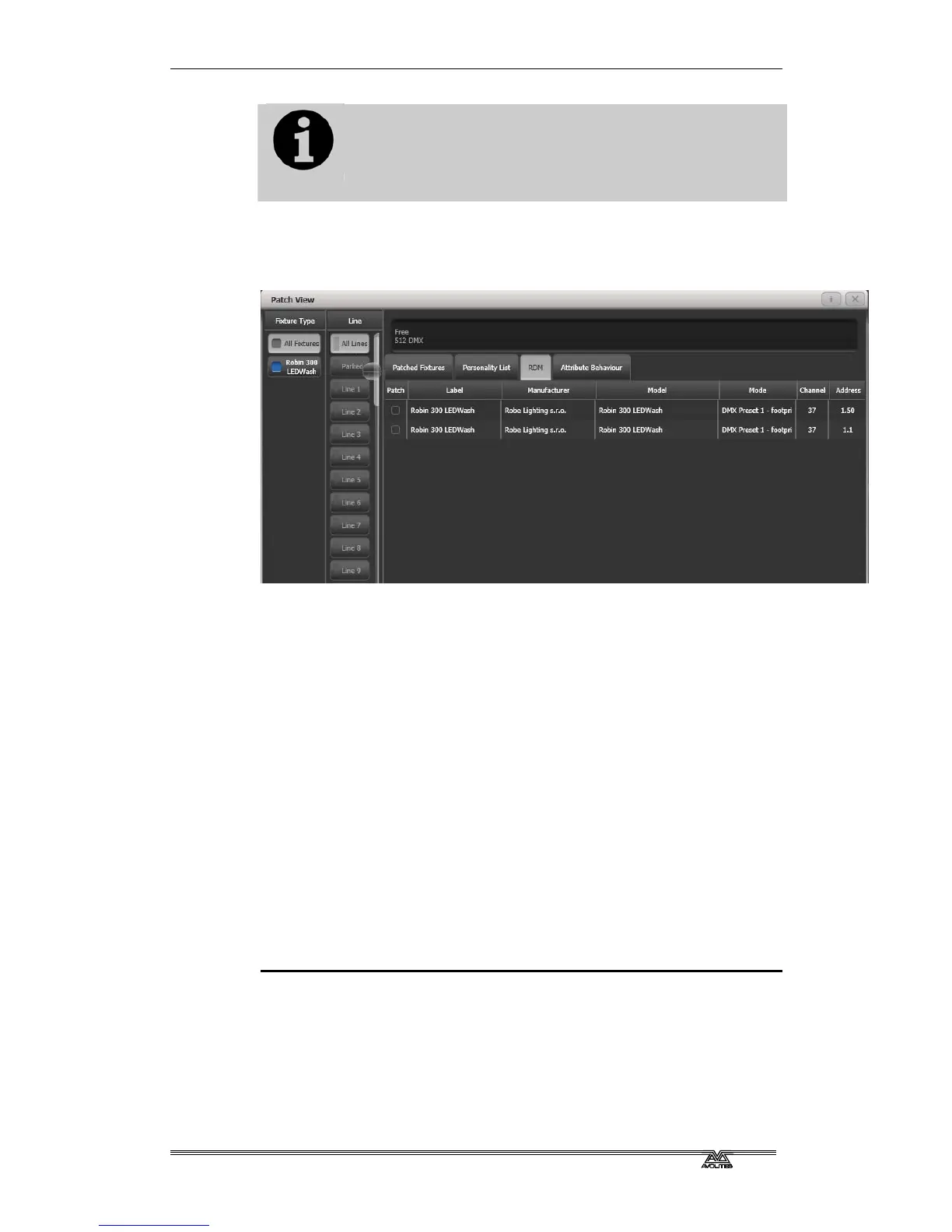
View then Patch to open the Patch View window then select the
RDM tab. All devices which support RDM will be listed here. Click the
Full Discover context menu button to rescan the rig for RDM devices.
• Select one or more fixtures in the grid and click the Patch
context menu button to patch the devices.
• Click on the Mode or Address cells in the grid to change these
settings remotely.
• Click on the Identify button (at the right hand end of the
screen, you might need to scroll to see it) to turn the fixture on
so you can see where it is in the rig.
• Click on the RDM Quick Patch context menu button to
automatically patch all RDM devices.
3.1.7 Finding a lost fixture
Sometimes a fixture may be rigged with the wrong DMX address set,
or connected to the wrong DMX line.
The Find Fixture function allows you to find the start address of the
fixture by scrolling a “locate” state through all possible DMX
addresses, avoiding a trip up the rig to look at it. When the fixture
responds with its Locate state, you know its DMX address.
1> Press Patch, [Fixture] and select the type of fixture you are
looking for
2> Press [Options], then [Find Fixture] to enable the Find Fixture
mode.
3> Turn Wheel B to go through all possible DMX addresses. Wheel
A sets DMX lines.
4> When the fixture responds with its Locate state, you have found
the correct DMX address.



 To Next Page