Page 198 – 12. User Settings and other options
TitanUniversal_Man_v8-0_TT.doc 05 August 2014
12.1.3 Saving workspaces
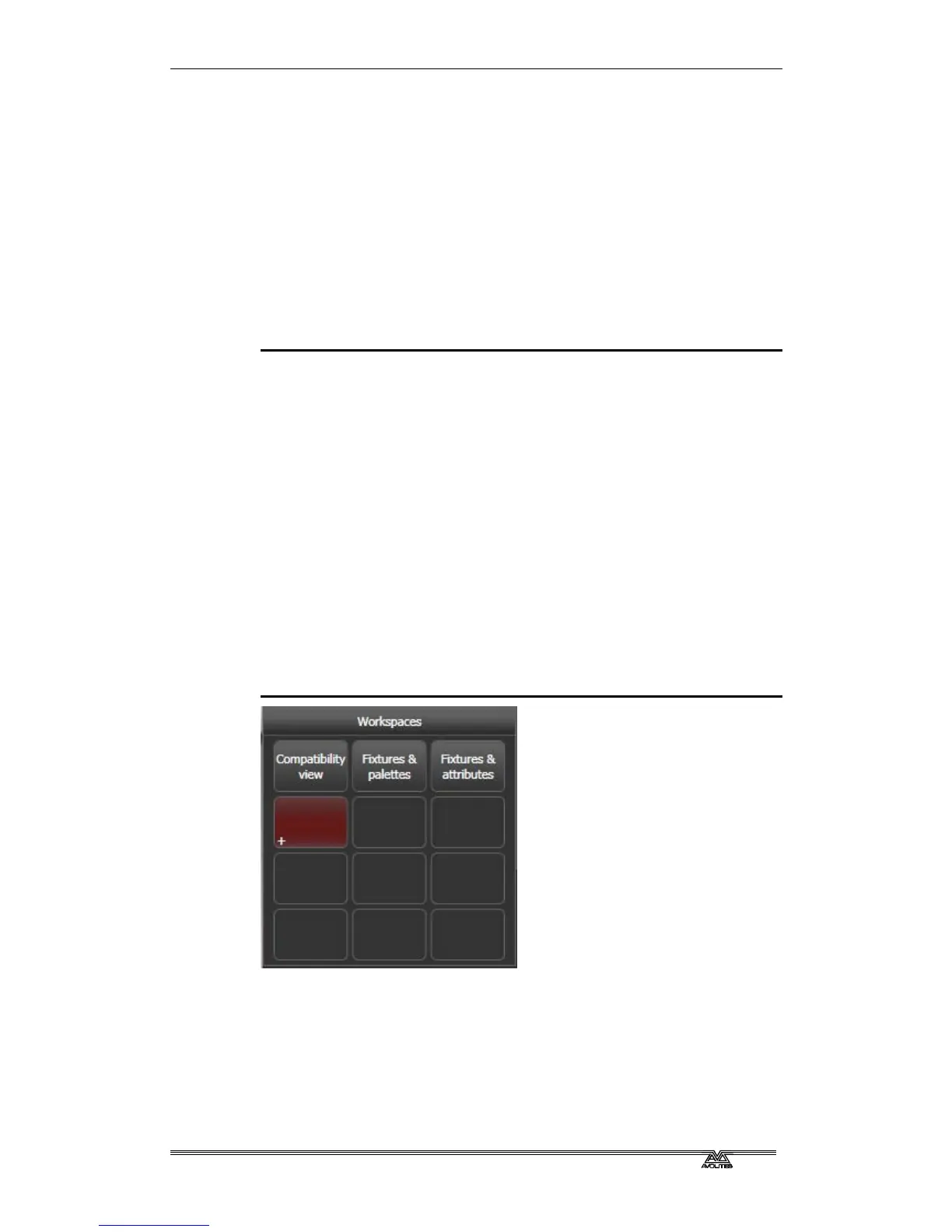
You can save different workspace setups to the Workspaces touch
buttons (to the left of the menu) by pressing
View then [Record
Workspace], then touching one of the Workspaces buttons. This
button will then reconfigure the entire workspace with a single touch.
You can also save workspaces onto any grey handle or macro button.
Workspaces are saved with the show.
As an example of setting up a workspace, suppose while
programming you wanted to be able to access fixtures, position
palettes, fixture attributes and shapes:
1> Press Exit to get to the root menu then the [Open Workspace
Window] menu softkey.
2> Find the [Fixtures] window in the list and press it.
3> If the window is not in the top left quarter, press the Size &
Position button (above the numeric keys) until the window
occupies the top left quarter.
4> Press [Open Workspace Window] again and select the
[Positions] window. Press the Size & Position button to position
it in the desired location.
5> Repeat to activate the [Attribute Control] and [Shapes]
windows.
6> Press
View (to the right of the numeric keys) then [Record
Workspace], or hold Avo and press
View. Type in a name for
the workspace. Then touch the Workspace button where you
want to store this workspace layout. Or, you can use Quick
Record – just touch an empty workspace button and it will turn
red with a +. Type a name for the workspace and touch again
to store it.
• [Record Visible/All Windows] lets you set whether the
workspace will contain only the windows which are currently
visible, or will also include any windows which are hidden
underneath other windows.
• [Remove/Leave other windows on recall] sets whether all other
windows will be closed when this workspace is recalled.



 To Next Page