7. Cues - Page 131
TitanUniversal_Man_v8-0_TT.doc 05 August 2014
7. Cues
So you’ve set up a great look on the stage, and you want to save it to
use in your show.
There are three ways of saving looks on
the Tiger Touch.
Cue: This is a single look. It may contain movement in the form of
shapes, and have fade in and fade out times.
Chase: This is a timed sequence of cues, often used for an individual
effect.
Cue List: This is a linked sequence of cues, usually used to store and
replay an entire show or an element of a show from a “go” button.
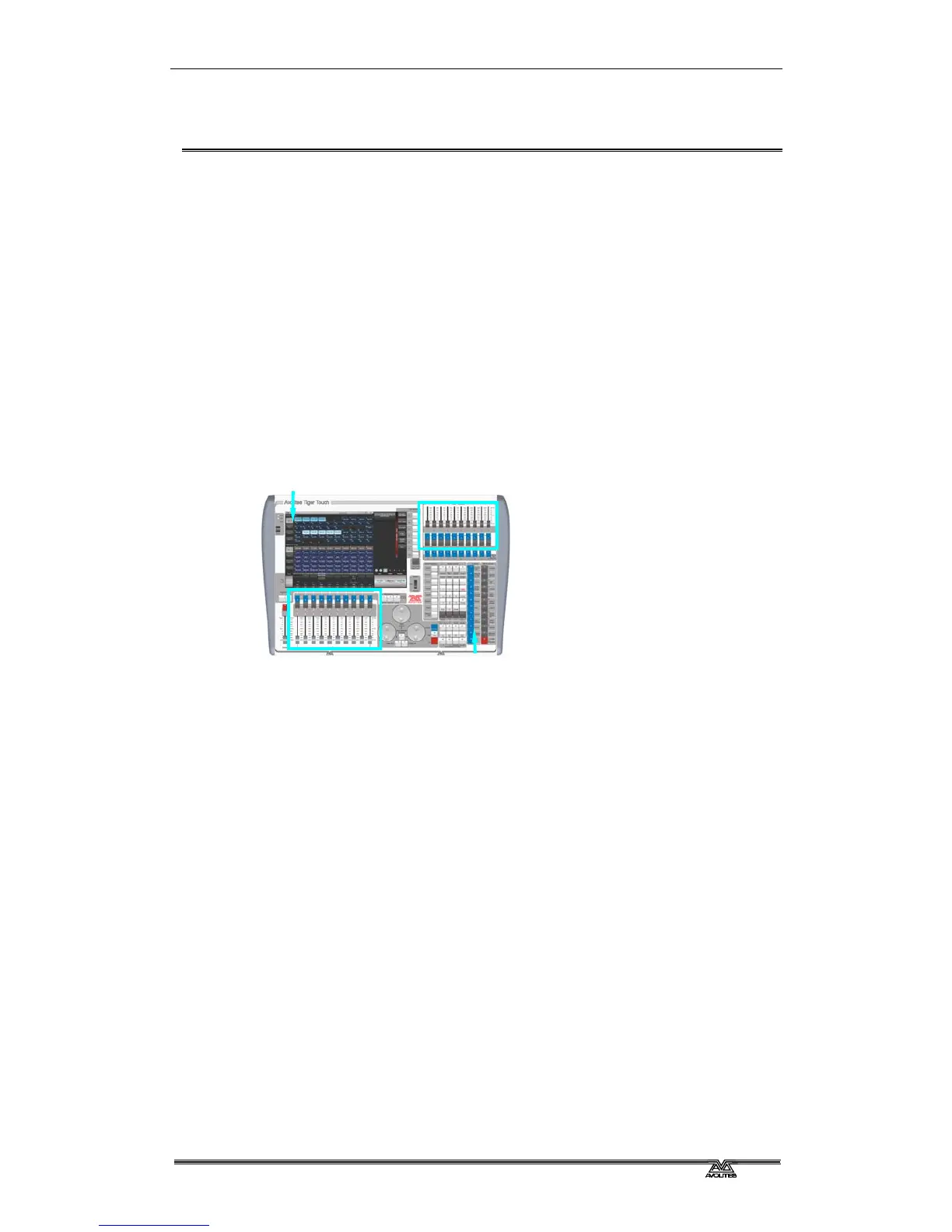
Cues, Chases and Cue Lists are normally stored in the playback
faders at the bottom left of the console. Chases and Cue Lists are
covered in the following chapters.
The Tiger Touch has 600 playbacks, in 60 pages of 10. In addition,
you can store 10 'preset' playbacks on the faders at the top right of
the console. These also have multiple pages, selected using two of
the macro/executor buttons below.
Also, you can store cues in touch buttons in the Playbacks window,
provided you don’t need a fader.
The cue functions on
the Tiger Touch are very powerful; the first part
of this section explains the basics of how the console uses cues.
7.1 Creating a cue
7.1.1 How the Tiger Touch works when programming
When you select one or more dimmers or fixtures for control, they
are loaded into the Editor. You can then use the wheels and palettes
to change the settings on the fixture. You can also apply shapes to it.
If a fixture is selected after you have changed some attributes then
the current list of fixtures in the Editor is emptied and a new list is
started.
All fixtures and attributes that have been edited since the last Clear
are stored in the Programmer. The order in which you selected the
Playback faders and buttons
Preset playbacks



 To Next Page