Page 32 – 2. Setting up and using the console
TitanUniversal_Man_v8-0_TT.doc 05 August 2014
2.3.5 Visualiser
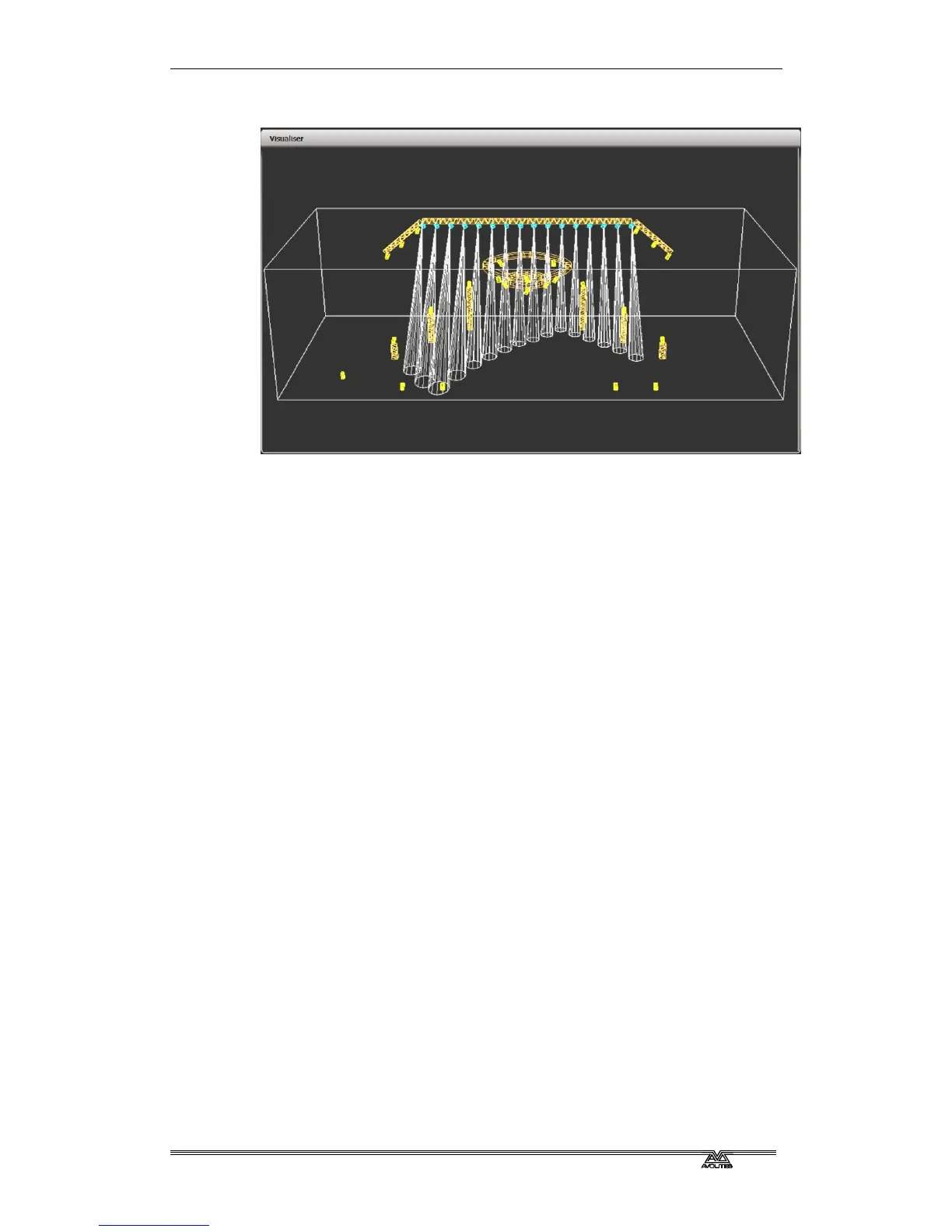
The console runs Avolites Visualiser internally. This allows you to view
the output of the console if you can’t use the real lights, enabling you
to make changes to your show at home or in your hotel. It can also
be used in Blind mode for programming during a show.
Visualiser is shown in a workspace window, either on the touch
screen or on an external monitor if you have connected one. Press
[Window Options] then [Move Screen] on the View menu to move it
between the touch screen and external monitor.
Configuration controls for Visualiser are found in the context button
area to the left of the menu buttons.
The operation of Visualiser is not covered in this manual, please refer
to the Visualiser manual.
Auto Patch
The Auto Patch function automatically creates a Visualiser rig from
your show as you patch fixtures. When you start Visualiser, it will
open with an automatic representation of your patch.
You will see the fixtures laid out on screen, sorted by handle number.
The Visualiser will start in run mode, with the simulator tab selected
so you can start controlling lights immediately.
Multiple dimmers patched to one handle will appear as a singe fixture
in Visualiser.
Fixture selection
When a fixture is selected on the console, it is highlighted in blue in
Visualiser.
Using Capture visualiser
Capture is a separate visualiser application sold by Capture
Visualisation AB. It runs on another PC networked to the console.
When using Capture, you can do some of your programming in the
visualiser and it will control the console.
Select fixtures and click on the stage in capture to move the lights to
that location.



 To Next Page