Page 34 – 2. Setting up and using the console
TitanUniversal_Man_v8-0_TT.doc 05 August 2014
To record a macro:
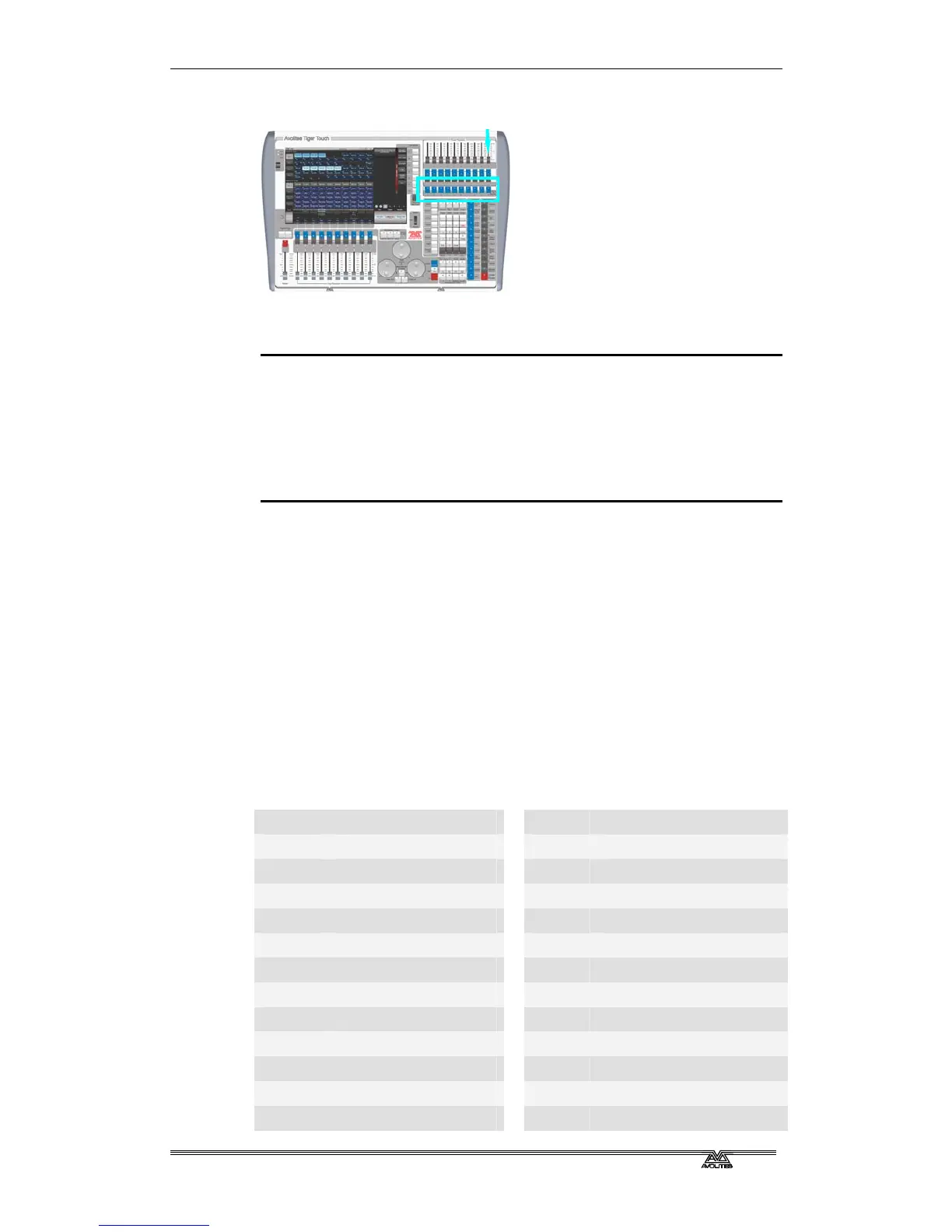
1> Press the Macro button (above keypad)
2> Press [Record]
3> Press an empty Macro button on the panel, or an empty button
in the Macro window on the screen. Recording starts. The
Insert/Macro button flashes during recording.
4> Press the sequence of buttons you want to record.
5> Press Record Macro to finish recording.
To play back the macro, just press or touch the button where you
recorded the macro. The macro will repeat all your button presses
(but there is no delay or timing between the presses).
2.3.9 Keyboard shortcuts
Many features of the console can be controlled by shortcuts on the
keyboard. These are especially useful when using Titan Mobile or
Titan Simulator.
The Titan application “captures” the keyboard on start up, meaning
that if you try to use other applications at the same time they will not
receive keypresses. Pressing Break on the keyboard releases the
keyboard for other applications but disables all text entry for Titan
including the shortcut keys; changing menus will reconnect the
keyboard to Titan.
F1 Move to other screen Ctrl X Cut text
F2 Activate window Ctrl C Copy text
F3 Minimise/Maximise Ctrl V Paste text
Shift F3 Next window Ctrl A Select all text
F4 Size/Position Ctrl Z Undo
Shift F4 Move to other screen Ctrl Y Redo
F5 Close window Alt C Clear
Shift F5 Close all windows Alt R Record menu
F6 Open Playbacks window Alt A Toggle Avo (shift) menu
F7 Open Fixtures window Alt L Locate
F8 Open Groups window Alt P Patch
F9 Open Colours window
Alt ⇑ D
Disk menu
F10 Open Positions window
Alt ⇑ S
System mode
Macro buttons



 To Next Page