Page 154 – 8. Chases
TitanUniversal_Man_v8-0_TT.doc 05 August 2014
8.3 Editing a chase
8.3.1 Opening a chase for editing
You can open a chase for editing by pressing Chase then the Swop
button of the chase. This does not affect any existing cues in the
chase. You can then save new cues at the end by pressing the Swop
button just like normal recording.
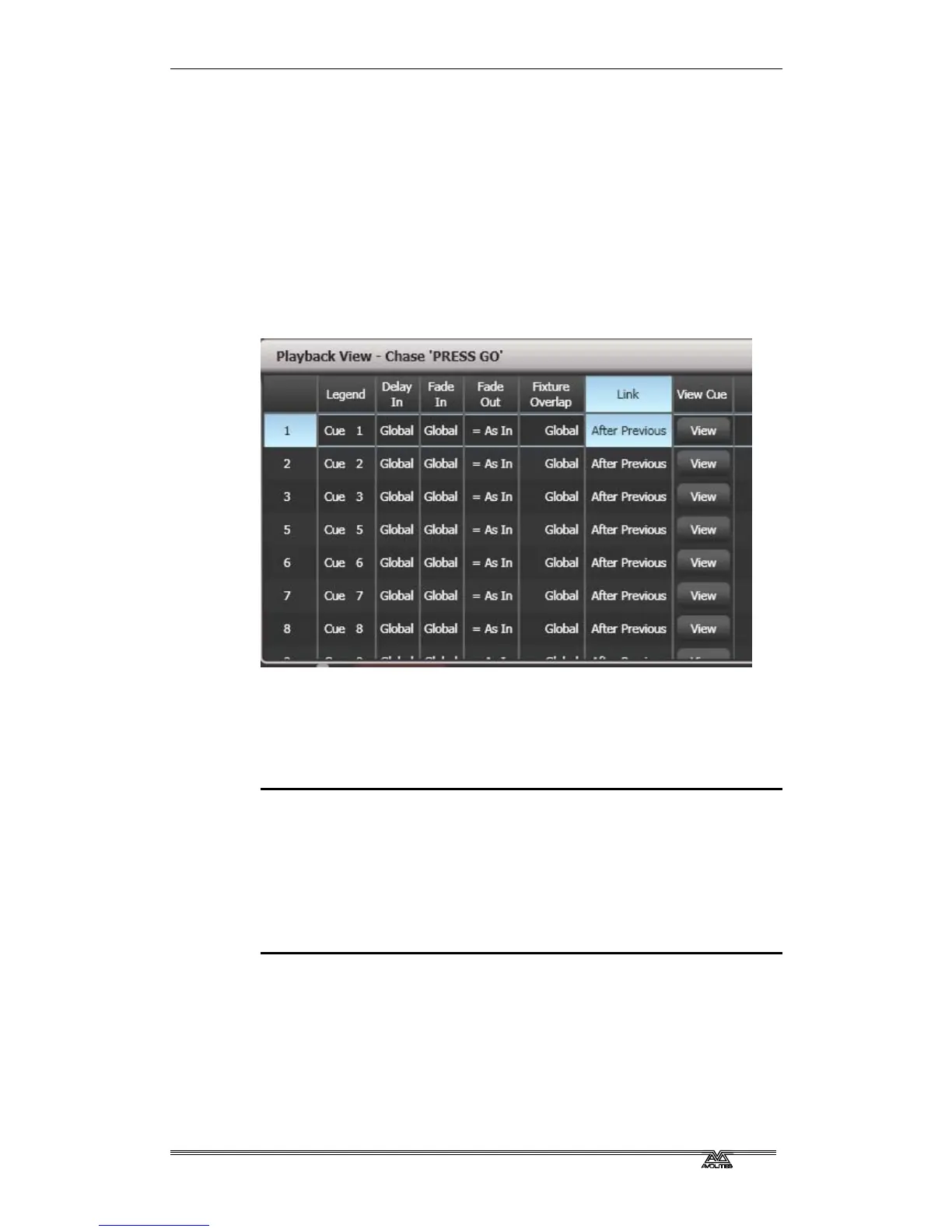
To see a list of the cues in the chase, use Playback view (touch the
playback display above the fader or press
View then the Swop button
of the playback). To edit any of the time settings in each cue, select
the setting to be modified by touching or dragging in the grid, then
use the softkey options to change the setting.
8.3.2 Editing a chase using Unfold
Unfold provides another way to edit chases. The Unfold button places
each cue in a chase on one of the playback faders, allowing you to
fire and edit each cue individually as if it was a stand-alone cue.
Unfold also allows you to set individual timing for cues in the chase.
1> Press the Unfold button, then the Swop button of the chase to
be edited.
2> The first 10 cues of the chase are loaded into the playback
faders.
3> Raise a playback fader to output the contents of that cue (fade
times will operate as programmed).
4> Various Unfold options are available, the details are below.
5> Press Unfold again to get out of unfold mode.
• To edit the contents of a cue: Press Clear to empty the
programmer, raise the fader to output the cue, make the
changes, press [Record Step], then the Swop button for the cue
number.
• To Insert a new cue at the end of the chase, set up the look for
the new cue, press [Insert Step], then press the swop button of
the first free playback.



 To Next Page