6. Shapes and Pixel Mapper effects - Page 113
TitanUniversal_Man_v8-0_TT.doc 05 August 2014
6.4.2 Overlaying effects
This example shows you how to create a diagonal white wipe with a
rotating red fan on top.
1> Select a group containing a fixture layout as described in
previous example.
2> Start creating an effect by selecting the group then [Shapes
And Effects]/[Pixel Mapper]/[Create Effect]
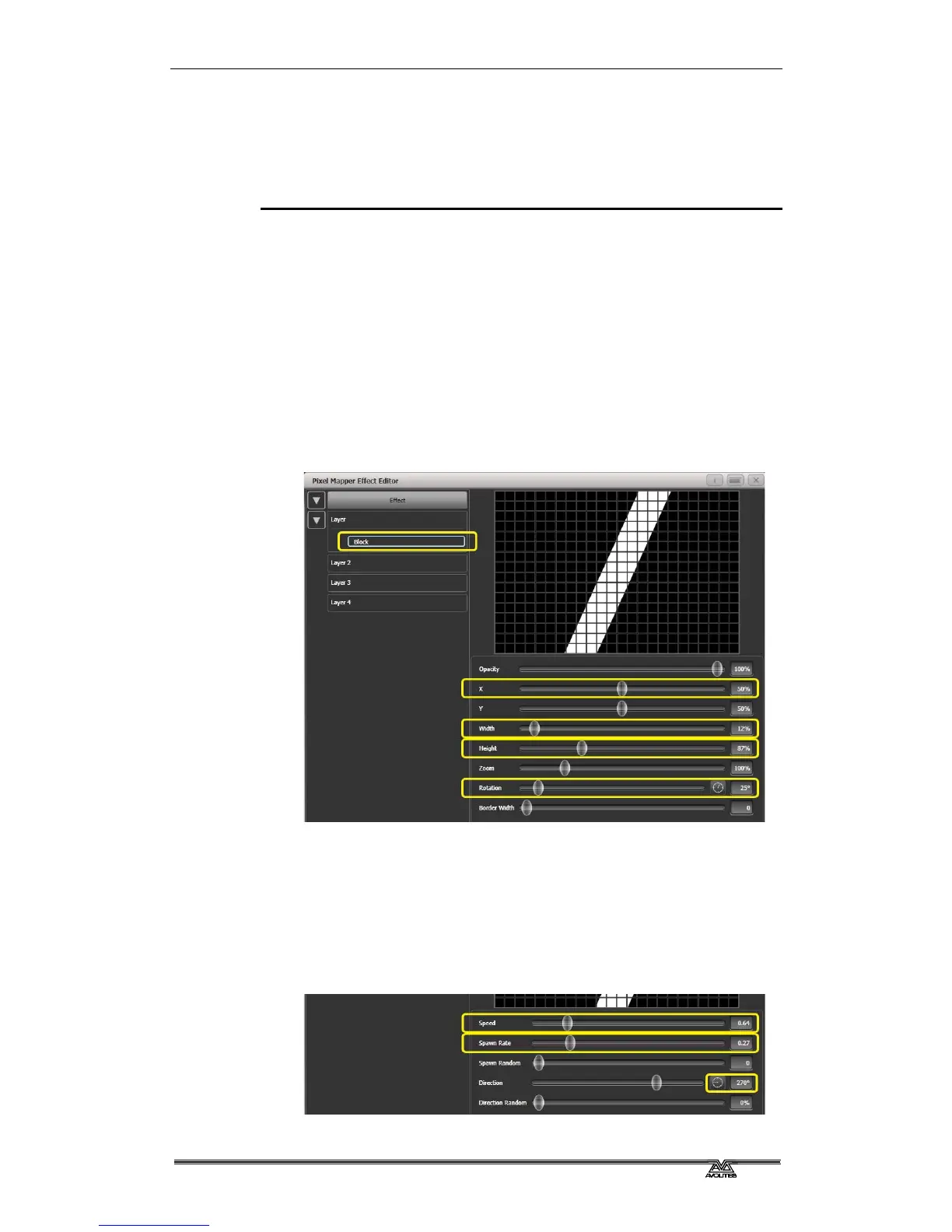
3> Select [Layer 1], click [+] at the bottom of the screen and then
choose Block from the elements that appear.
Drag the 'Rotation' slider to the right to angle the element at
approximately 25 degrees.
Drag the 'Width' slider to the left to make a thinner block.
Drag the 'Height' slider to the right until the block fills the
height of the entire window.
Drag the 'X' slider to the right until the block is just off the
screen.
4> Click [+] again and choose Linear Movement animation
(represented as a block moving left to right).
On the right side of the 'Direction' slider there is a compass
button. Click on this four times until the direction reads 270
degrees. (By default the animation is set to 90 degrees or left
to right. Because we placed the block on the far right of the
screen we want it to move the other way. The compass gives
shortcuts to the more common directions in 45 degree
increments.)



 To Next Page