10. Running the show - Page 181
TitanUniversal_Man_v8-0_TT.doc 05 August 2014
You can switch to different pages for the preset playbacks using a
factory-preloaded macro in two of the Macro/Executor buttons. This
macro is loaded with the Personality Library, if you do not see the
page macros you need to update the library.
10.1.10 Locking a playback onto the same handle on every page
Sometimes you might want to keep a playback accessible on a handle
no matter which page you are on. The [Handle Paging] option in the
[Playback Options] menu lets you do that without having to copy the
playback onto multiple pages.
[Locked] ensures the playback always appears on that handle no
matter what page is selected. Any other playbacks programmed on
that handle on other pages will not be accessible.
[Transparent Lock] means the playback will appear on the current
page only if the handle is empty on that page. If a playback is
programmed in that position on the new page, then that playback will
appear instead of the locked one. This can be useful if you only need
the locked playback to appear on certain pages but wish to reuse the
handle on other pages.
You can also lock Macros stored on the macro/executor buttons which
is useful with the Macro page change buttons.
• Lock options are also available for master faders.
10.1.11 Viewing active playbacks
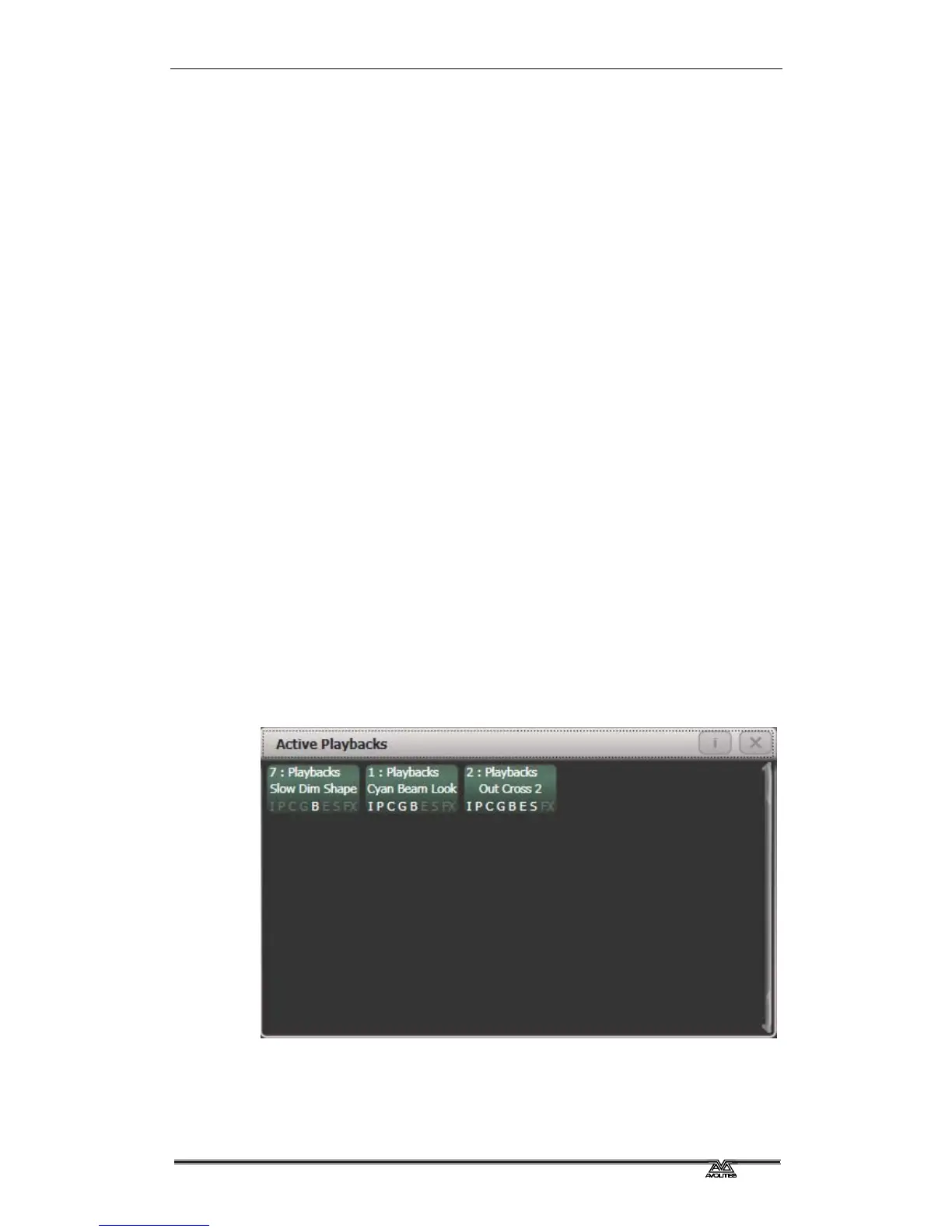
The Active Playbacks window shows details of which playbacks are
active. This provides an easy way to see what is currently running.
The top line of the button shows the page number and tells you
where on the desk the playback is stored. The second line shows the
legend, and the third line shows which attributes are affected by the
playback.
Click on a playback to instantly kill it. You can also press [Playback
Options] followed by the playback in this window to change
parameters of the playback.



 To Next Page